
Last updated: August 19, 2026
📋 TL;DR: Key Takeaways • Short answer: SD appears in seconds to minutes; 1080p usually finishes in tens of minutes to a few hours; 4K can run several hours — varies by length, codec, and server load. • “Processing up to SD”: Your video is watchable in low quality while HD keeps encoding — this is normal, not a bug. • Stuck upload: Refresh Studio, check your connection, and only re-upload after roughly 8 hours of no progress. • Skip the wait: A dedicated host serves your master instantly, with no ads, branding, or “related videos” at the end.
You finished the edit, hit upload, and now YouTube says it’s “processing.” So how long does it take YouTube to process a video? There’s no single number — a 480p clip can be live in seconds, while a 4K/60fps feature can churn for hours. Creators upload more than 500 hours of video to YouTube every minute (Statista), and every one of those files competes for the same shared encoding fleet. This guide gives you concrete time ranges by resolution and length, decodes YouTube’s exact on-screen status messages, and shows how to shave time off the wait — plus when a dedicated video host makes the wait disappear entirely.
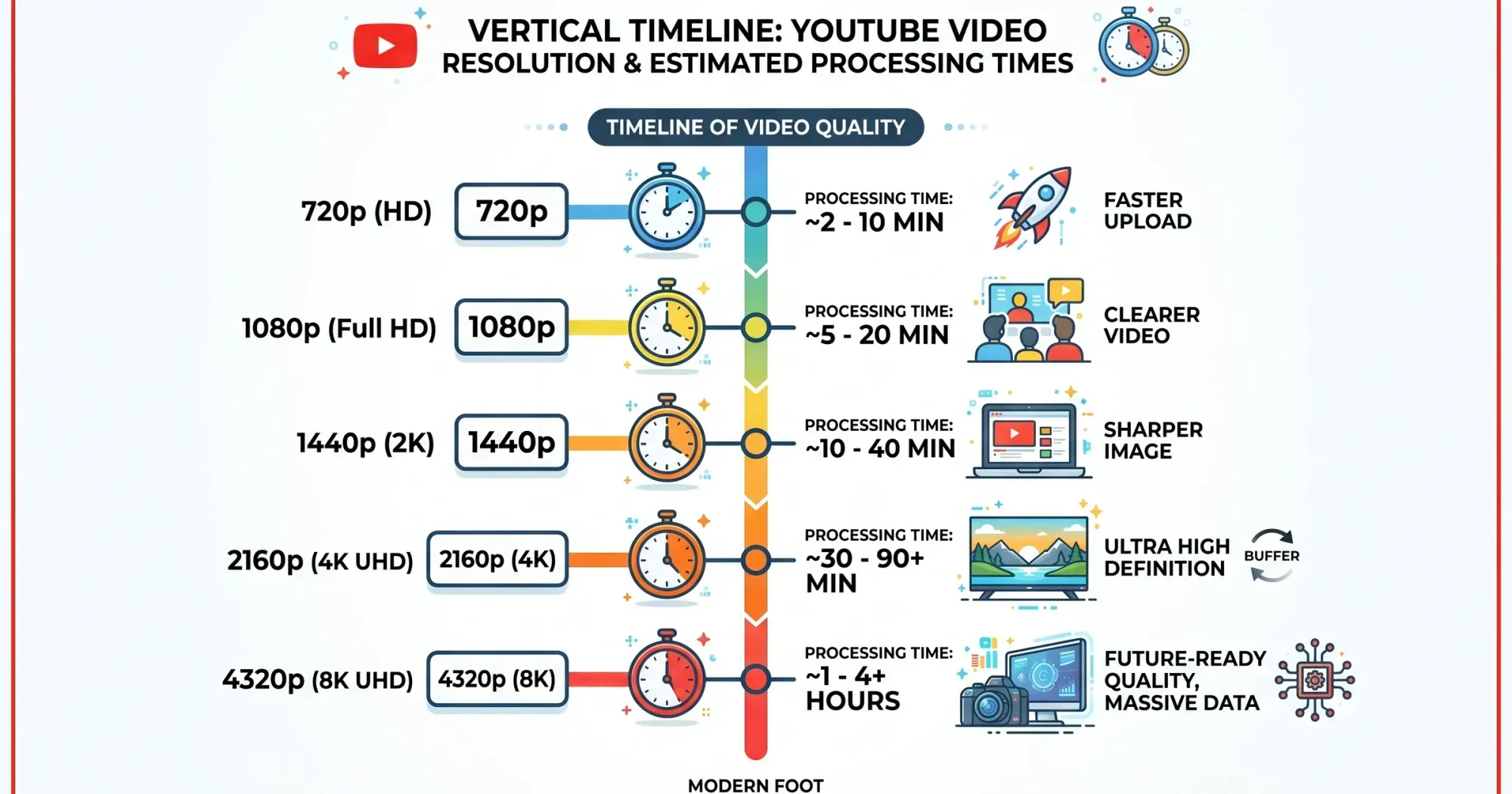
The short version: processing roughly tracks 50–100% of your video’s runtime (about 75% on average, per LaunchKit), but that multiplier climbs fast with resolution and frame rate. Here’s the typical picture:
| Resolution | Typical processing time |
|---|---|
| 360p–480p (SD) | Seconds to a few minutes |
| 720p (HD) | 5 minutes to 3 hours |
| 1080p (Full HD) | 10 minutes to 4 hours |
| 1440p (2K) | 30 minutes to 4 hours |
| 2160p (4K) | 1 to 5+ hours |
| 4320p (8K) | Several hours to a full day |
Those are wide ranges on purpose — the numbers published across the web genuinely disagree, and below we explain why (and how to land on the fast end of each range). Google itself publishes exactly one processing-time figure: a 60-minute 4K video at 30fps can take up to 4 hours to finish high-resolution processing, and a 60fps file takes longer (YouTube Help, 2026).
How does YouTube actually process your video?
Two separate things happen after you click upload, and people constantly conflate them.
Uploading is the transfer of your file from your machine to Google’s servers — that speed is set by your connection’s upload bandwidth and the file size. Processing is what happens next, entirely on YouTube’s side: it transcodes your single master file into a whole ladder of formats and resolutions so the video plays smoothly on a phone with a weak signal and on a 4K TV alike.
That transcoding is where the wait lives, and it runs in a deliberate order:
- SD first. YouTube renders a low-resolution version (usually 360p or 480p) before anything else, so viewers can start watching almost immediately.
- HD next. It then works up the ladder — 720p, 1080p, 1440p, 4K, and 8K — in sequence. Each rung holds far more data than the last, so each takes disproportionately longer.
- Finalization. Audio normalization, Content ID matching against copyrighted music, and any captions or end screens get applied. This is why a video can read “done” but a feature you added takes another minute to appear.
This staged pipeline is also why your freshly uploaded video looks soft for a while, then sharpens — you’re literally watching the SD rendition until HD finishes. Google’s recommended upload encoding settings target 8,000 kbps for 1080p30 and 35,000–45,000 kbps for standard-frame-rate 4K, so YouTube has to hit those bitrates on every output rendition before that quality goes live.
The reason none of this is instant comes down to scale. Roughly 700,000 hours of video are uploaded to YouTube every day, and each file waits its turn in a shared encoding fleet rather than getting a dedicated machine. That’s also why the same file can process in minutes one morning and drag for an hour the same evening — you’re not just paying for your own encode, you’re paying for your place in line behind everyone else’s.
How long does YouTube take to process a video, by length?
Because processing scales with total data, video length multiplies the resolution effect.
As a rough heuristic, plan for processing to take somewhere between half and the full runtime of your clip (LaunchKit); 4K and 8K stretch well beyond that. In the table below, the 1080p and 4K rows through the one-hour mark draw on the length-based benchmarks from Hollyland and the higher per-resolution estimates reported by QQTube; the 8K column and the 2+ hour row are our own extrapolations from Google’s recommended bitrate ladder, since neither source benchmarks them. Treat all of them as planning ranges, not guarantees.
| Video length | 1080p | 4K | 8K |
|---|---|---|---|
| 5 minutes | 2–10 min | 15–30 min | 1–2 hrs |
| 10 minutes | 10–20 min | 30–60 min | 2–4 hrs |
| 20 minutes | 15–30 min | 1–2 hrs | 3–6 hrs |
| 1 hour | 30–60 min | 2–4 hrs | 6–12 hrs |
| 2+ hours | 1–2 hrs | 4–8 hrs | 12–24 hrs |
Two caveats that move you within these ranges: frame rate (a 60fps file carries roughly twice the frames of 30fps, so budget close to double the time) and account limits. YouTube’s upload size and duration rules cap files at 256 GB or 12 hours, and unverified accounts are held to 15-minute uploads regardless of resolution. If you shoot 8K, note that Google’s resolution specs list 4320p (7,680 × 4,320) as the ceiling, and its recommended upload bitrates climb to 120,000–240,000 kbps for 8K at 60fps — which is why the 8K column looks brutal.
Why do the numbers vary so much (and why is mine taking so long)?
Search “YouTube processing time” and you’ll find one source claiming a few minutes and another claiming several hours for the same resolution. Both can be right. Here’s what actually moves the needle:
- Resolution and frame rate. The single biggest factor. A 4K/60fps clip holds many times the data of 720p/30fps, and it has to traverse every rung below it too. This is the difference behind sources like QQTube quoting 1–3 hours for 720p and 2–4 hours for 1080p, while lighter benchmarks quote minutes — they’re measuring different files. For a primer on the resolution tiers, see our breakdown of 4K vs. SD vs. HD video.
- Codec. If you hand YouTube an efficient codec, it still re-encodes for its own ladder. HEVC (H.265) reaches the same visual quality at bitrates roughly 35–53% lower than H.264, but running that ladder takes longer per session even though the output is smaller. Sticking to the recommended MP4/H.264 usually processes fastest.
- File size and bitrate. Bigger files simply take longer. A higher bitrate improves quality but adds data — our video bitrate guide covers the trade-off.
- Server load and peak hours. Your file joins a shared queue. Upload on a US weekday evening and you’re behind everyone else uploading then; the same file at 4 a.m. often clears far faster.
- Simultaneous uploads. Queuing several videos at once splits attention and slows each one.
In short: the “internet’s numbers disagree” because processing time is a product of your file and Google’s current load, not a fixed constant. The ranges above bracket the realistic outcomes.
What Do YouTube’s Processing Status Messages Mean?
Most panic comes from misreading YouTube’s own wording. Here’s what each message actually means.
“Processing will begin shortly”
Your file uploaded successfully and is now queued — YouTube just hasn’t started encoding it yet. This is normal and usually clears within a few minutes. During peak windows it can sit longer. If it persists past 30 minutes, refresh YouTube Studio (the status display goes stale), confirm your upload actually completed, and for very large files consider compressing before re-uploading.
“Processing up to SD” or “processing HD version”
The SD rendition is finished and watchable; the higher resolutions are still encoding. Your video is live — just not in HD yet. Nothing is broken. A 10-minute 4K upload might show SD within 5 minutes and take another 30–60 minutes to finish 4K. If viewers only see 360p/480p in the quality menu, that simply means HD hasn’t landed.
Stuck, frozen, or “processing abandoned”
“Abandoned” means YouTube stopped because it couldn’t read part of the file — usually a corrupt or unsupported source. A progress bar frozen at 95% is, in our experience, more often a stale display than a real stall. Our rule of thumb: if there’s genuinely no progress after about 8 hours, delete the upload and re-encode to MP4/H.264 before trying again. Before that threshold, refreshing and waiting almost always wins.
Two quick checks before you re-upload anything. First, confirm the source file actually plays end to end on your own machine — a file that stutters or errors locally will choke YouTube’s encoder too. Second, if you exported from an unusual container or codec, re-wrap it as MP4 with H.264 video and AAC audio; that alone resolves most genuine “abandoned” cases, because YouTube no longer has to fight an unfamiliar format before it can start. Re-uploading the exact same problem file rarely changes the outcome.
 Status messages like “processing” or a stalled progress bar usually just mean a rung of the resolution ladder hasn’t finished yet — not that anything is broken.
🎬 Tired of babysitting the processing bar? SmartVideo serves your uploaded master straight from a global CDN — no encoding queue, no ads, no branding, and no “related videos” pulling viewers off your page. See how SmartVideo compares to YouTube →
How to speed up YouTube processing
You can’t jump the queue, but you can hand YouTube less work and a cleaner file. In our own testing, the format and off-peak fixes make the biggest difference:
- Use the recommended settings. MP4 container, H.264 video, AAC audio. This is what YouTube’s pipeline is tuned for, so it needs minimal transcoding on the way in.
- Compress before uploading. Trimming bitrate slightly (with a tool like HandBrake) shrinks the file without visible quality loss. Our guide to reducing video size walks through it, and container-format basics help you pick the right export.
- Upload off-peak. Early mornings and late nights carry less queue traffic. For big 4K jobs, scheduling the upload overnight is the single easiest win.
- Go wired. An ethernet connection is steadier than Wi-Fi and less likely to drop mid-upload — check your upload speed first if transfers feel slow.
- Free up bandwidth. Pause other downloads, streams, and simultaneous uploads so the file gets your full connection.
- Verify your account. Verification lifts the 15-minute cap so you can post longer uploads without extra friction.
One expectation to set: none of these fixes let you skip processing, they only shorten it. A clean MP4 uploaded off-peak over ethernet processes on the fast end of the ranges above, but a two-hour 4K/60fps file will still take hours no matter how you prepare it — the encoding work is simply large. If a fast turnaround is non-negotiable, that constraint is worth weighing before you commit the video to YouTube at all.
If you publish programmatically, budget for the YouTube Data API quota too: Google’s default allocation caps videos.insert at 100 calls per day (priced at 1,600 units each in the quota-cost table, with a separate 10,000-unit daily pool for other endpoints), so scripted batch jobs hit a hard daily stop well before you’d expect.

Why a dedicated host skips the wait entirely
All of this assumes YouTube is the right home for your video. For a channel chasing YouTube’s audience, it is.
But if the video lives on your site — a landing page, a course, a product demo — the processing queue is pure friction, and you also inherit YouTube’s other trade-offs: embeds that drag down page load, ads on your content, YouTube branding, and “related videos” funneling viewers to competitors when your clip ends.
A dedicated video host takes a different path. Instead of re-encoding into a public ladder and queuing behind millions of other uploads, it stores your master and streams it from a CDN built for your traffic. From working with website owners who moved off YouTube embeds, the practical difference is that a video is embed-ready almost as soon as it’s uploaded — no “processing up to SD” limbo before you can share the page. You still get adaptive quality that adjusts to each viewer’s connection; you just skip the public queue that creates the wait in the first place.
The other thing you keep is control over everything that happens around the video. Captions, for instance, are yours to manage rather than something YouTube bolts on during finalization — if compliance matters, our guide to video accessibility and captions covers what that involves. Same for autoplay behavior on a hero section, which you can wire up cleanly with an autoplaying background video instead of fighting YouTube’s embed defaults. SmartVideo delivers adaptive, ad-free playback on your own domain, and if you’re weighing options, our comparison of the top YouTube competitors and the broader best video hosting platforms lays out the field. (Uploading in bulk? Our roundup of video upload and cloud storage sites is a useful companion.)

What Else Should You Know About YouTube Processing?
The answers below cover the questions creators ask most often about YouTube processing, using the time ranges and pipeline stages explained above.
Why is my YouTube video taking so long to process?
Usually because of resolution, frame rate, and server load. High-resolution or high-frame-rate files (4K, 8K, 60fps) carry far more data to transcode, and uploading during peak US evening hours puts you behind a long queue. A slow or unstable upload connection can also bottleneck the whole process before encoding even starts.
How long should I wait before re-uploading a stuck video?
Wait roughly 8 hours of genuine no-progress before re-uploading. Most stuck bars are just a stale status display that a page refresh fixes, and even 4K files can legitimately take several hours. If there is truly no movement after about 8 hours, delete the upload, re-encode to MP4 with the H.264 codec, and try again.
Does higher resolution really process slower?
Yes, substantially. Each resolution tier holds more data than the one below it, and YouTube encodes every tier up the ladder, so 4K and 8K take much longer than 1080p or 720p. A 1080p clip that finishes in minutes can take 2–4 hours in 4K (QQTube, 2026), and for long 8K videos our extrapolated planning ranges run from several hours to most of a day.
Does uploading at off-peak hours actually speed up processing?
Often, yes. Processing runs through a shared queue, so uploading during low-traffic windows — early mornings or late nights in your region — can meaningfully cut wait time. It won’t change the raw encoding work your file requires, but it reduces how long you sit in line before that work begins.
Does video length or file size matter more for processing time?
File size is the more direct driver, and length is one of the biggest things that inflates it. A long video at high resolution and bitrate produces a large file with more data to transcode. As a rough guide, processing tends to take between half and the full runtime of the video, and longer at 4K or higher (LaunchKit, 2021).
Why does my video look blurry right after I upload it?
Because YouTube renders the low-resolution SD version first so people can watch immediately, then encodes HD afterward. Right after upload you are seeing that SD rendition; once 720p, 1080p, or 4K finishes, the quality sharpens and those options appear in the settings menu. This is expected behavior, not a problem with your file.
Can I edit my video while it’s processing on YouTube?
You can edit metadata — title, description, tags, and visibility — while a video processes. You cannot trim the video or apply YouTube’s editor tools until processing finishes, since those operations need the fully encoded file. Metadata changes save normally and won’t interrupt the encode.
Will closing my browser stop YouTube from processing?
No, as long as the upload itself finished. Once the file has fully transferred to YouTube’s servers, all processing happens server-side, so you can close the browser or shut down your computer safely. Only close the tab before the upload bar completes and you risk interrupting the transfer.
What is the maximum file size and length I can upload to YouTube?
YouTube caps uploads at 256 GB or 12 hours, whichever comes first (YouTube Help, 2026). For most creators the 12-hour limit binds before the size limit. Unverified accounts are further restricted to videos of 15 minutes or less until you verify the account.
Does YouTube process audio separately from video?
Yes. Audio is handled as part of finalization, separate from the video encode. YouTube normalizes loudness for consistent volume across devices and runs Content ID checks against copyrighted music, which is why a video occasionally reads as done while a copyright or audio notice appears moments later.
Should you wait out YouTube, or switch?
Understanding how YouTube processing works is the fastest way to stop worrying about it: SD comes first, HD follows, and the timeline is set by your file’s resolution and length against Google’s current server load.
Optimize your format, compress sensibly, and upload off-peak, and you’ll land on the fast end of every range above.
But if the video’s real home is your own website, the whole processing wait is avoidable. Dedicated video hosting serves your content without the queue, the ads, or the branding — so you can publish the page the moment the upload finishes.
At Swarmify, our mission is to bring an accelerated, distraction-free video experience to websites of all sizes. Whether you’re a website owner, an agency, or you want to join our affiliate program, there’s a plan for you.


