TL;DR
- Start with the shot: You need a person, object, or replaceable screen that fits your existing video, not just a result tagged green.
- Seven checked sources: Mixkit, Pexels, Videezy, Pixabay, Coverr, Vecteezy, and Magnific offer free examples; commercial terms and credit requirements differ.
- Test the actual file: A green background is not transparency, and a promising preview is not proof of a clean key.
- Finish in the editor: Composite, review, and export the completed video before choosing website hosting.
Short answer: You can find free green screen videos on Mixkit, Pexels, Videezy, Pixabay, Coverr, Vecteezy, and Magnific, formerly Freepik. Start with a presenter or isolated object for a lesson, a hand gesture for an explainer, or a replaceable phone or laptop screen for a product demo. The examples below have page-listed free-download options, but their licenses and file formats differ.
The asset examples below were reviewed on October 1, 2026, then subjected to download and keying checks on October 22, 2026. Two full-resolution media files and one low-resolution preview downloaded successfully; three sites blocked the direct request, and one download endpoint returned an error. A commercial-use license is one check; whether the file works with your editor, composition, and campaign is another.
For ordinary establishing shots and backgrounds, use our free B-roll websites guide or the broader free stock video sites comparison. This guide stays narrower: downloadable subjects and replaceable screens you composite into an explainer, lesson, or product video for your own website.
Where can you download free green-screen stock footage?
Seven stock sources offer checked free examples for evaluating presenter keying, isolated-object compositing, hand gestures, and screen replacement.
Our comparison records specific examples rather than assigning one license, format, or quality rating to an entire catalog. Use the linked asset page as your starting point, then check the terms attached to your chosen download. The source and license together matter more than a search result’s free label.
| Source and checked example | Compositing job | Page-listed format | Commercial use and attribution | Selection caution |
|---|---|---|---|---|
| Mixkit: Weather presenter on a green screen | Put a presenter over a lesson graphic or newsroom-style background | MP4; Full HD 1920 × 1080 option; listed at 60 fps | This item uses the Stock Video Free License: commercial use permitted; attribution not required | Do not transfer these permissions to an item with the Restricted License |
| Pexels: Android phone with green screen | Replace the phone display with your product recording | MP4; 1920 × 1080; listed at 24 fps | Pexels permits commercial use without required attribution, subject to its terms | Check visible branding and whether the replacement stays aligned throughout the shot |
| Videezy: Hand gesture tapping finger | Add an isolated hand gesture over an interface or diagram | MP4; 1920 × 1080; listed at 30 fps | This item uses the Standard License: free commercial use requires attribution | Follow the web-credit instructions when the finished video appears on your site |
| Pixabay: Butterfly on green | Place an isolated object into a lesson or diagram | MP4; 2560 × 1440; listed at 30 fps | Content License permits commercial use without required attribution, subject to restrictions | Ignore sponsored iStock listings; test the moving edges rather than relying on the tags |
| Coverr: Typing on laptop with green screen | Insert a desktop product recording into a laptop display | Page identifies a 1080p MP4 | Free commercial use; attribution not required under the checked license | Confirm the file offered by Download; Coverr+ is a separate choice |
| Vecteezy: Businessman on chroma-key background | Composite a business presenter over an explanation | Original 4K ProRes QuickTime; H.264 MP4 alternatives | Free License allows some commercial projects with attribution and production-budget limits | This is not unlimited commercial permission; distinguish Free from Pro and Editorial Use Only |
| Magnific, formerly Freepik: Girl viewing a green-screen phone | Replace the phone display within a real-world scene | MP4 preview exposed; source format and resolutions unverified | Free use requires attribution; digital commercial uses are permitted subject to terms | Premium recommendations are not free; consider the depicted child and the campaign context |
What did our download checks and Mixkit keying trial reveal?
Mixkit supplied a usable presenter file for a basic key; the other checks exposed the gap between a free listing, a preview, and a delivered source.
In our October 2026 test, the Mixkit Full HD download worked without an account. The file measured 1920 × 1080 at about 60 fps, and ran about 20 seconds. No watermark was visible in four sampled frames; that is not a whole-file guarantee.
A three-second FFmpeg keying trial removed the green background. The four sampled background corners became fully transparent while a sampled dress pixel stayed opaque. Three sampled composites retained the presenter and fingers, but a pale fringe remained along parts of the outline. It passed a basic keyability check, not a finished-matte check: inspect hair and skin edges and refine the key before using it over a lesson slide.
The Coverr page’s exposed 1080p media URL also downloaded: 1920 × 1080, 24 fps, about 94 seconds. No watermark was visible in four sampled frames. The opening screen was dark; later samples showed five black-and-white tracking targets on the green display. Those targets help explain why a laptop insert needs tracking and masking rather than only a global green key. This tests the page-exposed file, not the interactive Download button’s sign-in flow.
Videezy’s signed Free Download link redirected back to the item page rather than delivering a source file. Its public preview did download, but measured only 630 × 354—not the page-listed 1920 × 1080 source. No watermark was visible in three preview samples. The full-file download and any account requirement remain unverified; do not substitute that preview for the advertised source.
Pexels, Pixabay, and Magnific returned HTTP 403 to their clip-page requests. No media was downloaded from those three sites. Their account requirements, actual file specifications, watermark presence, and keying quality remain untested. Vecteezy’s page-supplied download endpoint returned an error with no file URL; that did not establish whether an account would resolve it. These are access findings, not evidence that the sites lack free clips.
According to Mixkit’s linked Free License, this presenter permits commercial use without required attribution. Videezy’s item-specific Standard License instead requires credit, and Coverr’s license says free downloads do not require attribution. Save the applicable wording with your project even when the download itself succeeds.
The table separates page-listed options from these measured files. Only the Mixkit sample received a keying test; no successful download here establishes a library-wide quality or no-watermark promise.
The dimensions and frame rates describe these examples, not every download on each site. A different clip may have different options. In practice, choose the framing before the resolution: a sharp subject with its fingertips cropped off still cannot perform the gesture your explainer needs.
Use the table to choose a compositing job, not to declare a universal winner. If your lesson needs a person pointing toward a chart, a laptop insert is not a substitute. Plan the explanation first using our how-it-works video guide if needed, then select stock that supports it.
Mixkit: a presenter with a clearly identified free license
The checked Mixkit presenter page explicitly offers a free download for commercial or personal use under its Stock Video Free License. Mixkit distinguishes that permission from its Restricted License in its Free License (Mixkit, 2026): the Free License permits commercial projects, including online marketing ads, without required attribution. The page offers a Full HD download; that option leads to an MP4 file.
The important distinction is Free License versus Restricted License. Mixkit’s Restricted License is for non-commercial personal projects; it excludes commercial projects, advertising, and projects that charge for access. A clip being free to download does not make it suitable for a paid course or a business website.
Choose presenter footage only if the gesture, gaze, and timing help your explanation. A pointing actor should point toward the graphic you actually place beside them. Do not turn a generic stock performance into an apparent customer testimonial or imply that the actor has used or endorsed your product.
For an owned-site lesson, use the tutorial planning guide to define the action, then try the presenter against the actual slide design. Leave space for the actor’s hands and avoid putting labels where their movement will cover them. An expressive gesture can look awkward when stretched to fill narration.
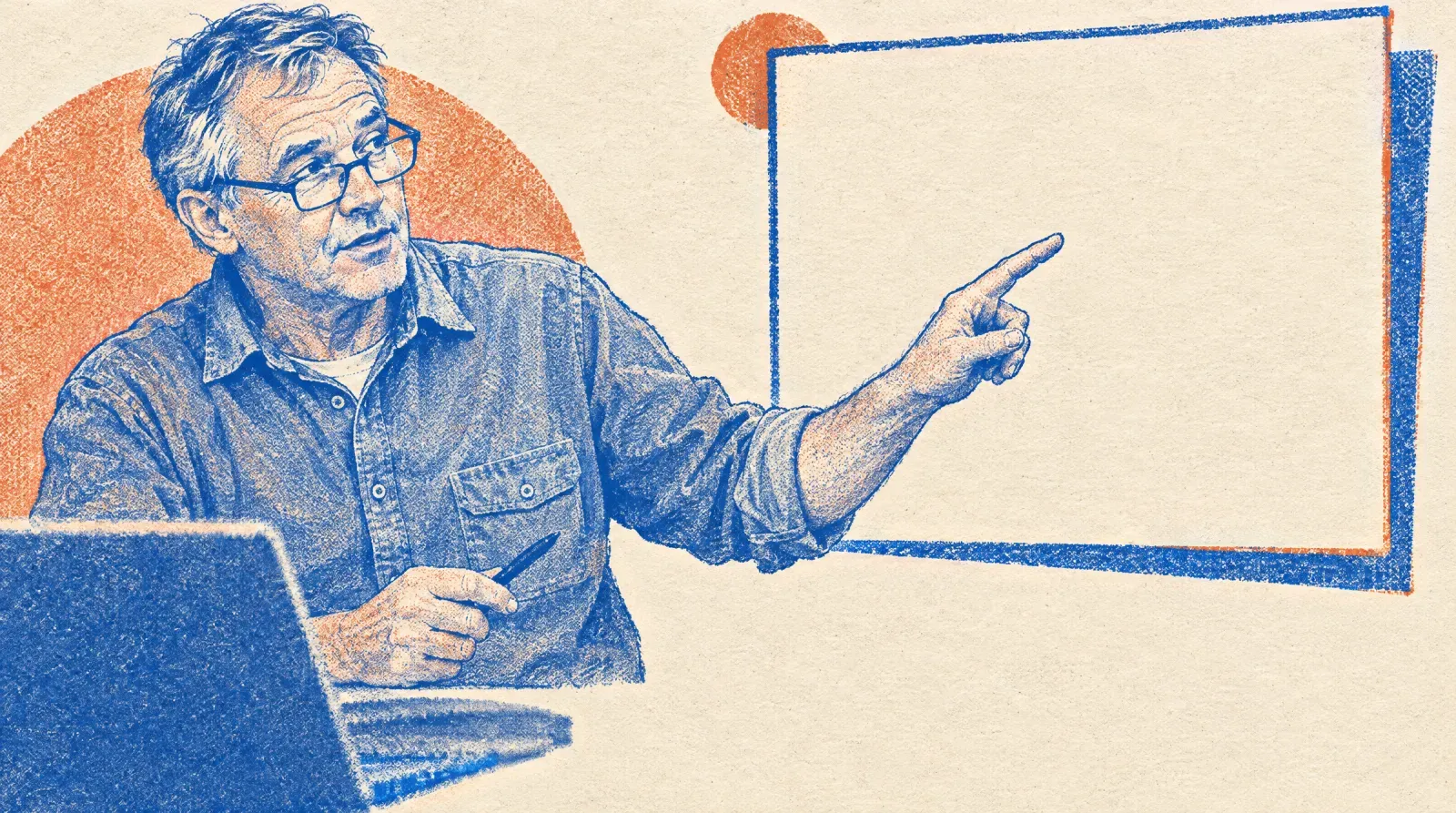 Leave space for a lesson graphic alongside the presenter. Conceptual illustration, not product UI.
Pexels: a replaceable screen rather than an isolated person
The checked Pexels phone clip shows a hand holding a smartphone with a green display and offers a free download. Pexels states in its Pexels License (Pexels, 2026) that free use and modification do not require attribution, but depicted people or brands must not appear to endorse your product. That matters for a phone insert: replacing the display does not clear the rest of the shot. The page lists a Full HD rendition and exposes an MP4 media URL in its editing link.
A replaceable-screen shot keeps the device, hand, and surrounding scene. Your job is to insert your recording into the display, not remove everything green across the whole image. Restrict the key to the screen area and plan how the insert will follow any tilt, movement, or finger passing in front of it.
Pexels’ full terms state: “If Content depicts any trademarks, logos or brands (whether two- or three-dimensional), you cannot use that Content for commercial purposes in relation to goods and services, in particular not print that Content on merchandise or other physical products for sale.” Choose a shot without visible branding.
Before choosing this kind of shot, prepare a recording of the interface you intend to show. Ask whether the important interaction remains legible inside the tilted display and whether the visible hand supports that interaction. A scene that looks attractive in a source preview can still be the wrong container for a dense dashboard or detailed lesson.
Videezy: reusable hand gestures with a credit requirement
The checked Videezy hand-gesture page lists an MP4 file, a Free Download button, and an asset-specific Standard License. According to Videezy’s Standard License guidance (Videezy, 2026), free personal, educational, commercial, and editorial use requires attribution. For web use, Videezy specifies attribution HTML on the page where the work appears, not merely a note saved inside the editing project.
This makes credit placement part of the production plan. Keep the asset’s License Info instructions with your project, and send the required credit to whoever maintains the page containing the final video. If you cannot provide that credit, this free-license option does not fit your project; choose another asset or obtain the appropriate paid permission.
Do not confuse green-colored motion backgrounds with subjects filmed against a removable background. A green orb animation is not equivalent to a hand filmed against a green screen. Filter for the asset type you can import, open the item page, and treat its license and format as authoritative rather than the search label.
An isolated tap works best when the gesture has a clear destination in your own diagram. Position the fingertip where the viewer should look, then check the motion through the end of the action. Avoid treating the hand as a recording of a real product interaction: it is a stock performance you are fitting into your explanation.
Pixabay: an isolated object under the Content License
The checked butterfly page calls the video free for use and download, lists MP4 as its media type, and identifies the Pixabay Content License. Its listed dimensions and frame rate appear in the comparison above. Pixabay explains in its Content License summary (Pixabay, 2026) that free use, modification, and use without attribution are allowed subject to prohibited uses. Only the full terms are legally binding; the summary is a screening aid, not a substitute for the license.
This is an object-compositing example, not ordinary nature B-roll. You might use an isolated butterfly to illustrate a lesson or place a moving subject beside a diagram. That still requires inspecting the actual green background and moving outline. A tag saying “screen” or “4k” does not establish an alpha channel, a perfect matte, or the dimensions of every available download.
Read the full Pixabay terms before commercial use. They prohibit standalone redistribution, misleading uses, and certain commercial uses involving recognizable trademarks, logos, or brands. A new lesson composite is a different activity from offering the downloaded butterfly as your own stock asset. Keep it within the finished video rather than distributing the source file to your audience.
Coverr: a laptop display for a product recording
The checked Coverr laptop page offers Download, identifies free commercial rights, and exposes a 1080p MP4 media file. Coverr states in its License (Coverr, 2026) that commercial and non-commercial use is allowed at no cost and that free downloads do not require attribution. That settles the credit question, not every rights question: check the release limitations below before using the scene in a campaign.
The selection question is whether the screen can hold your recording clearly. A keyboard, visible hands, and surrounding workspace give the insert context, but they also constrain how large your interface can appear. Choose the moment that supports the specific feature being explained rather than forcing an entire walkthrough into a small screen.
Coverr’s license says: “While we do obtain model releases for individuals appearing in our content, we do not provide these releases to users.” It also says: “We do not hold releases for any brands, trademarks, or identifiable properties or landmarks that may appear in the content.” Coverr adds that it “cannot guarantee the scope of permitted uses for each piece of content.”
Vecteezy: a presenter with multiple download formats
The checked Vecteezy businessman page explicitly labels the item Free, offers Free Download, and shows Attribution Required and Free License. Its format menu lists an original ProRes QuickTime file plus H.264 MP4 alternatives. The original is listed as 4K; use an offered MP4 alternative if it fits your editor and delivery plan, rather than assuming the preview is the source file.
Vecteezy’s License Agreement (Vecteezy, 2026) says the Free License is for individuals working on small projects and requires attribution. It states: “Content may be used in video, film, or production projects with budgets up to $1,000.” Its general terms also say: “Content may be used in only one Design Project per download.”
Those conditions are more restrictive than a simple “commercial use allowed” badge suggests. Check the actual project and license; a public business video is not automatically eligible just because online use is allowed.
Vecteezy’s License Agreement says you must upgrade to Pro Standard if you cannot provide attribution. Pro content and Editorial Use Only content are separate categories; the latter is not licensed for commercial or promotional end products. Keep that distinction visible when filtering results, especially if the video will advertise a product or appear in a paid campaign.
The page’s “Model Released” label is useful information, not a guarantee that your edit can imply an endorsement. Match the actor’s pose to an explanatory role, retain the required credit instructions, and confirm any campaign-specific permission question before approval. Do not choose a larger source file simply because it is available if the shot itself does not fit.
Magnific, formerly Freepik: a free phone insert among premium results
The checked Magnific phone page is a free-video listing with a Download control and an exposed MP4 preview. The readable proxy copy did not expose the source-format menu or resolution options, so those remain unverified. Freepik is now Magnific; the asset uses magnific.com while the linked guidance still uses freepik.com.
Magnific explains in its digital-use guidance (Magnific, 2026) that website, video, and digital-ad uses are permitted under the applicable conditions. Free users must provide attribution. For video, the guidance allows credit in the video credits or at the end, or in the hosting-platform description with a link.
Keep the resource’s license document and current attribution instructions, and review the linked Terms of Use before committing to a project.
This example depicts a child viewing a phone in a home setting. Treat that context as a selection constraint, not an invitation to invent a testimonial or endorsement. For a business demo, make sure the depicted use suits the product, the replacement screen is readable, and the commercial context is permitted. An unidentifiable device shot may be a better fit if the campaign does not need a person.
How can you tell whether a green-screen clip is keyable?
A keyable clip has a subject you want to preserve and a background color you can remove without damaging that subject.
Green-screen stock footage is not automatically transparent footage. Adobe explains in its keying guidance that keying creates transparency from a selected background color so the subject can be composited over another layer. Adobe recommends footage with the least possible compression; a green-screen search label does not establish that the source preserves enough edge detail.
Inspect a candidate at its intended size before building the whole scene around it. Look for a reasonably consistent background, visible separation around hair and fingers, and enough space for the complete movement. A small web preview may hide compression blocks or edge problems that become distracting when the subject fills a course-video frame.
Separate technical fit from visual fit. A file can import correctly but leave no space for the title you need, or place a phone at an angle that makes the product unreadable. Approve the composition with a representative frame, then approve the action with a short composite. This avoids building the rest of a lesson around a clip that only works as a thumbnail.
Check the edges through the whole action
Adobe recommends choosing an intricate frame containing fine hair or semitransparent detail when adjusting a key, and checking other frames when lighting changes. Use that as a starting point, then scrub the opening, middle, and ending and play the action at normal speed. In practice, a still frame is only a first check: an edge that looks acceptable when paused may flicker when the subject moves.
Build a short trial composite over the background you intend to use, and also inspect it against a contrasting background. Check the matte, or transparency mask, as well as the color image. Reject footage if preserving the subject requires cleanup beyond your project budget; do not assume a stronger key setting will recover missing detail.
Adobe also recommends temporarily changing the composition background or adding a background layer to reveal transparent areas. Do not judge the result only over a dark background: a dark edge can disappear there and become obvious over a pale slide; a bright halo can do the opposite. Inspect your intended design and a contrasting test background, then remove the test layer before export.
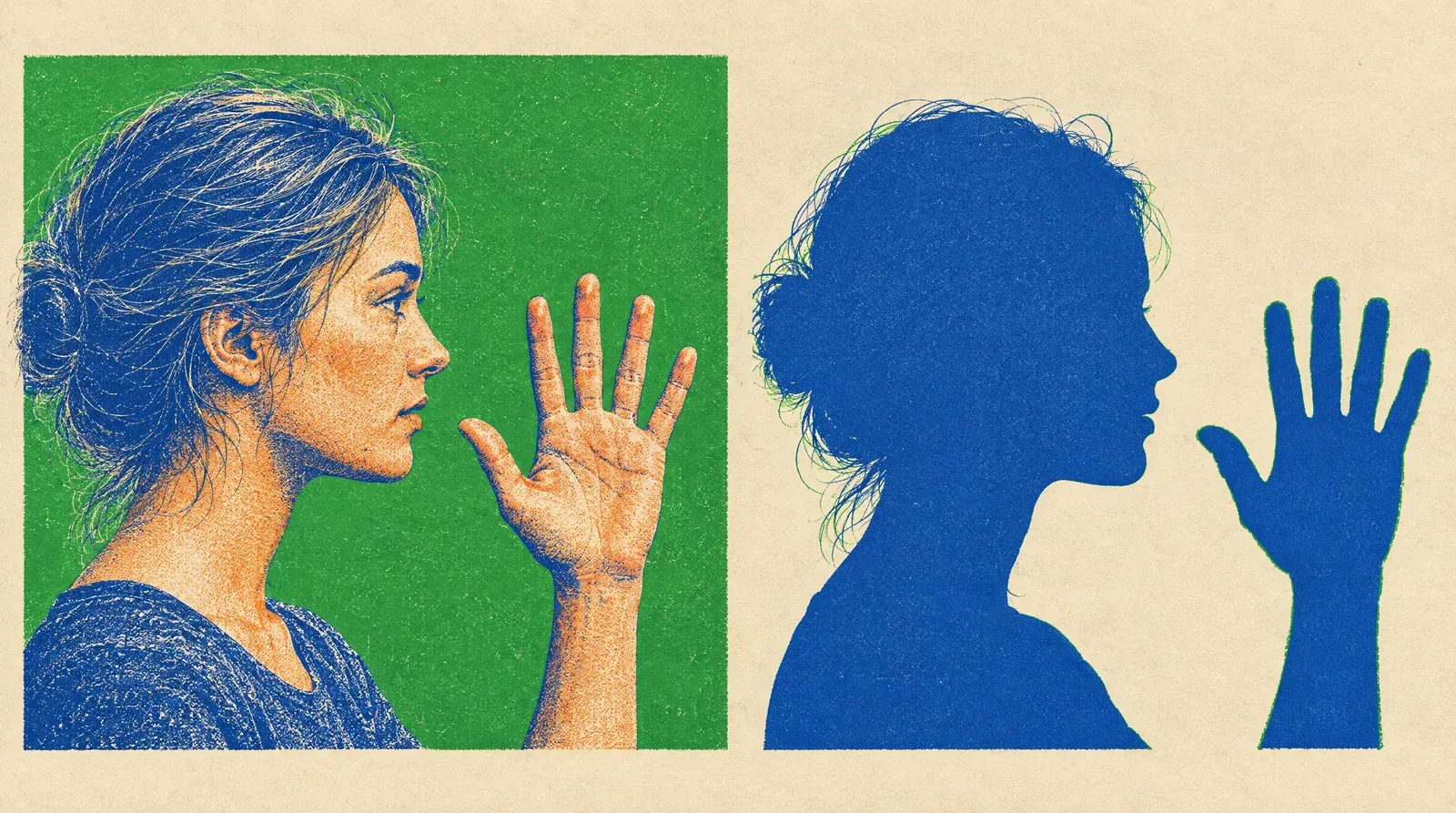 Inspect hair and finger edges when building a matte. Conceptual illustration, not a software screenshot.
Distinguish subjects, screen replacements, and effect overlays
An isolated person or hand needs a clean outside silhouette. A screen replacement needs alignment within the device display and correct handling of anything crossing it. A decorative layer such as grain or a light leak is a different job, covered in our free video overlay guide.
For a moving phone or laptop, check whether your editor can track the display and fit the recording to its corners. Also check that the interface remains readable at the final viewing size. Start with a static or gently moving screen if the project does not justify a more involved tracking and masking pass.
 Fit the insert to the display corners and account for fingers crossing it. Conceptual illustration, not a software screenshot.
Choose the file your editor can actually use
The Vecteezy example shows why “green-screen stock” is not one format: its original is ProRes QuickTime while its alternatives are H.264 MP4. Use the rendition supported by your editor, or convert through a deliberate editing workflow. Renaming an extension does not change the underlying media.
A higher-resolution option does not fix a cropped subject or make every edge recoverable. Choose enough detail for the final composition and avoid unnecessary rounds of recompression. If the source needs so much cleanup that it dominates the production, a simpler shot or an original screen recording can be a better choice than a more impressive-looking download.
How do you turn the download into a finished website video?
A finished website video contains the completed composite, not an unkeyed source file awaiting a player effect.
Complete the creative work in your editor: remove the intended green area, insert the replacement background or recording, and render the result. Hosting comes after this approval step, when you have one video ready for viewers. Keep the layered project for future revisions rather than treating the delivery copy as your only master.
- Set the destination frame. Choose the aspect ratio and composition before placing the stock subject. Leave room for lesson text or interface details.
- Limit the key to the intended area. Use a rough mask to exclude irrelevant surroundings; for device footage, isolate the display instead of globally removing green.
- Refine the composite. Inspect the matte, remove unwanted green spill, and preserve the subject’s edges. Match the insert’s position, movement, and perspective to the shot.
- Review a rendered segment. Check it at normal speed and at the final display size. Make sure no green rectangle, tracking mark, or accidentally transparent subject area survives.
- Export and keep the project. Save the source footage and license record separately from the completed master. Use our website video format guide for the delivery-file decision rather than uploading the stock download unchanged.
 Key only the intended green area, preserve edge detail, then composite the replacement scene. Conceptual schematic, not editing software.
In practice, the delivery check deserves its own pass: open the rendered file outside the editor and watch the composite through every transition. Confirm readable text, intentional audio, and the credits required by your chosen license. A correct editing preview is not a substitute for checking the file your audience will receive.
Once the completed composite is approved, choose how to deliver that finished video on your own site. Explore Swarmify’s website video hosting solutions for your platform or course workflow; keep keying and screen replacement in the editing project.
What permissions should you check before using a clip commercially?
Before selecting any clip, use this checklist:
- Check the selected item’s license, commercial scope, budget limits, and required credit; paid, sponsored, restricted, and editorial results may have different terms.
- Check whether people, brands, or property need additional permissions, and avoid implying an endorsement.
- Check transfer and redistribution rules before sharing source files; retain the asset URL, download date, license, and credit instructions.
For a course or product page, give the publishing owner the credit instructions before approval. A video editor can add an end credit, but a web-credit requirement may also need page markup controlled by someone else. Verify the required destination and wording instead of assuming a credit hidden in the project file is enough.
Check releases and the impression your edit creates
Do not assume a recognizable person has a model release covering every proposed use because the clip has a free-download button. Ask the provider about the release documentation your campaign requires, especially when the edit could imply a personal condition, opinion, or endorsement. If you cannot establish the needed permission, choose a less identifying shot.
Mixkit’s User Terms warn that third-party components, such as a brand, may not have been cleared for your use and make you responsible for evaluating permissions. The checked license pages establish download and usage terms, not a blanket release guarantee. Keep that distinction visible when approving stock for a client.
Save a usable rights record, not just a bookmark
Keep the asset’s identity and the terms together: source URL, creator, download date, selected rendition, license name, and any required attribution. Save the supplied license document or a dated copy of the relevant page where the source permits it. A bookmark alone will not show the wording you reviewed if the page later changes.
Vecteezy’s agreement says: “You may not download or stockpile Content for future use. You may save Content on your computer or other storage device for up to 30 days while your project is in progress.” It adds: “Once your project is complete or if you unsubscribe, all unused Content must be deleted for your computer or other storage device.”
Record the intended use in ordinary language, such as “phone insert in the public feature demonstration,” rather than “marketing.” Include any unresolved person, brand, or property question and the person responsible for resolving it. If the file will move to another editor or a client, review the provider’s transfer rules before sharing raw stock; delivering a finished composite does not automatically license everyone to reuse its source.
What else should you know about green-screen downloads?
The answers below distinguish download permissions, source-file selection, and editing tasks for a finished business video.
Are free green screen videos already transparent?
Not necessarily: a clip with a visible green background still needs keying before it can sit over another scene. Check the asset description and the actual file instead of treating a green-screen tag as proof of an alpha channel.
Can I use free green-screen footage in a business video?
Yes, when the particular license permits your commercial use and you meet its conditions. Check required attribution and any additional permissions involving recognizable people, brands, or property before approving the edit.
Do I have to credit the stock-video source?
It depends on the license attached to your chosen asset: some require credit and others do not. Keep the instructions with the project and place the credit at the destination that license specifies, rather than assuming an end credit always meets a web-credit requirement.
Is footage with a green background always useful for chroma keying?
No: a search can return green landscapes, abstract backgrounds, or subjects wearing green rather than a removable studio background. Look for a clearly separated subject and test a short composite before committing to the clip.
Should I download a preview or the offered source file?
Download the file supplied through the asset’s authorized download option rather than saving a small preview. Then check its dimensions, frame rate, and import behavior in your editor; the preview and downloadable file can have different specifications.
Is removing a green phone screen the same as keying a presenter?
No: a phone insert must remain fitted to the display, including its perspective and any movement. You may also need a mask for fingers passing over the screen, whereas an isolated presenter mainly needs a clean outer silhouette.
Why does a green outline remain after keying?
Green light reflected onto the subject can remain as color spill even after the background becomes transparent. Inspect the matte separately and use spill cleanup carefully, checking that the fix does not damage the subject’s natural colors or edges.
Should I upload the original green-screen clip to my website?
Upload the rendered composite when viewers are meant to see the completed lesson or product video. Keep the unkeyed clip in your editing project and confirm the exported file includes the replacement scene before choosing its hosting and delivery settings. For a product video, our product video best practices guide covers placement and hosting.
Does free download mean unlimited commercial use?
No: a free license can still limit the project, production budget, or way you distribute the result. Read the terms for your actual production rather than relying on the download price or a general commercial-use badge.
Can I give the downloaded clip to a client as reusable stock?
Not just because you can include it in a finished video. Check the source’s redistribution and transfer rules, and keep the completed composite separate from any raw asset handoff.