You can embed a YouTube playlist by pasting YouTube’s generated iframe or by using an embed URL with listType=playlist&list=PLAYLIST_ID; the direct playlist form does not need a video ID. Wrap either iframe in a responsive container so it scales on phones without overflowing the page.
📋 TL;DR • Fastest route: Open the playlist on YouTube, choose Share, then Embed, and copy the iframe. • Direct route: Use
https://www.youtube.com/embed?listType=playlist&list=PLAYLIST_ID; no video ID is required (Google Developers, 2026). • Responsive sizing: Give the iframe a full width and a 16:9 aspect ratio, with a maximum-width wrapper if needed. • Missing videos: Check each item’s privacy, age restriction, and Allow embedding setting before changing your CSS.
This guide covers the native YouTube workflow, copyable responsive HTML, and the failures that show up after the first paste. If you are choosing among other ways to embed video on a website, that broader guide compares the main approaches; here, we will stay focused on playlists.
What Does a Responsive YouTube Playlist Embed Look Like?
A responsive playlist embed uses the listType=playlist URL in an iframe whose width follows the content column. Replace PLAYLIST_ID before pasting the whole block into your page.
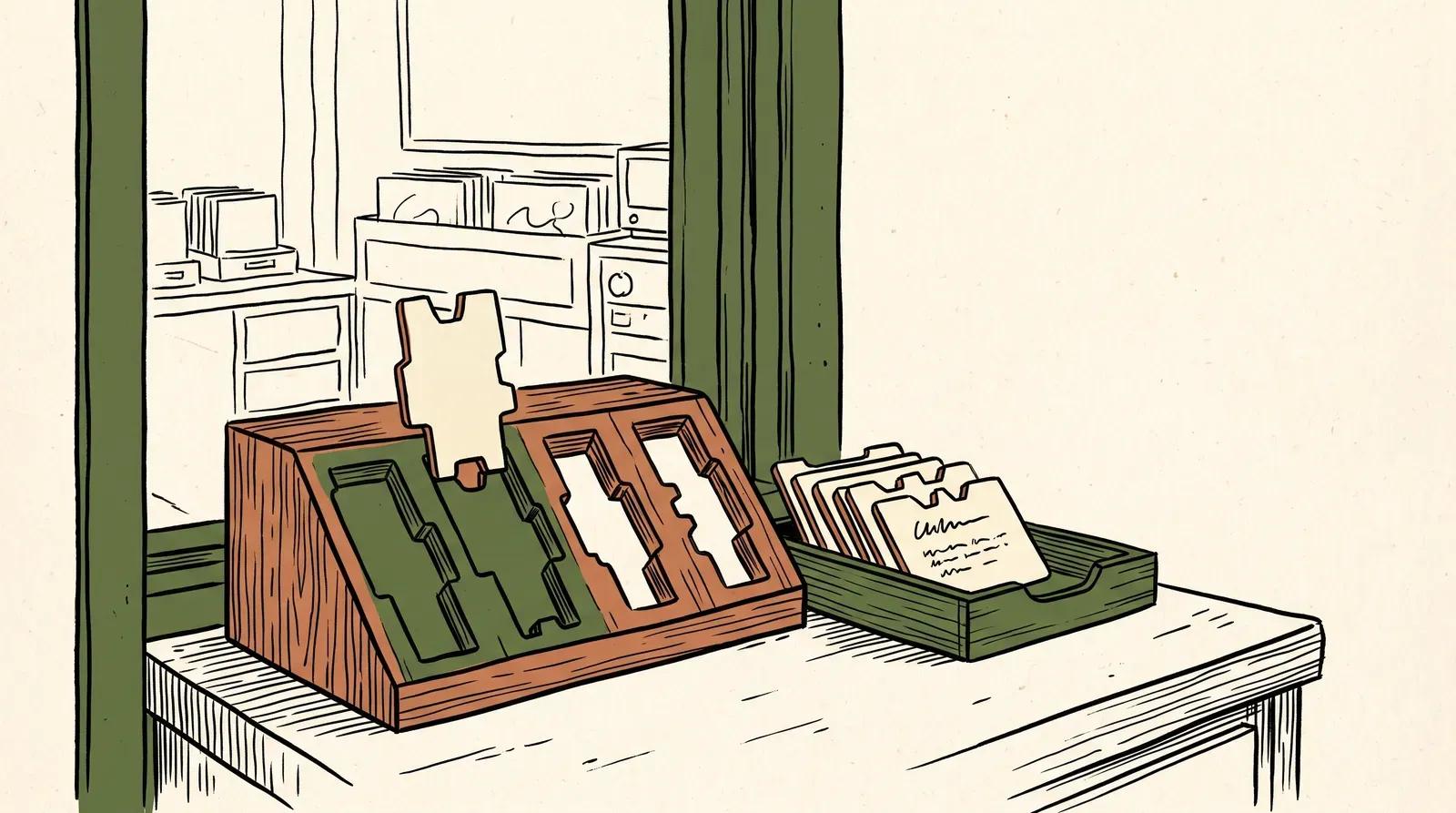
 A responsive wrapper lets a playlist player keep its widescreen shape as the page narrows. Conceptual illustration, not a player screenshot.
<div style="width: 100%; margin: 0 auto;">
<iframe
style="width: 100%; aspect-ratio: 16 / 9; border: 0;"
src="https://www.youtube.com/embed?listType=playlist&list=PLAYLIST_ID"
title="YouTube video playlist"
allow="accelerometer; autoplay; clipboard-write; encrypted-media; gyroscope; picture-in-picture; web-share"
allowfullscreen>
</iframe>
</div>The iframe fills the available width, and aspect-ratio: 16 / 9 calculates its height automatically. Google documents a minimum 200-by-200-pixel viewport and recommends at least 480 by 270 pixels for a 16:9 player. That recommended viewport has 3.24x the pixel area of the minimum, so treat 200 by 200 as a floor, not a comfortable default (Google Developers, 2026).
ℹ️ What is a PLAYLIST_ID? It is the exact value after
list=in a YouTube playlist URL. Inyoutube.com/playlist?list=PLAYLIST_ID, that query value is the playlist ID; copy it exactly and replacePLAYLIST_IDin the embed URL.
How Do You Use YouTube’s Share > Embed Option?
YouTube’s Share > Embed route supplies the iframe URL and permissions; use it when the playlist page exposes the sharing controls. The labels can vary across desktop layouts.
- Open the playlist page on YouTube in a desktop browser.
- Select Share beneath the playlist title or description.
- Choose Embed from the sharing options.
- Review the available settings and copy the complete iframe code.
- Paste it into an HTML block, code block, or your site template, then preview the published page.
YouTube documents the same Share-to-Embed workflow for videos and playlists in its help center (YouTube Help, 2026). Copy the full iframe rather than only its src value; the remaining attributes support fullscreen playback, permissions, and accessibility. Preview the page after pasting so the player, not just the URL, is visible.
Check that YouTube generated a playlist embed
Inspect the copied src. The current player reference documents a playlist source as /embed?listType=playlist&list=PLAYLIST_ID. If the URL instead points to /embed/VIDEO_ID with no list parameter, you copied a single video rather than the playlist.
After pasting, click through several entries. A playlist can appear correct at first because the opening video plays while the queue information is missing. For a deeper explanation of each iframe attribute, use this guide to video embed code structure and security.
How Do You Build the Playlist Embed URL Without a Video ID?
The direct form suits a CMS that accepts a URL instead of iframe markup, or a template that builds embeds from stored playlist IDs.
https://www.youtube.com/embed?listType=playlist&list=PLAYLIST_IDNo /VIDEO_ID path segment is needed. Google’s player parameter reference says that when listType=playlist and list are set, the iframe loads that playlist. This avoids making one video ID do double duty as both the starting item and the playlist selector (Google Developers, 2026).
Put that URL in the iframe’s src, as shown in the quick-answer code. The table compares the two native forms so you can choose the one that fits your page editor without mixing fragments from both.
| Form | Example path | Use it when |
|---|---|---|
| Generated | src supplied by YouTube | You copied code from Share > Embed |
| Parameter-based | /embed?listType=playlist&list=PLAYLIST_ID | You are constructing the URL yourself |
Do not combine fragments from unrelated URLs. If you add more player parameters, introduce them with & after the playlist value. Use only parameters in the current YouTube IFrame Player reference (Google Developers, 2026); old snippets that rely on removed or deprecated parameters are not a sound starting point.
Where Do You Find the Playlist ID?
A playlist ID is the complete value after the list query parameter; copy it without the leading list= or the next ampersand.
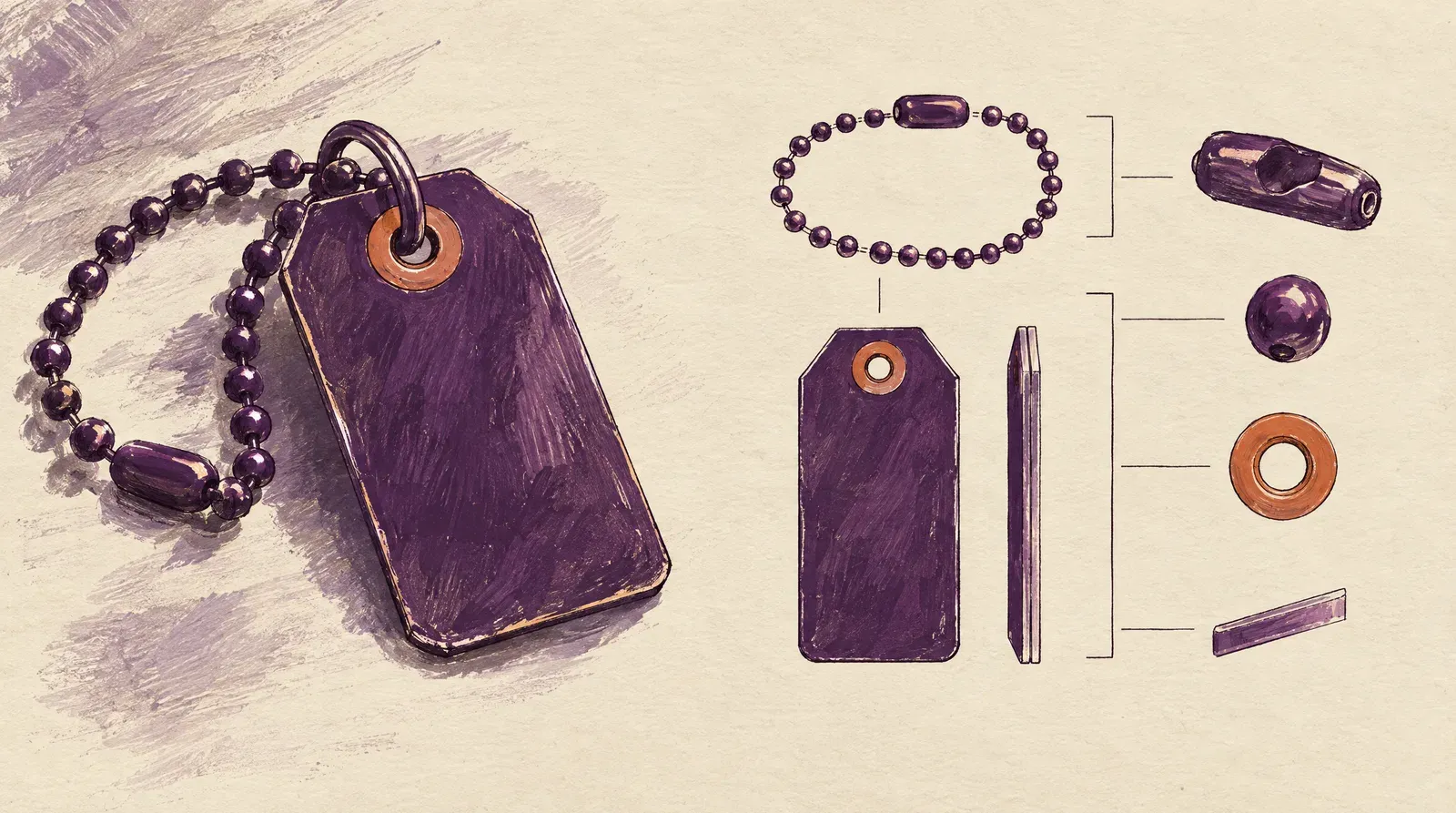 The playlist ID is the identifying value taken from the URL’s list parameter. Conceptual illustration, not a YouTube interface.
From a playlist page URL
A dedicated playlist page—not an individual video’s watch page—contains the playlist’s own list value. Open that page when you need the playlist ID without copying the currently playing video’s ID; its URL usually follows this form:
https://www.youtube.com/playlist?list=PLAYLIST_IDThe ID is the complete value after list=. YouTube uses the PL prefix for playlist IDs, so copy the complete value it supplies and paste it in place of PLAYLIST_ID; do not drop the prefix or substitute the video ID from a watch URL.
From a video playing inside a playlist
A watch URL can carry both the current video’s ID and the playlist’s ID, so the address may identify two different things at once. Check the parameter names before copying; the sample below shows where each value appears.
https://www.youtube.com/watch?v=VIDEO_ID&list=PLAYLIST_IDHere, v=VIDEO_ID identifies the current video and list=PLAYLIST_ID identifies the playlist. For the no-video-ID embed form, copy only the playlist ID. If the browser address has no list= parameter, navigate to the playlist page before copying.
How Do You Make a YouTube Playlist Responsive on Mobile?
A fixed-size iframe can overflow a narrow content column; let CSS scale it to the available width, and keep any CMS-added dimensions as fallbacks.
Use the modern aspect-ratio pattern
The clean pattern is a width-limited wrapper plus an iframe with width: 100% and aspect-ratio: 16 / 9. It preserves the player shape as the content column changes and requires no JavaScript. In a hypothetical 320-pixel column, Google’s recommended 480-pixel player width would be 150% of the available space, so let the iframe scale to its actual container (Google Developers, 2026).
If your content-security policy blocks inline styles, move these declarations into your stylesheet instead of weakening the policy. Keep the wrapper and iframe rules together, and use the same class name on the wrapper element:
.playlist-embed {
  width: 100%;
  margin-inline: auto;
}

.playlist-embed iframe {
  display: block;
  width: 100%;
  aspect-ratio: 16 / 9;
  border: 0;
}
Then use class="playlist-embed" on the wrapper. Test it inside the actual article or landing-page template, not an empty preview. Sidebars, page-builder columns, and theme padding determine the real available width.
WordPress note
In WordPress, paste the playlist URL into a YouTube block when auto-embedding works, or use a Custom HTML block for the full iframe and responsive wrapper. The block editor handles responsive presentation for supported YouTube URLs (WordPress.org, 2026). For editor-specific choices, see the complete guide to embedding video in WordPress.
Why Do Videos Disappear From an Embedded Playlist?
Playlist eligibility is per video, so a working player shell does not guarantee every item can play. YouTube lists disabled embedding, age restriction, and private access as core causes (YouTube Help, 2026).
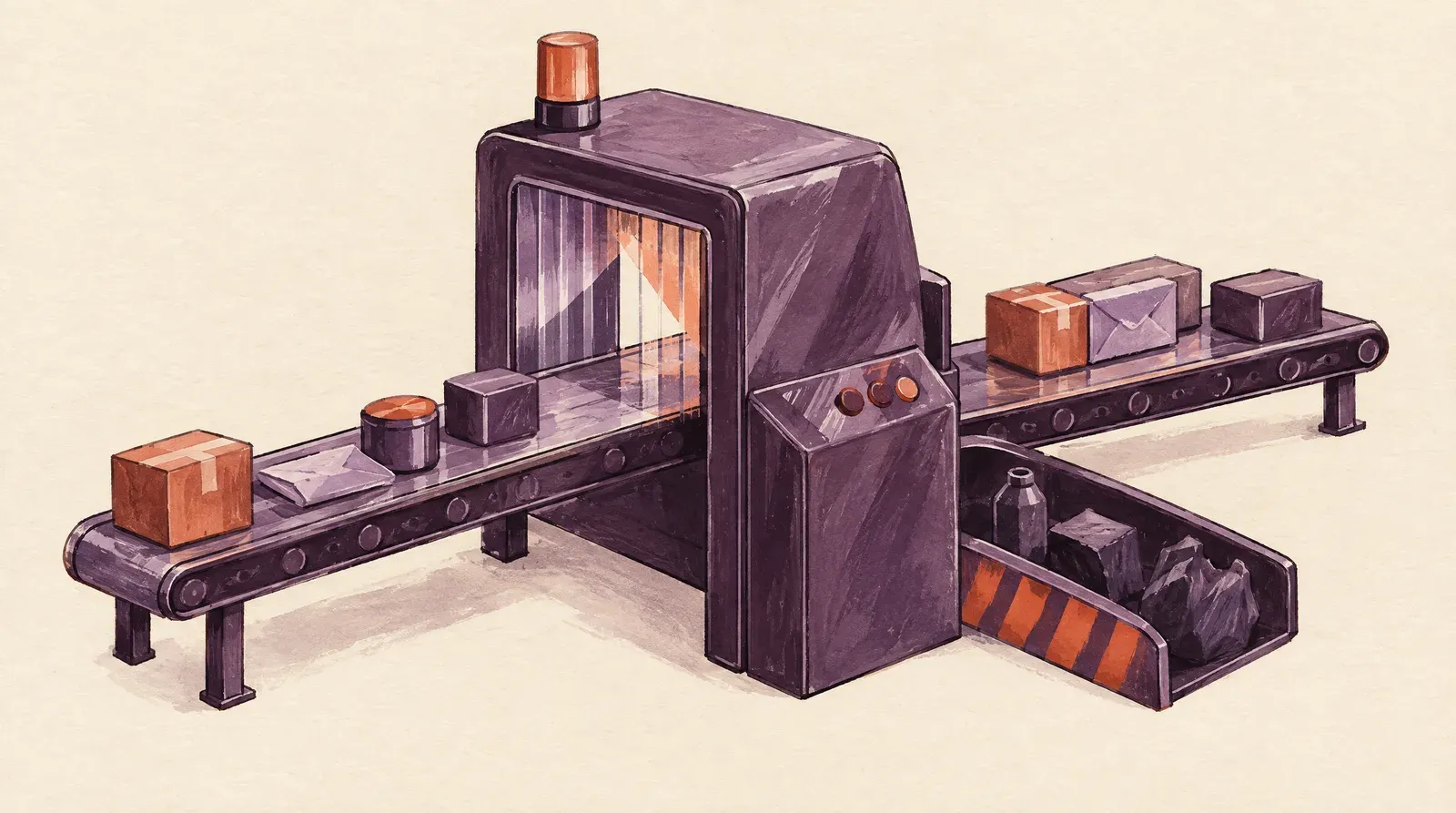 Embedding restrictions, age limits, and privacy settings can remove individual videos from a playlist player. Conceptual illustration, not a YouTube interface.
Embedding was disabled by the video owner
The owner of each video controls whether it can play outside YouTube. If your playlist contains videos from several channels, one owner can disable embedding without affecting the other entries. Open the missing video on YouTube and check it independently; if you own it, review the Allow embedding setting described in our guide to what Allow embedding means on YouTube.
The video is private or age restricted
A private video is not made public merely because its ID appears in a playlist. The viewer still needs permission and the correct signed-in account. Unlisted content follows a different access model, which is why the distinction between YouTube unlisted and private videos matters during troubleshooting.
Age-restricted videos also cannot play on most third-party sites. If an entry works on youtube.com but not in the iframe, check the video’s restrictions before rebuilding the embed. The problem may be the viewer’s eligibility rather than a malformed playlist URL.
How Do You Fix Common YouTube Playlist Embed Problems?
Playlist-embed failures are easier to isolate when you start with the symptom and test one likely cause at a time; changing every URL parameter can hide a one-character ID error.
| Symptom | Likely cause | Fix |
|---|---|---|
| Only one video loads | The iframe has a video URL but no valid playlist parameters | Use listType=playlist&list=PLAYLIST_ID or recopy Share > Embed |
| Some videos vanished | Per-video privacy, age, or embedding restrictions | Open and verify each missing entry separately |
| Video unavailable | The video cannot play for that viewer or location | Test signed out and compare the item on YouTube |
| Private playlist fails | The viewer lacks access or the playlist is not suitable for public embedding | Use content intended for the page’s audience and verify every item’s visibility |
| Error 153 | The request reaches YouTube without an HTTP Referer header | Review referrer policy, sandboxing, proxying, and privacy tools that strip the header |
| Player overflows on mobile | Fixed width or theme CSS overrides | Apply the responsive wrapper and inspect computed iframe width |
| Consent placeholder never changes | The consent manager is still blocking YouTube resources | Check the vendor category, post-consent callback, and blocked network requests |
YouTube’s embed help says its Terms of Service require embedders to provide an HTTP Referer, and that when it is missing viewers get blocked playback and an “error 153” screen (YouTube Help, 2026). If the same code works on a plain test page but fails inside a page builder or consent wrapper, inspect the surrounding sandbox and referrer settings before changing the playlist ID.
What Does Privacy-Enhanced Mode Change?
Privacy-enhanced mode switches the embed host to www.youtube-nocookie.com and limits how embedded views personalize the viewer’s YouTube experience.
Use the no-cookie host without overpromising
To use the no-cookie host with the parameter-based playlist form, change only the hostname and leave the path and playlist parameters unchanged. Comparing the same URL structure keeps the playlist constant while you review the different host:
https://www.youtube-nocookie.com/embed?listType=playlist&list=PLAYLIST_IDYouTube also says non-personalized ads may still appear in privacy-enhanced embeds (YouTube Help, 2026). The precise privacy and consent implications deserve more than a hostname slogan, so use our separate explanation of what youtube-nocookie.com does and does not do when reviewing your setup.
What Are the Trade-Offs of a YouTube Playlist Embed?
A native YouTube playlist is convenient, but YouTube controls the player environment. Weigh these four trade-offs before adding it to a sales, course, or product page:
- Ads: You cannot promise an ad-free experience; see the practical options for an embedded video without ads.
- Branding:
modestbrandingis deprecated and has no effect, so old code snippets cannot reliably strip YouTube’s identity. - Related content:
rel=0no longer turns related videos off; it limits them to the same channel. The business and UX costs of the YouTube player go beyond the code itself. - Page weight: An iframe brings third-party scripts and connections. For a deeper performance treatment, read why YouTube embeds can weigh down a page.
🎬 Need selected videos without YouTube’s on-page distractions? For high-value pages, SmartVideo can replace individual YouTube embeds with an ad-free, branded player and CDN-accelerated delivery, so visitors stay focused on your site. See how the YouTube alternative works →
Page weight is not an abstract concern. An embedded player adds third-party resources and connections, so compare the page’s performance with and without the embed and account for the rest of the page before choosing the native player. Use the same route and test window for each comparison.
The embed can still be a sensible convenience when YouTube distribution matters more than complete presentation control. That reach can be useful, but it does not erase the on-page trade-offs. A correctly formed iframe can still be the wrong fit for a page’s requirements.
What Should You Check Before Publishing?
Run this checklist on the real page after caching and consent tools are active, not just in the editor preview.
- Confirm the iframe URL contains the complete playlist ID.
- Preview at narrow phone width and at the widest content width.
- Test while signed out or in a private browser window.
- Move forward and backward through several playlist entries.
- Open fullscreen, then exit and continue playback.
- Verify the consent placeholder changes after the relevant choice.
- Open unavailable entries on YouTube and check their individual restrictions.
- Confirm the player has an accurate, page-specific
titleattribute.
This catches the failures that a successful first frame hides: a wrong queue, inaccessible later entries, a layout that breaks below the editor’s preview width, or a consent tool that never releases the iframe. Repeat the checks after template or consent changes.
Frequently Asked Questions
Can you embed an entire YouTube playlist on a website?
Yes. Use Share > Embed or a URL with the full playlist ID. YouTube allows 5,000 videos to display in a playlist; each video still has its own visibility and embedding rules (YouTube Help, 2026).
Can I embed a playlist without specifying a video ID?
Yes. Use https://www.youtube.com/embed?listType=playlist&list=PLAYLIST_ID with both parameters; an individual VIDEO_ID path segment is unnecessary when the list and listType values are set. Google says the playlist ID should include its PL prefix, so substitute the full ID rather than a shortened or partial value (Google Developers, 2026).
How do I find a YouTube playlist ID on a shortened URL?
Open the shortened link in a browser and let it resolve to a full YouTube URL, then copy the value after list=. If the resolved address only has a v= parameter, use the playlist title or queue control to open the dedicated playlist page first.
Why does my YouTube playlist embed show only one video?
The iframe is probably using a single-video source without a usable list parameter. Compare the source against the playlist form, and remember that HTML entities may display the separator as & in page source while the browser interprets it as an ampersand.
Can an unlisted YouTube playlist be embedded?
An unlisted playlist can be reached by people who have its link, but every video still has its own visibility and embedding rules. Test with an account that does not own the playlist, because an owner’s signed-in session can hide permission problems that public visitors will encounter.
Does youtube-nocookie.com remove ads or all tracking?
No. Privacy-enhanced mode limits how embedded views are used for personalization, but it is not a promise of zero requests, zero data processing, or zero ads. YouTube says non-personalized ads may still be served, so review the player through your own consent and privacy process (YouTube Help).
Can a playlist autoplay or start on a later item?
Player parameters can request autoplay, but browsers restrict audible autoplay. Do not make page logic depend on playback starting automatically; test the exact device and browser combination instead.
What Should You Do After Embedding the Playlist?
After embedding, verify several entries while signed out, then decide whether YouTube’s ads, branding, related content, privacy behavior, and page weight fit the page’s purpose.
If those limits work against your site, try SmartVideo free and compare the real visitor experience on the same page.