
ℹ️ What is “Allow Embedding”? “Allow embedding” is a YouTube setting that permits other people to display your video on their websites using an iframe code. When enabled, anyone can copy the embed code and play your video outside of YouTube. (Google Help, 2026).
📋 TL;DR • The setting: “Allow embedding” lets your video play on other sites. Disabling it forces users to watch on YouTube. • The catch: Embedded videos still show ads and suggested videos from competitors. • The view count: An embedded video can add a public view when it starts playing, but autoplayed embeds don’t increment views (YouTube Help; embedded-player guidance). • The fix: If you want control without the YouTube baggage, use a dedicated video host.
You’ve spent hours filming, editing, and uploading your latest video. You’ve already waited through YouTube’s video processing times, and now you want the world to see it. But then you see a checkbox in YouTube Studio: “Allow embedding.”
Do you check it? Leave it alone? What happens if you turn it off?
For most creators, this setting is an afterthought. But for businesses using video marketing, understanding embedding is critical. It determines whether your video travels across the web or stays locked on YouTube.com.
Here is everything you need to know about embedding YouTube videos in 2026, from how views are counted to why some creators disable it entirely.
What Does “Allow Embedding” Actually Mean?
In simple terms, embedding takes a video hosted on YouTube and displays it on another webpage. It’s like opening a small window on your site that looks directly onto YouTube’s servers.
Technically, this is done using an iframe (Inline Frame). When you or someone else embeds your video, they are placing a snippet of HTML code on their site that loads your video player. YouTube’s IFrame Player API documentation lists parameters such as autoplay and controls.
When the “Allow embedding” box is checked (enabled):
- Anyone can click the “Share” button on your video.
- They can copy the
<iframe>code. - They can paste that code onto their blog, news site, or social media feed.
- The video plays directly on their site without redirecting the user.
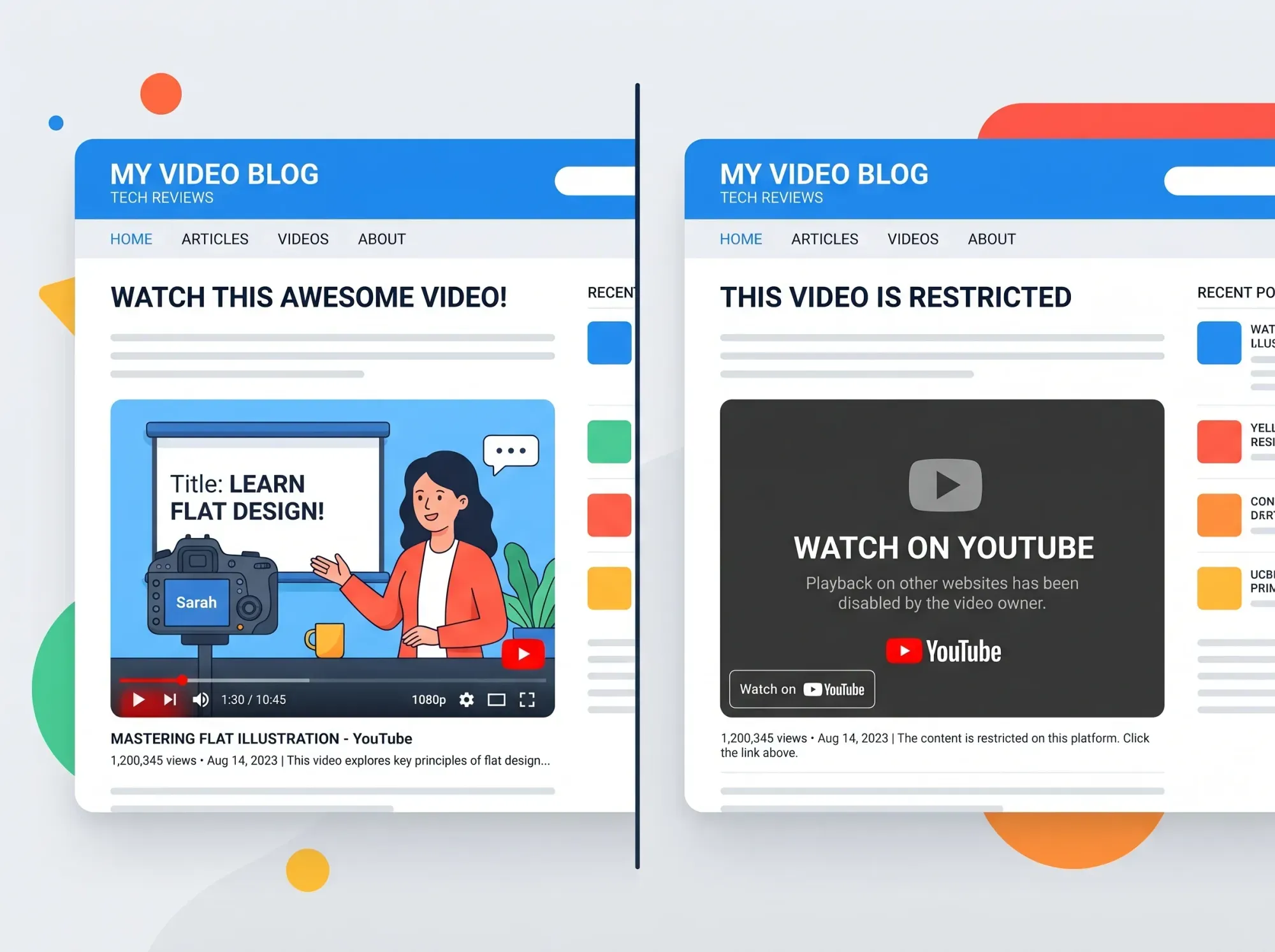
When the “Allow embedding” box is unchecked (disabled):
- The “Embed” option disappears from the Share menu.
- If someone already embedded the video, the player will show a “Video unavailable” error.
- Users must click “Watch on YouTube” to view the content.
For a deeper dive into the code itself, check out our guide to video embed codes.
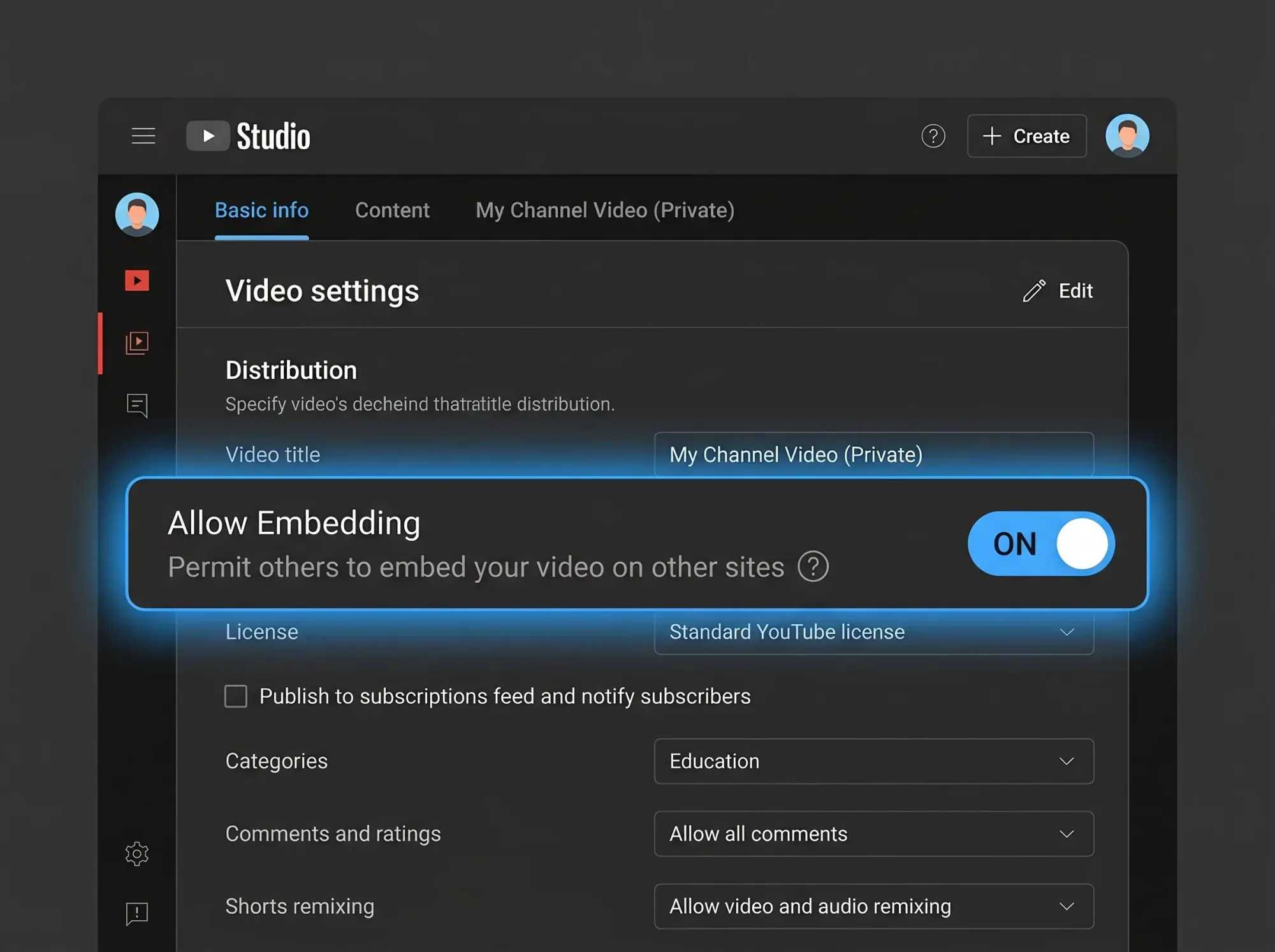
How Do You Enable or Disable YouTube Embedding?
YouTube enables embedding by default. If you want to turn it off—or make sure it’s on—you’ll need to dive into YouTube Studio. Here is how to do it in 2026.
For a Single Video
- Log in to YouTube Studio.
- Click Content in the left sidebar.
- Click the pencil icon (Details) on the video you want to change.
- Scroll down to the very bottom and click SHOW MORE.
- Scroll down further to the “License and distribution” section.
- Check or uncheck the box for Allow embedding.
- Click Save.
For Multiple Videos (Bulk Edit)
If you have hundreds of videos, you don’t need to do this one by one.
- Go to Content in YouTube Studio.
- Check the Select All box at the top of your video list.
- Click Edit > Embedding.
- Select On or Off.
- Click Update videos.
Do Embedded YouTube Views Count?
Yes. An embedded video can add a public view when it starts playing, but autoplayed embeds don’t increment views. YouTube may adjust metrics after validation and discard low-quality playbacks (YouTube’s view-count guidance; embedded-player guidance).
What Are the Pros and Cons of Allowing YouTube Embedding?
Allow embedding lets videos play on other sites; turning it off blocks that external playback (YouTube Help). Whether to leave it on depends on your goal. The table below lays out the trade-offs.
| Feature | Pros (Why Enable It) | Cons (Why Disable It) |
|---|---|---|
| Reach | Your content spreads to blogs, news sites, and social feeds. YouTube's press page reports over 20 million videos uploaded daily (YouTube for Press). | You lose control over where your brand appears. |
| SEO | Backlinks to your video can boost its ranking in YouTube Search. | If you embed it on your own site, YouTube embeds slow down page load significantly. |
| Traffic | Viewers might click "Watch on YouTube" and subscribe. | If the goal is to keep them on your site, YouTube works against you by luring them away. |
| Ads | You earn ad revenue from embedded views (if monetized). | Competitors' ads can appear on top of your video on your own website. |
For a detailed look at the trade-offs, read our full guide on the pros and cons of YouTube embeds.
In February 2020, YouTube reported more than 2 billion monthly users worldwide (YouTube Blog).
The Terms let other users access public videos through embeds when that feature is enabled; turning off embedding blocks external playback (YouTube Terms; YouTube Help).
Why Do Some Creators Disable YouTube Embedding?
Creators disable embedding to prevent their videos from playing on external websites (YouTube Help).
1. To Protect Monetization Some external sites use scripts that block ads on embedded videos. If a YouTuber relies on ad revenue, they might force you to come to YouTube.com to ensure they get paid.
2. To Control the Environment Luxury brands or artists often don’t want their content appearing on low-quality spam blogs. Disabling embedding ensures the video is only seen in a controlled context.
3. To Stop Traffic Leaks If you are using video to sell a product on your landing page, an embedded YouTube player is a leak. It’s full of “suggested videos” designed to distract your potential customer. Disabling embedding prevents others from sharing it, but it doesn’t solve the problem of YouTube distracting users on your site.
🎬 Tired of YouTube’s distractions? SmartVideo gives you YouTube-quality playback without the ads, branding, or “related videos” stealing your traffic. See how SmartVideo compares to YouTube
What Advanced Embed Options Does YouTube Offer Developers?
YouTube iframe URLs accept parameters that control playback and other player behavior (YouTube IFrame Player API). Add them to the end of the video URL.
For example: src="https://www.youtube.com/embed/VIDEO_ID?autoplay=1&mute=1"
- autoplay=1: Starts the video automatically when it loads. Note: Modern browsers block autoplay unless you also add
mute=1. - controls=0: Hides the bottom player controls (play bar, volume).
- start=30: Starts the video at the 30-second mark.
- rel=0: Limits related videos to the same channel as the video just played; it doesn’t hide them (YouTube IFrame Player API).
Privacy-Enhanced Mode uses the youtube-nocookie.com domain. YouTube says views in that mode won’t personalize a viewer’s YouTube experience or ads shown outside the site (YouTube Help).
The “Suggested Videos” Problem (rel=0)
Adding rel=0 doesn’t hide related videos; it limits them to the same channel as the video that just played (YouTube IFrame Player API).
For businesses, this is a dealbreaker. You don’t want your homepage video to end and immediately show a grid of old, irrelevant videos from your channel.
What Are the Best Alternatives to YouTube Embedding?
YouTube can work well for viral reach, but a business may prefer a host that keeps control of the viewing experience. Consider these alternatives:
- SmartVideo (Swarmify): Run an ad-free player on your website without losing your YouTube content (SmartVideo pricing).
- Vimeo: Offers great privacy controls and ad-free playback, though their free tier is very limited compared to YouTube. See our list of YouTube alternatives for more details.
- Self-Hosting: You can upload video files directly to WordPress, but be warned: this usually hurts site performance.
If you’re using WordPress, check out our guide on how to embed YouTube videos specifically for WordPress to avoid common slowing issues.
**Related: **why embedded YouTube videos can hurt your website performance.
What Are Common Questions About YouTube Embedding?
These answers cover how to manage embedding, understand view counts, adjust privacy, and use common player settings.
Can I stop people from embedding my YouTube video?
Yes. Go to YouTube Studio > Content > Details > Show More. Uncheck the “Allow embedding” box. This will block the video from playing on external websites.
Do embedded views count towards monetization?
Autoplayed embedded videos don’t increment public views. YouTube says Partner Program earnings still use “engaged views” and “engaged watch hours,” while eligibility uses “qualified views” (YouTube Help; embedded-player guidance).
For Watch Page Ads, YouTube pays partners 55% of net ad revenue from their public videos, including when those videos play in the YouTube player on other websites or apps (YouTube Partner earnings overview).
Does embedding YouTube videos hurt SEO?
It can hurt your page speed. YouTube embeds are “heavy” and can slow down your site’s load time, which is a ranking factor. However, video content itself generally improves user engagement and time-on-page.
What is the “Privacy-Enhanced Mode”?
Privacy-Enhanced Mode uses youtube-nocookie.com. YouTube says views in this mode don’t personalize a viewer’s YouTube experience or ads shown outside the website (YouTube Help).
Can I hide the YouTube logo on an embedded video?
No. The modestbranding parameter is deprecated and has no effect (YouTube IFrame Player API).
How do I resize an embedded YouTube video?
You can change the “width” and “height” values inside the iframe code. However, it’s better to use a responsive container (CSS) so the video scales correctly on mobile devices.
Is it legal to embed someone else’s YouTube video?
Generally, yes. By uploading to YouTube and leaving “Allow embedding” checked, the creator has granted permission for the video to be embedded. However, you should not present the content as your own (copyright infringement).
What Should You Remember About YouTube Embedding?
The “Allow embedding” checkbox is a small setting with big implications.
For creators, it’s a gateway to viral growth. For businesses, it’s a trade-off between free hosting and giving up control of your user experience. As of 2026, YouTube still enables embedding by default on all new uploads, and the setting remains buried under “Show More” in YouTube Studio.
If you need a YouTube alternative for your website that keeps your brand front and center, SmartVideo gives you full control without ads or distractions.


