A free stream recorder for Chrome captures a browser tab, window, or desktop and saves or shares the video. Screenity is an open-source option that stores recordings on your device without an account. Loom Starter’s free plan supports cloud sharing but caps recordings at five minutes and 25 videos per person; this comparison uses published vendor pages and Chrome Web Store listings checked on September 29, 2026, not hands-on performance tests.
The right choice depends on whether you need a local file or a shareable link—and whether a tool limits recording time, total videos, exports, account access, or cloud retention. Check those limits with a short recording test before choosing a tool for important work.
📋 TL;DR • Open-source, local option: Screenity is free, open-source, requires no sign-in, and keeps recordings on your device. Its listing says “unlimited recordings,” but does not specify a maximum length per recording. • No-account option by listing claims: Screen Recorder for Google Chrome advertises local recording with no time limit, watermark, or sign-up; verify the developer’s claims with a short test. • For async team messages: Loom Starter allows 5 minutes per recording and 25 videos per person, at up to 720p. • For classrooms: Screencastify offers the first 10 videos free, up to 30 minutes each; invites can add up to 20 more. • Recording boundary: DRM may block capture of protected streams. Record only content you own or have permission to capture, and check the platform’s terms.
How Does Stream Recording Differ from Screen Capture?
“Stream recording” can mean capturing an authorized live broadcast or simply recording what appears in a browser tab; the tools below do screen/tab capture, not guaranteed downloads from streaming services.
Chrome extensions can capture a selected tab, window, or desktop, but the file workflow varies: some save locally, while others upload to cloud storage for sharing.
Check three constraints before recording:
- Protected streams: Some subscription services use digital rights management (DRM) that blocks screen capture, so a recording may show a blank or black frame. Results depend on the service and playback path; an extension is not a way around those protections.
- Permission and terms: Record content you own or are authorized to capture. For meetings, webinars, and private broadcasts, get the required permission and check the organizer’s rules, platform terms, and local recording-consent laws.
- Audio routing: Tab, system, and microphone audio are separate capabilities. Check that the chosen extension supports the source you need, then record a short test before an event.
For specialized desktop setups requiring physical capture cards, multi-camera switching, or separate audio busses, review our guides to video recorder software and full-featured screen recorder apps. For fast tab and stream recording inside Chrome, the extensions below offer straightforward options for authorized screen capture.
How Do Free Chrome Stream Recorders Compare?
Free Chrome extensions differ in recording length, saved-video limits, audio routing, and export restrictions. “Free” may still require an account or limit the formats you can download, so match those terms to the file workflow you need. Test the planned capture mode, because a permission or export cap can make a nominally free recorder unsuitable.
The table compares five extensions using the features and limits stated in vendor pricing pages or Chrome Web Store listings. “Not stated” means the checked source did not confirm the capability; it does not establish that the feature is unavailable. This is a comparison of documented features, not a performance benchmark.
| Extension | Free recording limit | Storage and account | Audio | Watermark / export notes | Best for |
|---|---|---|---|---|---|
| Screenity | Listing says unlimited recordings; max length per recording not stated | Local downloads; no sign-in | Mic, tab, and system audio listed | Watermark and free export format unclear | Open-source local capture |
| Screen Recorder for Google Chrome | Listing claims no time limit; count cap not stated | Listing claims local recording and no account | Mic + system audio listed | Listing claims no watermark; MP4/WebM listed | Quick local recording |
| Loom | 5 minutes per recording; 25 videos per person | Cloud; account required | System audio | Starter download unavailable; branding removal is paid | Async sharing |
| Screencastify | 30 minutes per video; first 10 free, up to 20 invite bonuses | Cloud and Google Drive | Not stated in the checked sources | Watermark and export details unclear | Classroom and Drive workflows |
| Awesome Screenshot | 6 hours per recording; up to 20 recordings | Save to local disk or online account; account requirement unclear | Not stated | WebM/MP4 download and editing only under 1 hour; watermark unclear | Long captures and screenshots |
Free-plan details were checked against vendor pricing pages and Chrome Web Store listings on September 29, 2026. The Screen Recorder for Google Chrome details are developer claims on its listing; “unlimited recordings” for Screenity does not establish an unlimited duration per file.
Which Free Stream Recorders for Chrome Stand Out?
These five extensions cover different trade-offs: Screenity and Screen Recorder for Google Chrome emphasize local files; Loom favors instant cloud links; Screencastify fits Google Drive workflows; Awesome Screenshot supports long recordings but restricts downloads and editing to files under an hour.
1. Screenity (Open-Source Local Pick)
Screenity is a free, open-source Chrome extension released under GPLv3. Its Chrome Web Store listing reports 200,000 users and says the extension supports unlimited recordings (Screenity Chrome Web Store listing, 2026). Screenity’s FAQ says free recordings stay on the device and can be downloaded without an account (Screenity FAQ, 2026).
The listing describes capture for tabs, windows, and desktops, with microphone, tab, and system audio plus drawing and blur tools. Vendor-reported user totals differ across the store and website; treat them as listing counters, not verified active-user figures.
There is a conflict over exports: the store listing describes MP4, GIF, and WebM, while Screenity’s FAQ places MP4 export in its paid editor and says the free extension lets you download recordings without specifying a format. The free format, watermark status, and maximum duration of one recording remain unclear; check the current extension before relying on a particular export.
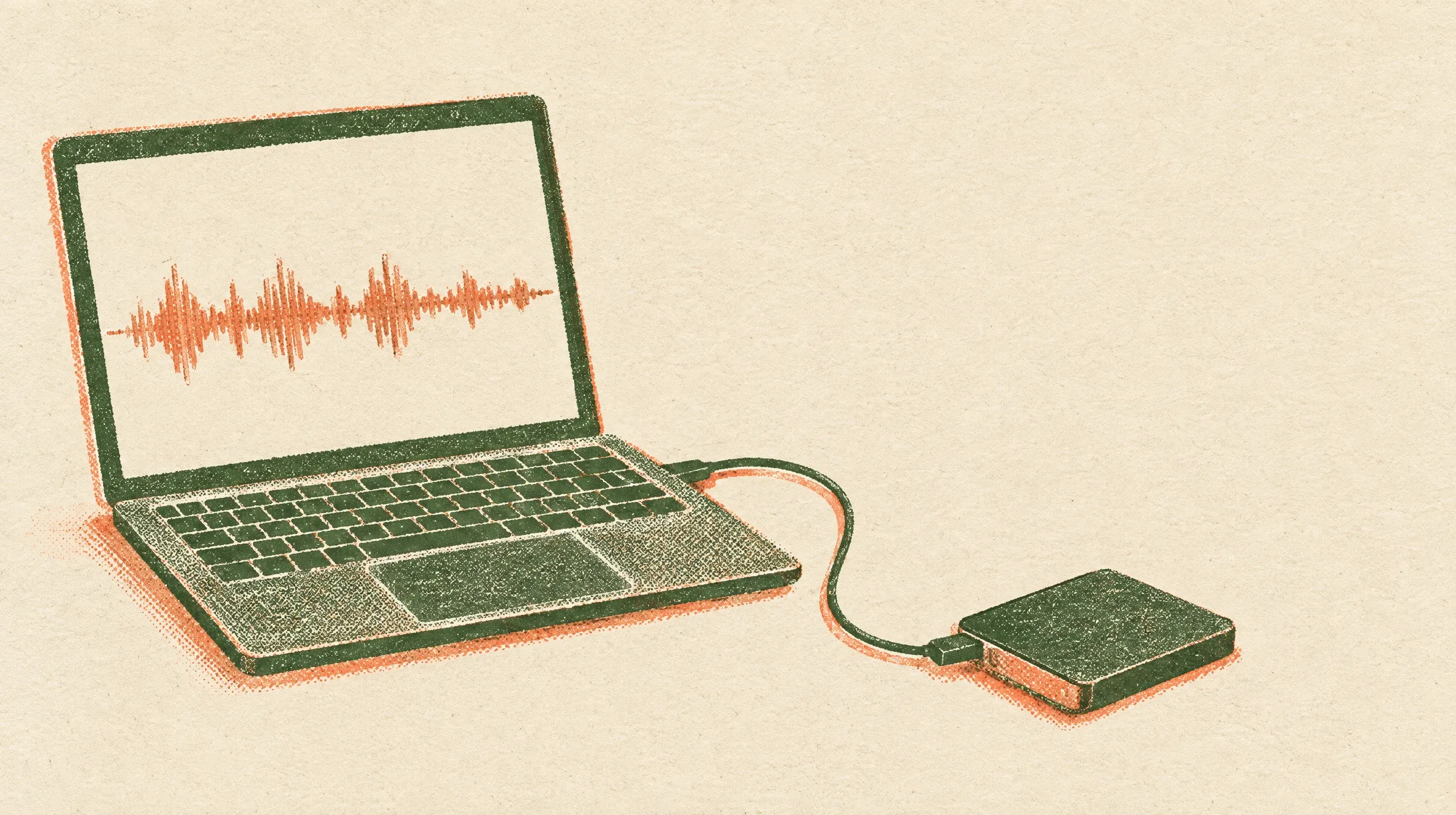 Screenity’s free extension keeps recordings on the device; export details differ between its listing and FAQ.
2. Screen Recorder for Google Chrome (No-Account Listing Pick)
Screen Recorder for Google Chrome advertises recording without a sign-up, time limit, watermark, or server upload. Its Chrome Web Store listing also advertises MP4 and WebM export up to 60 fps, microphone and system audio, and full-screen, window, and tab capture. The listing showed 600,000 users and was updated July 10, 2026; these are developer claims, not independently confirmed performance guarantees (Chrome Web Store listing, 2026). Test a short recording and review the requested permissions before using it for important work.
3. Loom (Cloud Links for Async Teams)
Loom’s Chrome extension listing uploads recordings to the cloud and creates a share link (Chrome Web Store listing, 2026). Its Starter pricing page lists the free plan at 25 videos per person, 5 minutes per recording, and up to 720p, with system audio (Loom Starter pricing, 2026). Starter users cannot download videos according to Loom’s download guidance; the pricing page lists removal of Loom branding under Business.
Loom works well for quick explanations sent through a team workspace, but its free plan is not a local-file recorder. You need an account, each clip stops at five minutes, and the 25-video limit is per person—not a lifetime limit for the whole workspace. Check the team’s storage and sharing settings before sending a sensitive recording.
4. Screencastify (Google Drive and Classroom Workflows)
Screencastify’s pricing page says new users can create their first 10 videos for free, each up to 30 minutes, and keep them stored, watched, and shared. It lists video quality up to 1080p and says invitations can add five recordings each, up to 20 bonus videos (Screencastify pricing, 2026). Its Chrome Web Store listing describes saving recordings to Google Drive.
The free plan is useful if you need a browser-based classroom workflow, but the table’s feature limits matter: the listed basic editor and quiz features are in paid plans. Screencastify’s pricing page includes a “Remove Castify Watermark” row, but the plan checkmarks were not readable in the source reviewed here, so free watermark status is unverified. Tab/system-audio support was not stated in the checked sources.
5. Awesome Screenshot (Long Recording, Shorter Export)
Awesome Screenshot’s pricing page lists up to 20 free recordings and six hours per recording at 720p. Free users can download WebM or MP4 and edit clips only when they are under one hour; its Professional tier is $6 per month billed annually and Basic is $5 per month billed annually (Awesome Screenshot pricing, 2026). Its Chrome Web Store listing says files can be saved to local disk or an online account.
This option suits a long capture you plan to keep locally, but six hours is not a promise of a six-hour downloadable or editable file. Account requirements, audio capture, and free watermark status were not clear in the sources checked. Test a long capture early if the exact export duration matters.
For other long-capture setups, compare the limits with the best screen recorder apps before choosing a desktop tool.
🚀 Ready to publish your video? Once your content is ready, you need fast, reliable hosting that keeps visitors on your site without ads or competitor distractions. See Swarmify’s video hosting solutions
What Features Matter Most in a Chrome Stream Recorder?
Compare capture sources, storage, account requirements, duration limits, and export restrictions before choosing a free extension.
Audio Routing: Tab, System, and Microphone
Audio support varies by extension and recording mode. Screenity lists microphone, tab, and system audio; Loom Starter lists system audio. Check the product listing for your intended source, then make a short test recording before a live session.
Local Files vs. Cloud Links
Screenity’s FAQ says free recordings stay on your device; Screen Recorder for Google Chrome’s listing also claims local recording. Loom uploads to the cloud, Screencastify supports Google Drive, and Awesome Screenshot lists saving to a local disk or online account. A local file and a share link are different workflows, not interchangeable storage guarantees. In practice, a local copy gives you more direct control, while a share link is easier to pass to teammates; keep a backup if the recording matters.
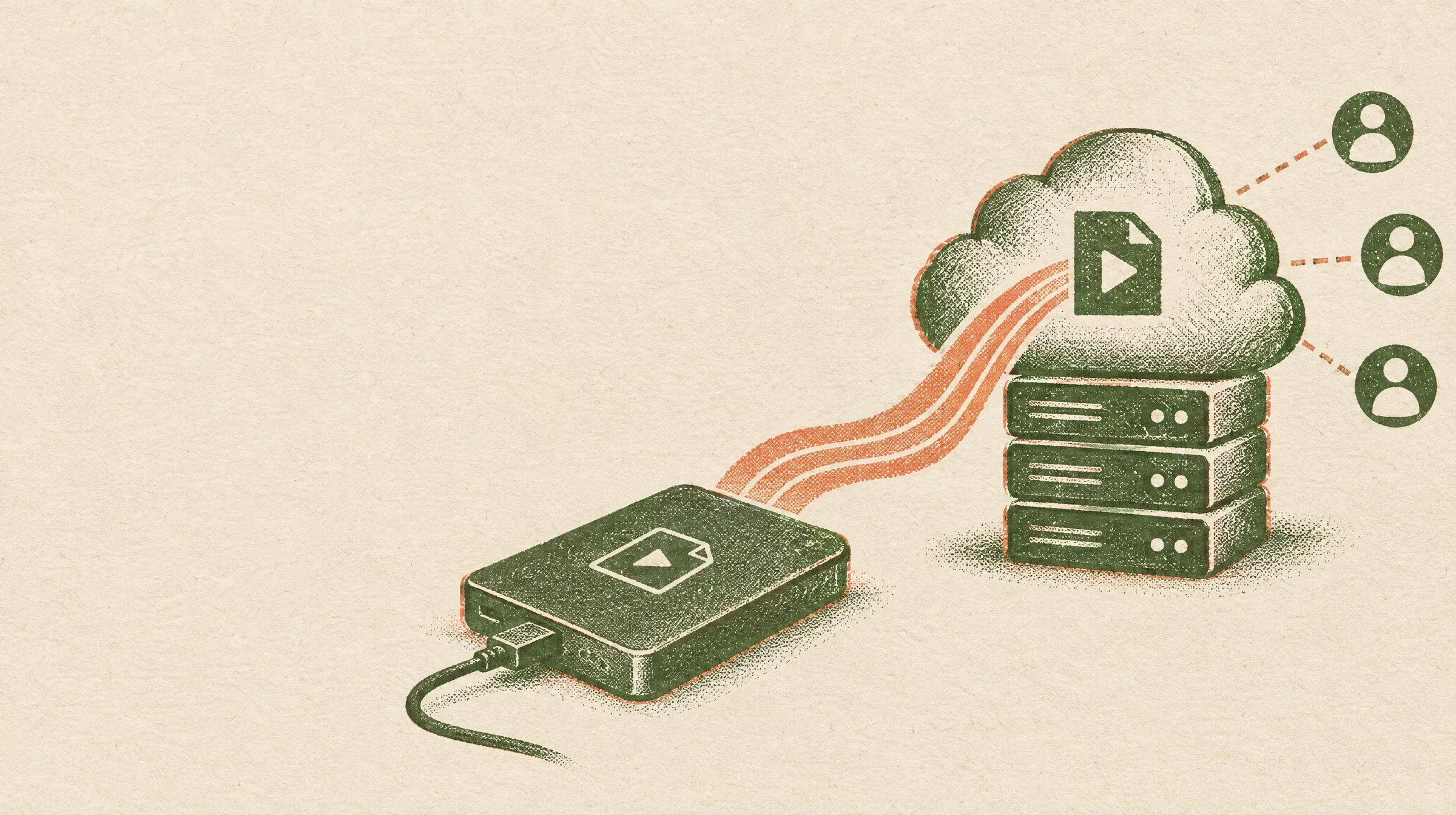 Local files and share links solve different storage needs.
Duration, Count, and Export Limits
Loom Starter allows five minutes per recording and 25 videos per person. Screencastify starts with 10 free videos at 30 minutes each, while Awesome Screenshot allows recordings up to six hours but restricts free downloads and editing to clips under one hour. Screenity does not state a maximum duration per file.
Watermarks and Brand Presentation
Loom lists branding removal under Business; Screencastify has a watermark-removal feature row, but its plan checkmarks were unreadable in the source reviewed. Free watermark status for Screenity and Awesome Screenshot is unclear. Wyzowl’s 2026 video-marketing survey found that 89% of consumers say video quality impacts their trust in a brand (Wyzowl video-marketing statistics, 2026).
Hardware Acceleration and Browser Performance
If a recording stutters, close unrelated tabs and apps, check Chrome’s hardware-acceleration setting, and lower capture resolution if the extension allows it. Performance depends on the computer and capture mode. In practice, test the exact capture mode on the device you will use; tab capture and full-screen capture can behave differently.
How to Record an Authorized Stream or Webinar in Chrome
For a stream or webinar you have permission to record, first confirm the extension supports the capture area and audio source you need. See our guide to best webinar platforms for context on hosted events.
[Confirm permission] ──> [Choose capture area] ──> [Check audio support] ──> [Test a clip] ──> [Save or export]Step 1: Choose the Capture Area
Use a dedicated Chrome tab or window when possible. This keeps unrelated browser tabs and desktop notifications out of the recording; choose a full-screen capture only when the content requires it.
Step 2: Enable Audio the Extension Supports
Select the intended tab, window, or screen in the extension’s capture prompt. Enable tab or system audio only if the tool and capture mode support it; control labels vary by browser and extension.
Step 3: Check Microphone and Notifications
Turn on the microphone only when narration is needed. Silence nonessential desktop notifications and close unrelated tabs to reduce distractions during the recording.
Step 4: Record and Review a Short Test
Make a short test clip before the event. Check that the picture, required audio, and synchronization are present, then adjust the capture area or audio settings if needed. In practice, the test can reveal missing audio, poor framing, or a sync problem before the event; review the clip, not just the recorder’s status icon.
Step 5: Save the File and Prepare the Edit
Save or export the recording using the format your extension supports. File size depends on recording length and settings; see how to reduce video file size. If an edit needs cutaway footage, browse these free B-roll websites or our guide to free music for your videos.
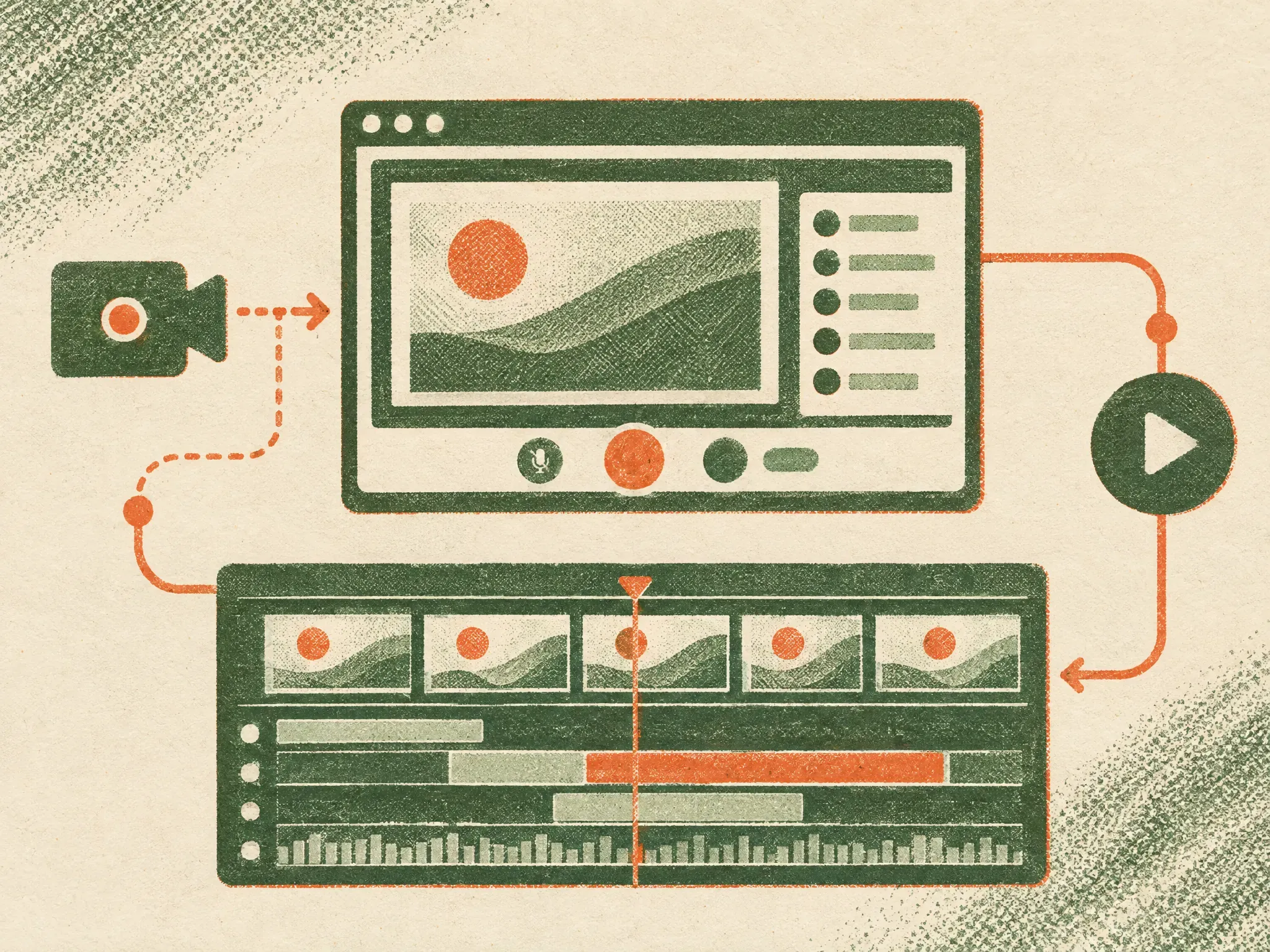 A short test confirms the capture area and audio before a longer authorized recording.
Why Is a Screen Recorder Not a Complete Video Host?
Browser recorders capture footage; a separate video host manages playback on a website. The right delivery option depends on how much control you need over branding, access, and storage.
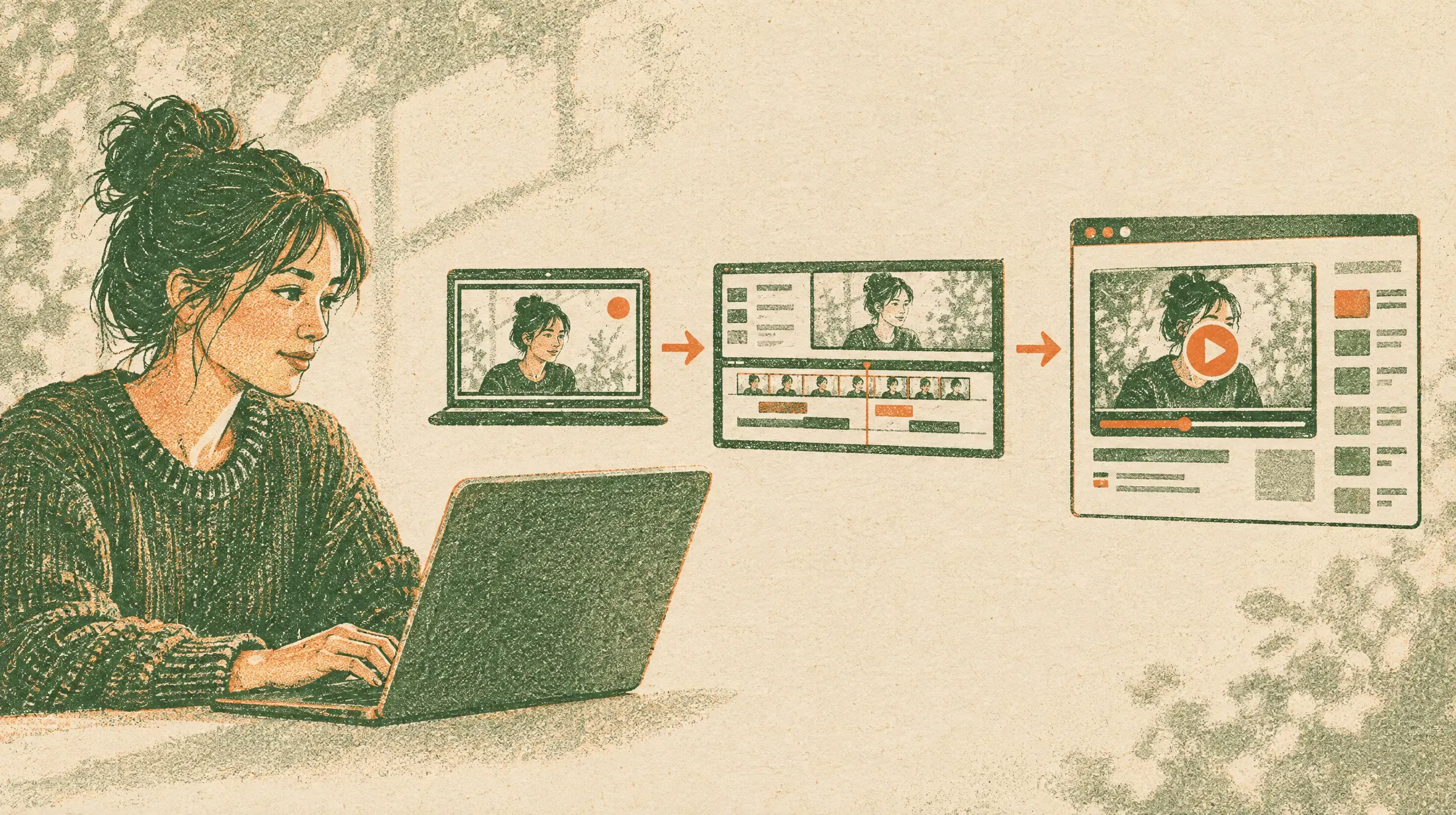 Recording, editing, and website hosting are separate stages.
If you publish a recording on a business site, a recorder’s share link may not provide the controls you want. Keep a copy of important recordings and review the hosting platform’s account and sharing rules before embedding them.
- Account and retention: Cloud recordings depend on the provider’s account, plan, and sharing settings. Keep a local backup when the source and plan allow it.
- Viewer experience: Public sharing platforms may show their own branding or related content. Our guide explains why YouTube embeds can hurt your website.
- Separate capture from hosting: A Chrome extension creates or shares a recording; a video host provides playback for your website.
If your project uses stock clips to cover cuts, our roundup of free B-roll websites can help source footage for the edit.
For organizations that want an ad-free hosted player, the annual SmartVideo plans are listed below; details were checked against the pricing page on September 29, 2026:
- Startup: $19 per month billed annually for 10,000 monthly views and 1 TB of storage; additional views are $2 per 1,000 (Startup pricing).
- Growth: $59 per month billed annually for 50,000 monthly views and 3 TB of storage; additional views are $1 per 1,000 (Growth pricing).
- Pro: $99 per month billed annually for 150,000 monthly views and 5 TB of storage; additional views are $0.75 per 1,000 (Pro pricing).
Every plan includes unlimited delivery bandwidth. Views beyond the monthly allowance are billed at the listed per-thousand rate.
What Questions Do Creators Ask About Chrome Recorders?
These answers compare free recording limits, audio support, local saving, permission, and editing.
Which free Chrome recorder has no time limit?
The Screen Recorder for Google Chrome listing claims no time limit, but that is a developer claim. Screenity’s listing says “unlimited recordings” without stating a maximum length per recording. Awesome Screenshot lists up to six hours per recording; Loom caps each Starter recording at five minutes. Check the applicable plan or listing before you start a longer capture.
Can a Chrome extension record a browser tab and its audio?
Some extensions list tab or system audio, but support varies by tool and capture mode. Screenity lists mic, tab, and system audio; Loom Starter lists system audio. Check the current listing and test the audio source you need before recording.
Which free recorder saves videos locally without an account?
Screenity says its free extension keeps recordings on the device and requires no account. Screen Recorder for Google Chrome’s listing also claims local recording and no sign-up; its developer claims have not been independently verified. Screenity’s free export format is unclear. Before recording sensitive material, check each extension’s privacy disclosures and confirm where a test file is saved.
Can I record a DRM-protected streaming service?
Some protected streams block screen capture and may appear blank in a recording. Behavior depends on the service and playback path. Follow the service’s terms and do not try to circumvent DRM protections; use the service’s own download or playback options if capture is blocked.
Is it legal to record a webinar, meeting, or livestream?
Record content you own or are authorized to capture. Before recording meetings or private broadcasts, check the host’s rules, platform terms, and local recording-consent laws. Tell participants how the recording will be used and stored, and get their consent before sharing it beyond the original group. This is not legal advice.
Are Chrome screen-recording extensions safe?
No extension is automatically safe because it appears in a store. Check the publisher, privacy information, requested permissions, and recent reviews; grant capture and microphone access only when needed, then remove permissions you no longer use.
Can I record my webcam and screen at the same time?
Loom’s Starter plan lists screen-and-camera bubble recording, and Screen Recorder for Google Chrome’s listing advertises a webcam bubble. Check the current plan and listing for the exact mode you need; the feature descriptions do not guarantee performance on every device.
What happens when I reach Loom or Screencastify’s free video limit?
Loom says users over the 25-video Starter limit keep access to existing videos but cannot create a new recording until they upgrade or delete videos to get below 25 (Loom downgrade guidance, 2026). Screencastify’s pricing page describes the first 10 videos as free and allows up to 20 bonus videos through invites (Screencastify pricing, 2026); the sources reviewed did not confirm whether deleting a video frees a slot.
Why do screen recordings lag in Chrome?
High-resolution recording can use substantial system resources, so stutters may come from the computer, browser, or capture mode rather than the extension alone. Close unrelated tabs and applications, check the recorder’s settings, and make a short test before an important session.
Can I edit a recording in a Chrome extension?
Editing limits vary: Awesome Screenshot lists free editing for recordings under one hour; Screencastify lists basic editing in paid plans; Screenity places its editor features in the paid product. For broader post-production, see our guide to how to edit videos. Confirm whether export restrictions apply to the downloaded file, not just the editor.
Which Chrome Stream Recorder Should You Choose?
Choose based on where the file goes and what limits you can accept:
- Choose Screenity for an open-source, no-sign-in extension that stores recordings on your device; check the export format and per-file duration before relying on them.
- Choose Screen Recorder for Google Chrome if its listing claims match your needs for local recording without an account; test the extension and review its permissions.
- Choose Loom for cloud links and team messaging when five minutes per recording and 25 videos per person are enough.
- Choose Screencastify for a Google Drive classroom workflow with 30-minute videos and the first 10 recordings free.
- Choose Awesome Screenshot for a capture up to six hours when you can work within the under-one-hour free download/edit limit.
Once a recording is edited, choose a host based on your website’s playback and branding needs. Swarmify SmartVideo is a separate video-hosting option, not a screen recorder; its pricing page offers a 14-day trial and requires a card to start.