Plan availability: The SmartVideo Library is included on our standard paid plans. It is not part of the AppSumo lifetime deal - see Understanding your SmartVideo AppSumo lifetime deal for what’s included there.
What’s new: The Library now includes search and improved pagination to make finding videos faster.
The SmartVideo Library lets you upload videos directly to Swarmify—no third-party host required. It’s ideal if you don’t already store videos elsewhere or want a simple, integrated workflow.
Using LearnDash Video Progression? A SmartVideo Library embed is not a direct source URL, so don’t use one as the progression video. LearnDash’s native HTML5 player needs a direct MP4 URL, hosted in your WordPress Media Library or Amazon S3: see How to configure SmartVideo to work with LearnDash Video Progression.
Upload a video
-
Go to the Swarmify Dashboard.
-
Click Video Library → Upload Video.
-
Drag and drop your video file, or click the Drop your files here box to select a file from your device.
Tip: Upload one file at a time for the most reliable experience.
Important: Keep your original file. The original source is not available for download after upload.
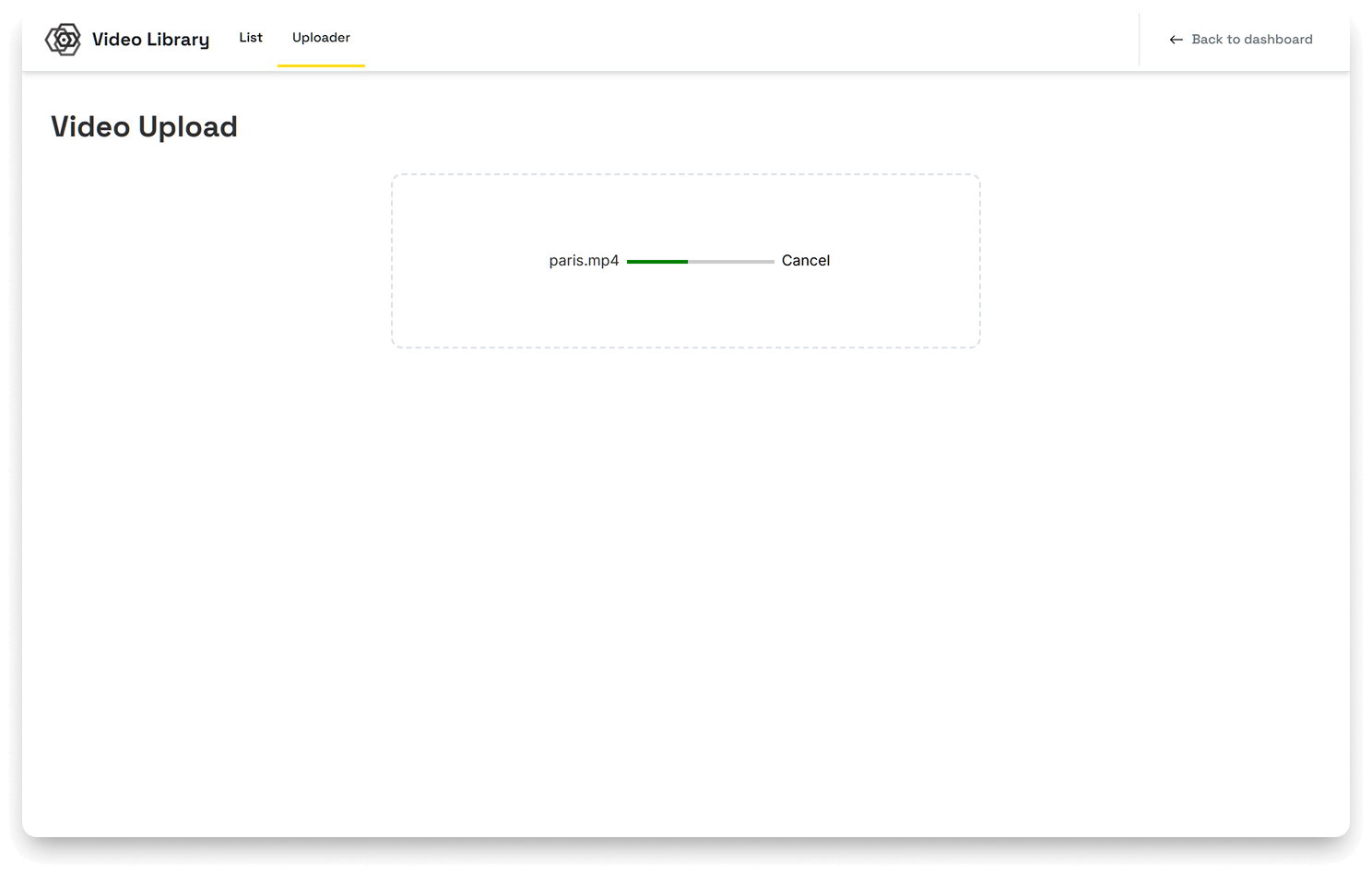
After upload: processing & listing
After the upload completes, SmartVideo processes and optimizes your file for smooth playback. You’ll see the asset in the List tab once it’s in the Library.
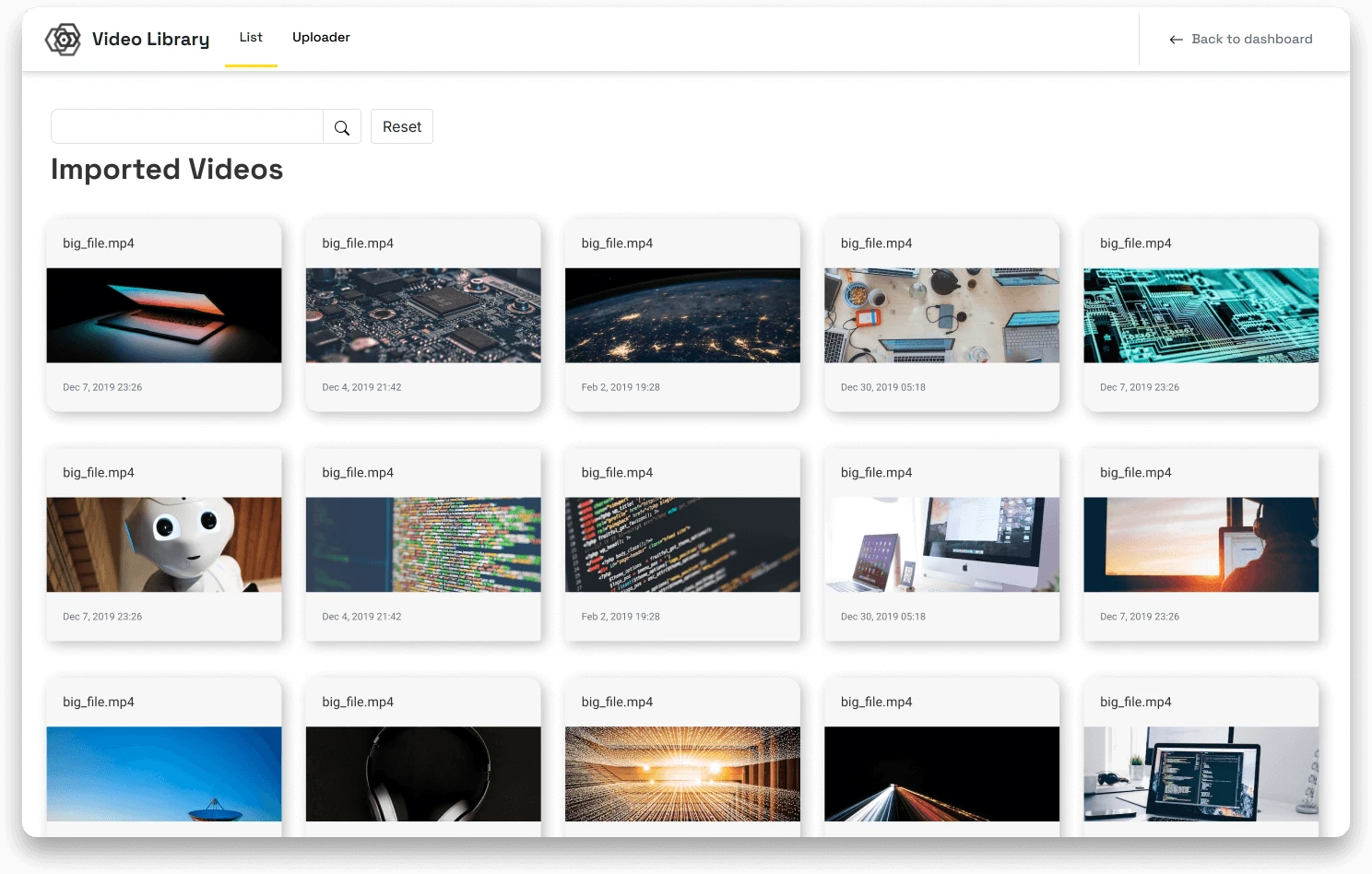
Open Media Details
Click a video’s thumbnail to open its Media Details page. From here you can:
-
Copy a ready-to-use SmartVideo tag for direct embedding, or
-
Copy the source URL for the WordPress plugin or Shopify app.
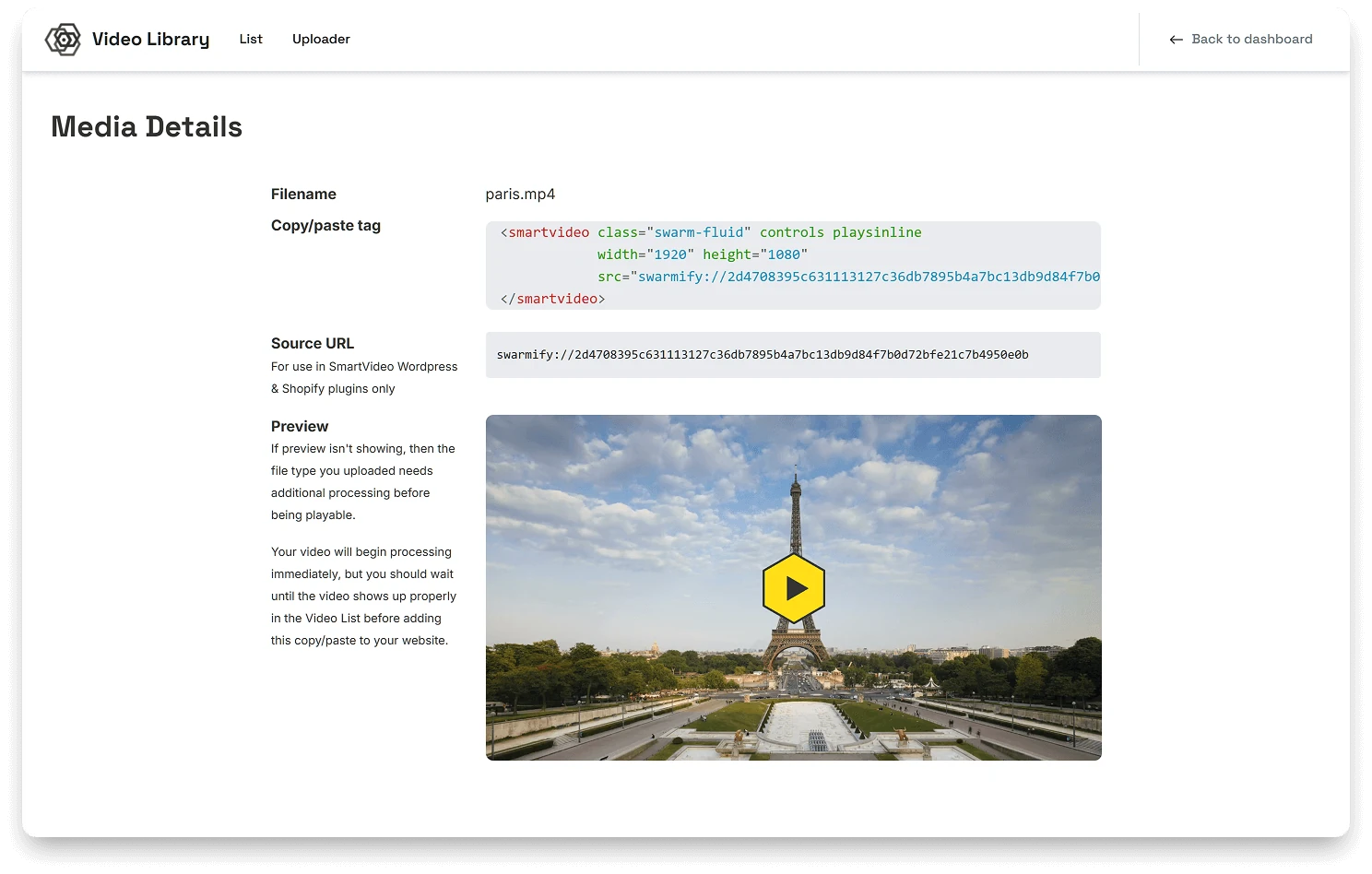
Embed options
Option 1 — SmartVideo tag (paste into your HTML)
Before a Library video tag can play, install the SmartVideo head snippet (swarmcdn.js) on your site, or use the WordPress plugin, which loads it for you. For the head-snippet setup, see Install SmartVideo on another CMS.
Copy the tag from Media Details and paste it into your page HTML. For a video you uploaded, its src already contains your video’s swarmify:// source URL. The example below shows the format; use the full reference from your copied tag, not the placeholder.
<smartvideo src="swarmify://..."
            width="1280" height="720"
            class="swarm-fluid" controls>
</smartvideo>
Note: For a video you uploaded, the source URL on Media Details is a swarmify:// reference that only the SmartVideo player can resolve, so no downloadable file URL appears in your page HTML. It doesn’t need to pass the anonymous-GET check that external sources do. URL imports keep their original source URL.
Option 2 — WordPress
If you use the SmartVideo WordPress plugin, copy the source URL and paste it where the plugin asks for it.
Avoid duplicates: If you’re using the plugin, don’t also add the SmartVideo global snippet manually on the same page.
Find and manage videos
-
Use the Library’s search to quickly locate filenames.
-
Browse with improved pagination when working with large libraries.
Library support
If you need something that isn’t available, please open a support ticket.
Troubleshooting
-
Upload seems stuck: Refresh the Library page and confirm the file size completed. Try a single-file upload.
-
Video not playing yet: A video usually takes about as long as it runs to convert, and longer when our encoders are busy. Reload the page once that time has passed.
-
Remove a video: On the video’s Media Details page, click Delete Video, then click Delete to confirm. This permanently deletes the video’s files and can’t be undone. Cached copies can take up to a day to clear from the CDN.