SmartVideo plays your source URL directly until the optimized copy is ready, and downloads it again whenever the optimized copy has to be rebuilt. Use a URL that anyone can open without logging in, and keep it working for as long as the video is embedded. Videos uploaded to the SmartVideo Library are hosted by SmartVideo and need no external source.
Option 1: use a public bucket policy
Use a dedicated bucket or a dedicated prefix such as public-videos/. Only put videos meant to be public there: anyone with the URL can download them.
1. In the bucket’s Permissions tab, under Block public access (bucket settings), choose Edit. Clear Block all public access, then select the two settings that mention access control lists (ACLs) again. This method uses a bucket policy, not ACLs, so only the two policy settings stay off (BlockPublicPolicy and RestrictPublicBuckets in the S3 Block Public Access docs). Choose Save changes, enter confirm when asked, and choose Confirm.
Account- or organization-level blocks can still prevent public access even when the bucket allows it. Check those settings before changing them; if your account must keep public access blocked, use CloudFront in Option 2 instead.
2. On the Permissions tab, under Bucket policy, choose Edit. Add a public-read statement scoped to your video prefix, then choose Save changes. This example adapts AWS’s public-read policy to the public-videos/ prefix:
{
  "Version": "2012-10-17",
  "Statement": [
    {
      "Sid": "PublicReadForSmartVideo",
      "Effect": "Allow",
      "Principal": "*",
      "Action": "s3:GetObject",
      "Resource": "arn:aws:s3:::YOUR-BUCKET-NAME/public-videos/*"
    }
  ]
}
Replace YOUR-BUCKET-NAME with your bucket name and public-videos/ with your chosen prefix. The statement allows reads only within that prefix; it does not grant uploads or deletions. If the bucket already has a policy, add this statement to it rather than replacing unrelated permissions. See AWS’s bucket policy examples for prefix-scoped resources and adding a bucket policy for the console steps.
3. Upload the video within that prefix and use its direct S3 object URL, in the form https://<bucket>.s3.<region>.amazonaws.com/<key>. Test it in a private browser window without signing in: it must return the video, not an access-denied response or an AWS console page.
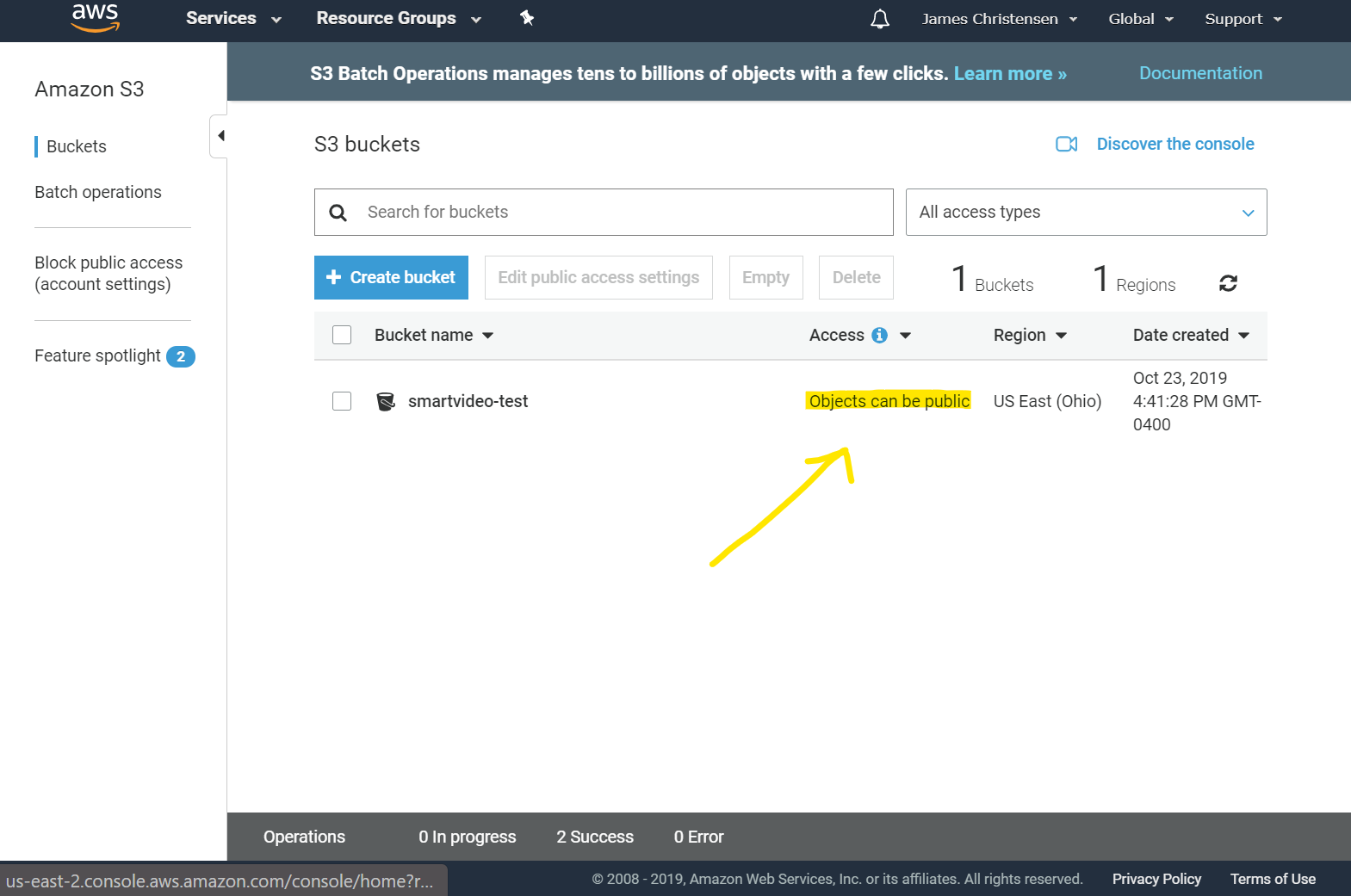
The screenshot shows an older S3 console.
Option 2: use a public CloudFront URL with a private S3 bucket
Keep S3 Block Public Access on and put CloudFront in front of the private bucket using Origin Access Control (OAC). Use a dedicated bucket containing only videos meant to be public, or restrict the OAC bucket policy’s s3:GetObject resource to arn:aws:s3:::YOUR-BUCKET-NAME/public-videos/*. Do not grant bucket-wide read access if the bucket also contains private files: unsigned CloudFront URLs would make those files downloadable too. Follow AWS’s OAC setup guide to use a regular S3 bucket origin, retain the CloudFront service principal and distribution-specific condition in its read-only policy example, and attach the OAC.
For OAC, use Sign requests (recommended). This signs CloudFront’s requests to S3; it does not require visitors or SmartVideo to sign requests to CloudFront. For the cache behavior serving your videos, set Restrict viewer access (use signed URLs or signed cookies) to No, as described in AWS’s cache behavior settings.
Use the public HTTPS CloudFront URL for the video, without a viewer signature or signed cookies. Test that URL in a private browser window. The S3 bucket stays private, but anyone with the CloudFront URL can download the video.
Option 3: upload to the SmartVideo Library
If your plan includes the SmartVideo Library, upload the original there instead of changing S3 access settings. Copy the source URL or SmartVideo tag from the Library’s Media Details.
Presigned and signed URLs: An S3 presigned URL or a signed CloudFront URL works for the first conversion as long as the link is still valid when SmartVideo fetches it. A presigned URL lasts at most 12 hours when created in the console or 7 days with the CLI. Once the link expires, SmartVideo can no longer fall back to it or rebuild the video from it, so use a permanent public URL from Option 1 or Option 2 where you can.
Add the URL to SmartVideo
WordPress: In the SmartVideo plugin, select the SmartVideo block and paste your source URL into Video URL in the block settings sidebar’s Video panel. The clip below shows an older version of the plugin, where the field sat under a Source dropdown.
Other platforms: Paste your source URL into a SmartVideo tag, as shown below.
No CORS change is needed for SmartVideo’s server-side import or plain video playback without crossorigin. Before conversion finishes, the player can play directly from your original URL. If your SmartVideo tag includes a <track> element, SmartVideo sets crossorigin="anonymous"; that playback requires your S3 bucket (or your CloudFront distribution, for Option 2) to allow cross-origin GET requests from your website. The same applies if you set crossorigin yourself. Follow AWS’s S3 CORS configuration guide for direct S3 URLs, or its CloudFront response headers documentation for CloudFront URLs.
SmartVideo starts the conversion process when a visitor or preview loads the page. Keep the source URL readable after conversion finishes so playback fallback and future re-conversion can still access the original.