A video CTA gives a viewer a clear next step while the video is still holding their attention. On your own website, you can place that action inside the player at a chosen time, show it on an end screen, or keep it beside or below the player as part of the page.
📋 TL;DR • Choose the placement first: Use a timed overlay for a specific moment, an end-screen CTA for a natural next step, or a page-level CTA for a persistent action. • Match the promise: Use one action-oriented label that tells the viewer what happens after the click. • Time it around intent: Give the viewer enough context to value the offer, then test the moment against watch progress. • Measure the whole path: Track the CTA opportunity, click, destination conversion, and assisted conversions separately.
What is a video CTA?
A video CTA is a clickable prompt asking the viewer to take one specific next action, such as starting a trial, downloading a guide, booking a call, or continuing to the next lesson. It can appear inside the player or beside it on the page. Text or a button burned into the video file is visible but not inherently clickable; use a player overlay, an end-screen interaction, or an HTML link.
What are the three ways to add a CTA to a website video?
Choose the least disruptive placement that still gives the viewer a useful next step:
| CTA placement | Best fit | When it appears | Main advantage | Watch for |
|---|---|---|---|---|
| Timed in-player overlay | Product demos and proof moments | At a chosen timestamp | Connects the action to what the viewer just saw | It can interrupt playback or cover content |
| End-screen CTA | Course lessons and completed demos | At the end of playback | Feels natural after the full explanation | Many viewers will not reach the end |
| Beside or below the player | Landing pages and product pages | Visible with the page | Keeps the action available without interruption | It may compete with other page elements |
Use more than one placement only when each has a different job, such as pairing a timed product-demo prompt with a page-level fallback.
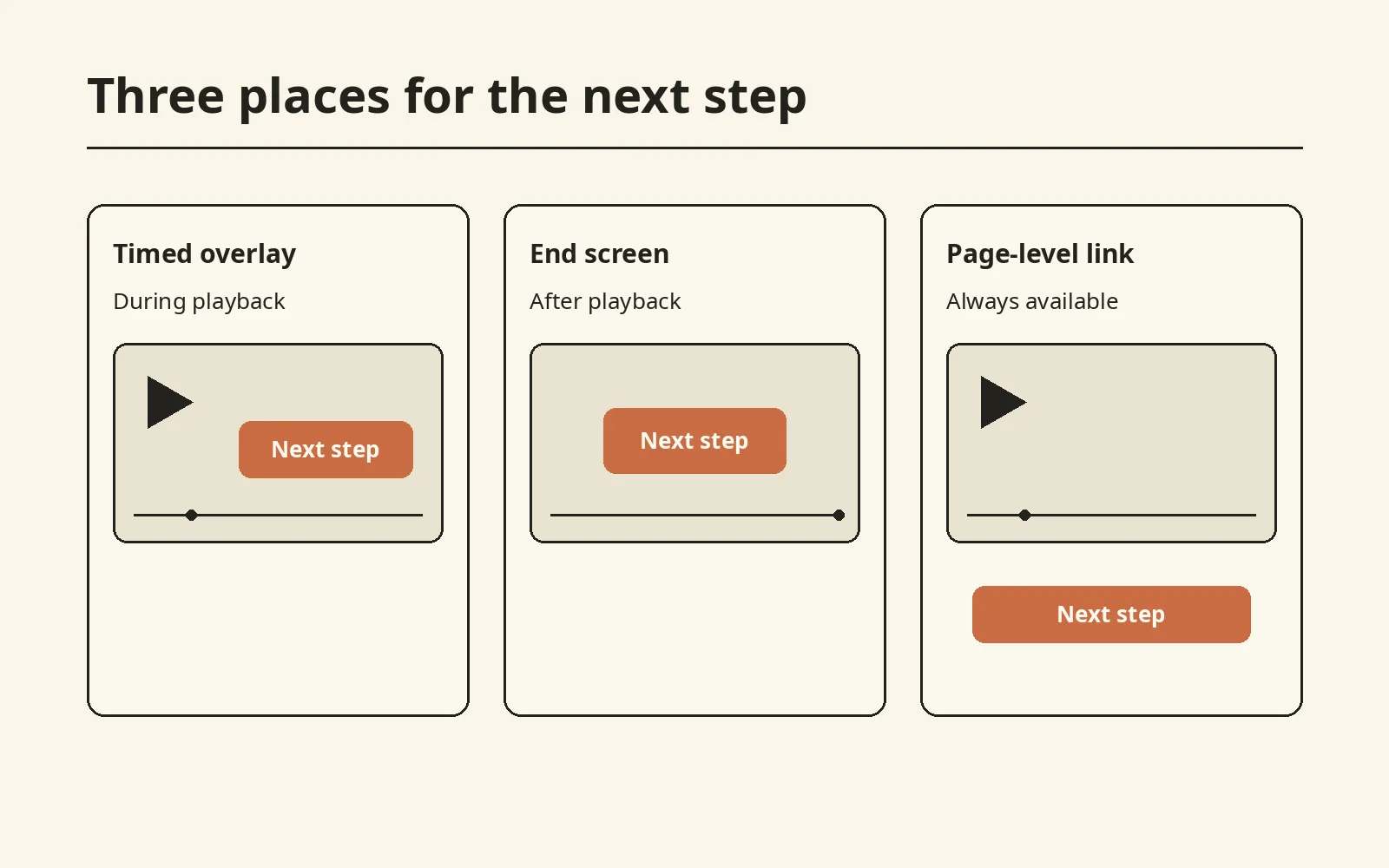 Choose whether the action belongs during playback, after it, or outside the player.
How do you add a timed in-player CTA overlay?
A timed overlay appears during playback. Choose the moment, add short copy and a destination URL, and decide whether playback continues or pauses.
Check your host’s video customizer or help for timed links, completion cards, and plan availability; use a page-level link if those controls aren’t offered.
For a documented example, Wistia’s CTA walkthrough uses this sequence:
- Open the video’s Customize panel and choose Call to action.
- Enter the time when the CTA should appear.
- Select the CTA type, then fill in its fields.
Wistia says its timeline CTA pauses playback and lets the viewer click or skip; it recommends annotation links when playback should continue. Check your own player’s behavior rather than assuming every overlay works the same way.
For a product demo, tie the overlay to the proof: after a reporting-dashboard video shows how a team saves time, try See the reporting workflow or Start the free trial. Timed overlays also work after a tutorial section or case-study result.
Preserve captions and video accessibility, provide a close or skip control, and make mobile targets easy to activate. WCAG 2.2 sets a minimum pointer target size of 24 × 24 CSS pixels, with exceptions including sufficient spacing (W3C target-size guidance).
When should you use an end-screen CTA?
An end-screen CTA appears after the video’s explanation. Link to the next lesson, trial, or product page; add a page-level fallback for longer videos whose viewers leave early.
For a YouTube-hosted alternative, YouTube end screens appear in the last 5–20 seconds of videos at least 25 seconds long and support up to four elements for 16:9 video, with fewer for other aspect ratios. External links require YouTube Partner Program membership, as do external links in YouTube info cards. Both are managed in YouTube Studio, separate from an independently embedded website player.
How do you place a page-level CTA?
A page-level CTA is a normal link or button beside or below the player. It can remain available while the video plays and suits a landing page that owns the conversion path.
Place a Book a product walkthrough button beside the product video; on narrow screens, move the button below the player and keep it keyboard accessible. See video landing-page structure and five ways to embed a video for implementation help.
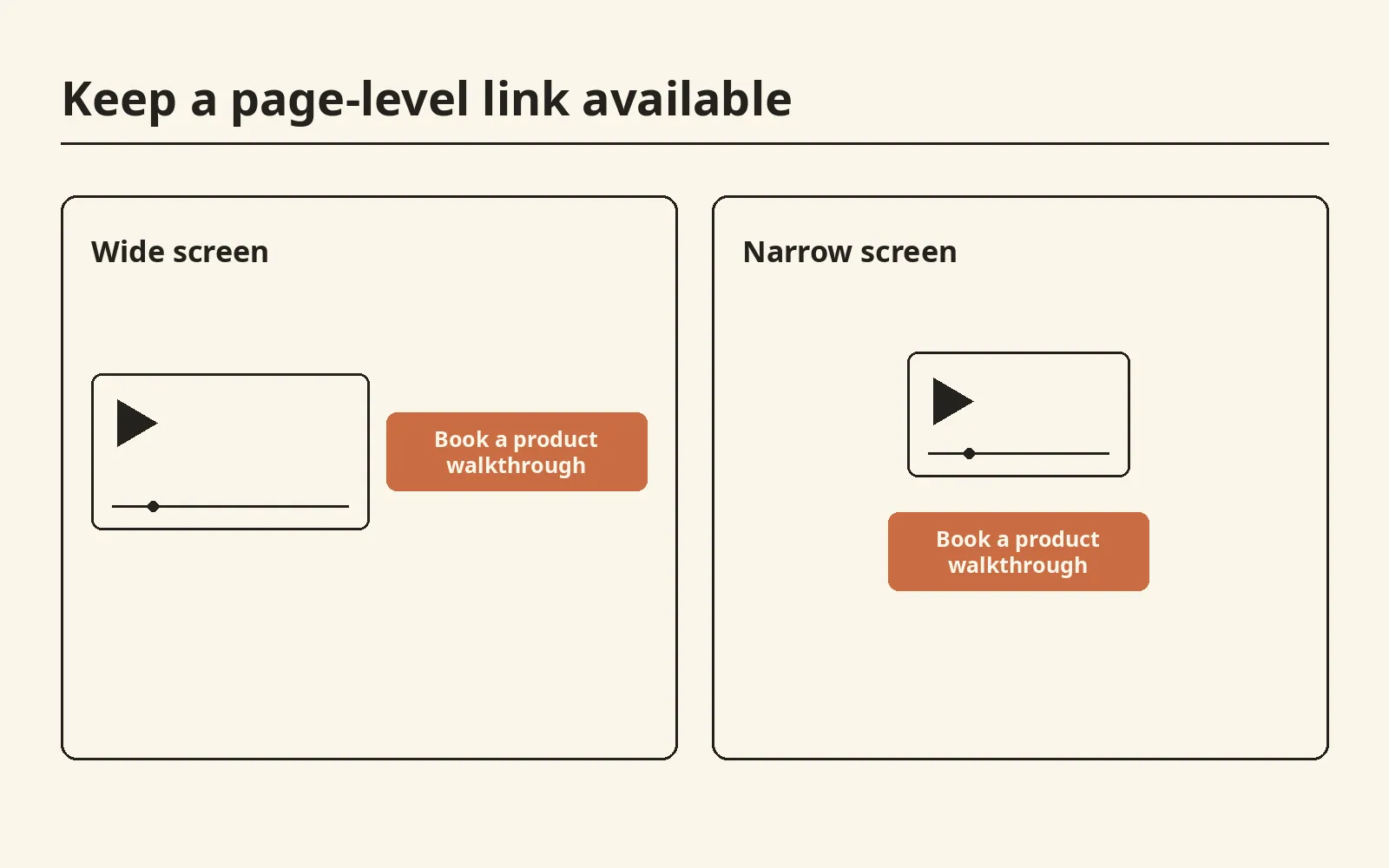 Keep the same next step available when the layout changes.
How do you build all three CTA placements with native HTML?
A native <video> can use a timeupdate handler for an overlay, an ended handler for an end-screen link, and an ordinary HTML link below it. MDN says timeupdate typically fires 4–66 times per second, varying with system load and handler cost, so check currentTime >= your threshold rather than exact equality.
Replace sample.webm and sample.vtt with your own video and captions, replace the destination URLs with your own pages, connect dataLayer to your analytics tool, and serve the example through a local web server before moving it into your site. For options beyond the browser’s native controls, see the HTML5 video player guide.
<style>
  .player { position: relative; }
  .player .sr-only { position: absolute; width: 1px; height: 1px; padding: 0; margin: -1px; overflow: hidden; clip: rect(0, 0, 0, 0); white-space: nowrap; border: 0; }
  #demo { width: 100%; display: block; }
  #overlay { position: absolute; top: 12px; left: 12px; background: white; padding: 8px; }
  #end { position: absolute; top: 12px; left: 12px; right: 12px; bottom: 64px; display: grid; place-items: center; background: white; }
  .player a, .player button, .page-cta a { display: inline-block; padding: 8px; }
  .player a:focus-visible, .player button:focus-visible, .page-cta a:focus-visible { outline: 3px solid #b30; }
  .player [hidden] { display: none !important; }
</style>
<div class="player">
  <video id="demo" controls playsinline tabindex="0" src="sample.webm"
    aria-label="Product demonstration">
    <track kind="captions" src="sample.vtt" srclang="en" label="English" default>
  </video>
  <div id="overlay" hidden>
    <a href="/reporting/" data-placement="demo_overlay">See the reporting workflow</a>
    <button id="skip" type="button">Dismiss CTA</button>
  </div>
  <div id="end" hidden>
    <a href="/lesson-4/" data-placement="end_screen">Continue to the next lesson</a>
    <button id="replay" type="button">Replay video</button>
  </div>
  <p id="cta-status" class="sr-only" role="status" aria-live="polite"></p>
</div>
<p class="page-cta"><a href="/book/" data-placement="below_player">Book a product walkthrough</a></p>
<script>
  const video = document.querySelector('#demo');
  const overlay = document.querySelector('#overlay');
  const end = document.querySelector('#end');
  const status = document.querySelector('#cta-status');
  let shown = false;
  const exposed = new Set();
  function record(name, placement) {
    const event = { event: name, placement, video_id: 'local-demo', video_time: video.currentTime };
    window.dataLayer = window.dataLayer || [];
    window.dataLayer.push(event);
    window.dispatchEvent(new CustomEvent(name, { detail: event }));
  }
  function expose(placement) {
    if (!exposed.has(placement)) {
      exposed.add(placement);
      record('video_cta_exposure', placement);
    }
  }
  document.querySelectorAll('a[data-placement]').forEach(link => {
    link.addEventListener('click', () => record('video_cta_click', link.dataset.placement));
  });
  const belowPlayer = document.querySelector('a[data-placement="below_player"]');
  const observer = new IntersectionObserver(entries => {
    entries.forEach(entry => {
      if (entry.isIntersecting) {
        expose('below_player');
        observer.unobserve(entry.target);
      }
    });
  });
  observer.observe(belowPlayer);
  video.addEventListener('timeupdate', () => {
    if (!shown && video.currentTime >= 2 && !video.ended) {
      shown = true;
      overlay.hidden = false;
      expose('demo_overlay');
      status.textContent = 'Reporting workflow link available.';
    }
  });
  document.querySelector('#skip').addEventListener('click', () => {
    overlay.hidden = true;
    record('video_cta_dismiss', 'demo_overlay');
    video.focus();
  });
  document.querySelector('#replay').addEventListener('click', () => {
    video.currentTime = 0;
    video.play();
    video.focus();
  });
  video.addEventListener('ended', () => {
    overlay.hidden = true;
    end.hidden = false;
    expose('end_screen');
    status.textContent = 'Next lesson link available.';
  });
  video.addEventListener('play', () => { end.hidden = true; });
</script>
The overlay appears once per page load, including when a viewer seeks past the threshold; it does not prove they watched the preceding content. Replaying hides the end-screen link until playback finishes again. Leave loop off: according to MDN’s ended documentation, normal forward looping prevents that event from firing.
What we verified (October 28, 2026)
We ran the exact sample on a local page with a six-second synthetic video and WebVTT captions in headless Chromium at desktop 1280 × 900 and mobile 390 × 844 viewports. The overlay appeared just after two seconds, and the completion card appeared on the
endedevent at six seconds. At both widths, the overlay left the active caption visible; the completion card left the bottom 64 CSS pixels clear for native controls, with no horizontal overflow.Enter activated all three CTA destinations and replay. Tab reached dismiss, Space dismissed the overlay and restored video focus, and replay did not count another exposure for the same placement. Revealing either CTA did not move focus. Chromium’s accessibility tree exposed a polite status region with “Reporting workflow link available.” during the overlay and “Next lesson link available.” at completion. We did not test spoken screen-reader output or measure conversions, and these checks do not establish that two seconds is the right marketing moment. Test with your own captions, screen reader, and player dimensions before deployment.
What changes for a YouTube embed?
For a YouTube embed, reveal a separate link on your page when the IFrame API’s onStateChange reports YT.PlayerState.ENDED (0), as described in YouTube’s IFrame API reference. Initialize the player inside onYouTubeIframeAPIReady and supply your page’s origin. This page-owned link is not a YouTube Studio end-screen element, and it does not remove YouTube’s player UI.
Wait for the actual completion callback rather than manually dispatching an event. In October 2026, we jumped YouTube’s reference video to its last three seconds and let it play to completion: state 0 revealed a page-owned link, and Enter activated it. This did not test YouTube Studio’s external-link eligibility.
How do you write CTA copy that makes the next step obvious?
Good CTA copy names the action and tells the viewer what happens after the click. Match the label to the destination so viewers can decide whether that next step suits them before leaving the video.
- Download the launch checklist instead of Learn more.
- Start the free trial instead of Get started.
- Continue to the next lesson instead of Next.
Keep one primary action per video: asking viewers to buy, book, download, subscribe, and read a case study in one overlay forces them to choose among too many options. Match the destination to the promise; Download the checklist should open the checklist or a form that clearly leads to it, not a generic homepage.
When should a video CTA appear?
Start with intent, not an arbitrary timestamp. Define the offer and identify when it becomes relevant before checking retention; place the CTA after the idea that makes the next step useful.
- Identify the proof moment, conclusion, or lesson boundary.
- Place the first CTA opportunity immediately after that moment.
- Check whether it lands during a drop-off.
- Test one new timestamp or placement at a time.
Wistia’s report, published April 22, 2026, analyzed more than 36,000 CTAs in Wistia-hosted videos in 2024 and reported an average conversion rate of about 16%; that figure is not a forecast for your audience (Wistia, 2026).
The following starting points are Wistia’s interpretation of its own timing chart (source and chart):
| Video length | CTA timing to try |
|---|---|
| Under 1 minute | First quarter |
| 1–3 minutes | Final quarter |
| 3–5 minutes | Around halfway |
| 5–30 minutes | At the end |
| 30–60 minutes | Second half |
| 60+ minutes | After halfway |
These Wistia starting points are platform-specific. For a video under a minute, try an early CTA only if the offer is already clear; otherwise, show the proof first. Choose and test timing against your own retention data.
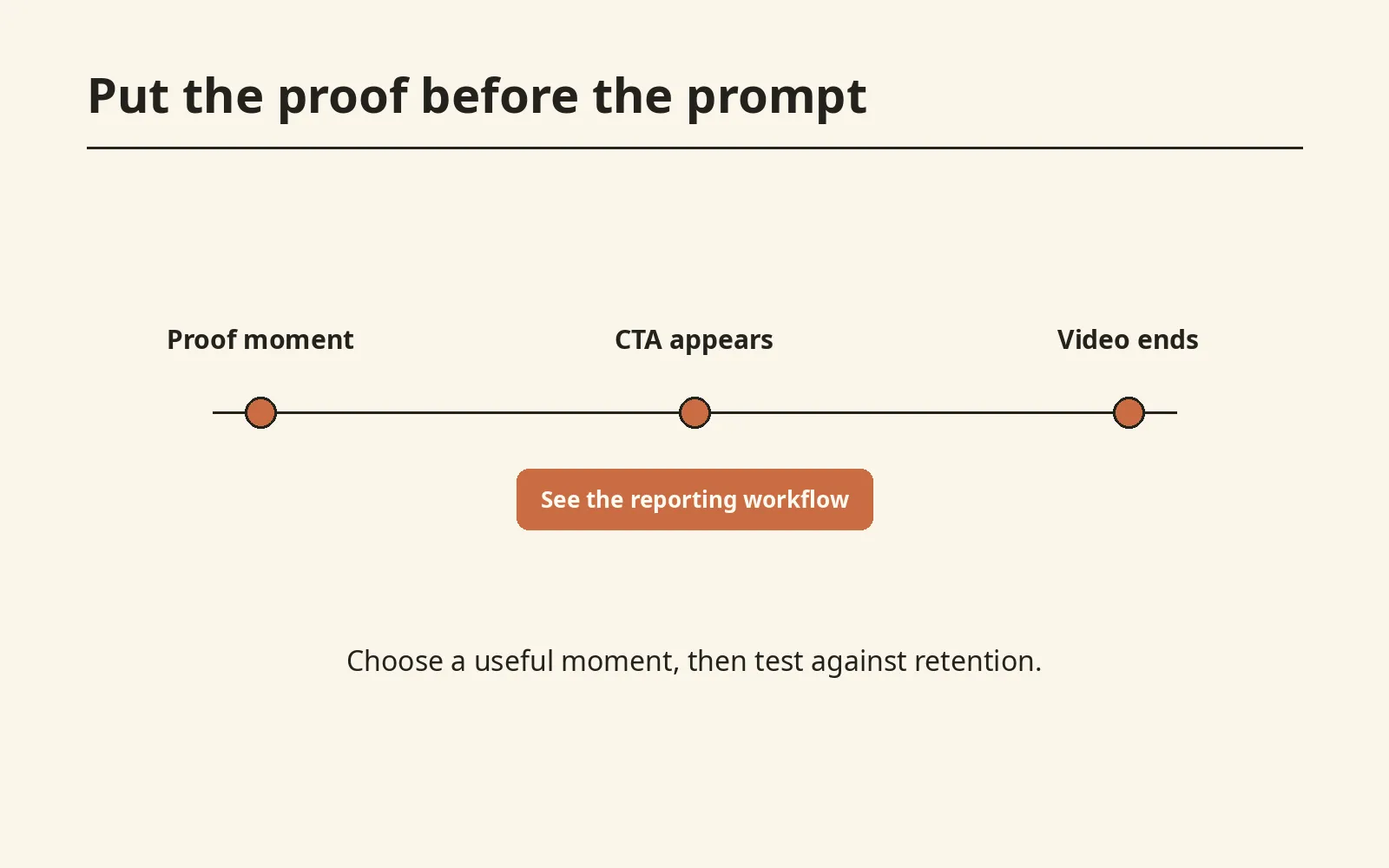 The CTA follows useful context; test the moment against your own retention data.
How do you measure CTA clicks and downstream actions?
Measure the path from CTA opportunity to business outcome, not just the number of clicks. Separate exposure, clicks, destination conversions, and assisted conversions so you can see where viewers stop:
- CTA opportunity: an in-player CTA reveal or viewport intersection for a page-level CTA.
- CTA click: selections of the overlay, end screen, or page link.
- CTA click-through rate: clicks divided by CTA opportunities, not necessarily all plays.
- Post-click conversion: clickers who completed the destination action.
- Assisted conversion: conversions that had a video view or CTA click earlier in the journey.
- Watch progress at exposure: whether viewers saw the context first.
For referral or campaign links, Google Analytics documents UTM parameters for identifying referring campaigns; utm_content can distinguish different CTA links (Google Analytics UTM guide).
For a CTA that leads to another page on your own site, prefer a click event with a placement label such as demo_overlay or below_player. Record the destination conversion separately. High exposure with few clicks may indicate weak copy or timing; high clicks with few destination conversions may indicate a landing-page mismatch.
Use event names such as video_cta_exposure, video_cta_click, and video_cta_dismiss, with placement, video_id, and video_time fields. As in the sample, push each event to window.dataLayer and dispatch a matching browser CustomEvent for a listener to consume. These are example event names, not automatic events supplied by the players.
Define the denominator before collecting data: count each placement’s first reveal once per page load, use viewport intersection for the below-player link, and do not count another exposure on replay. A reveal or viewport intersection is only an opportunity, not proof of attention. Connect the events to your analytics tool or tag-manager triggers; a data-layer push alone does not send a report.
Same-tab navigation can lose forwarded hits on unload; use analytics beacon transport or tag-manager link-click handling.
In October 2026, we checked the native overlay, completion and below-player links, plus the YouTube end link. Each Enter activation yielded one click event and a matching CustomEvent; these checks did not measure destination conversions or analytics forwarding.
The sample covers the native placements, not a YouTube iframe. To apply this event design to YouTube, adapt the recorder to use the iframe player’s ID and current time, then send exposure from its end-state callback and a click event from the page-owned link.
Do not assume every host reports CTA impressions or CTA clicks. If it does not, measure the destination URL and page-level fallback, and document what the numbers include. See video analytics metrics that matter for the wider measurement picture.
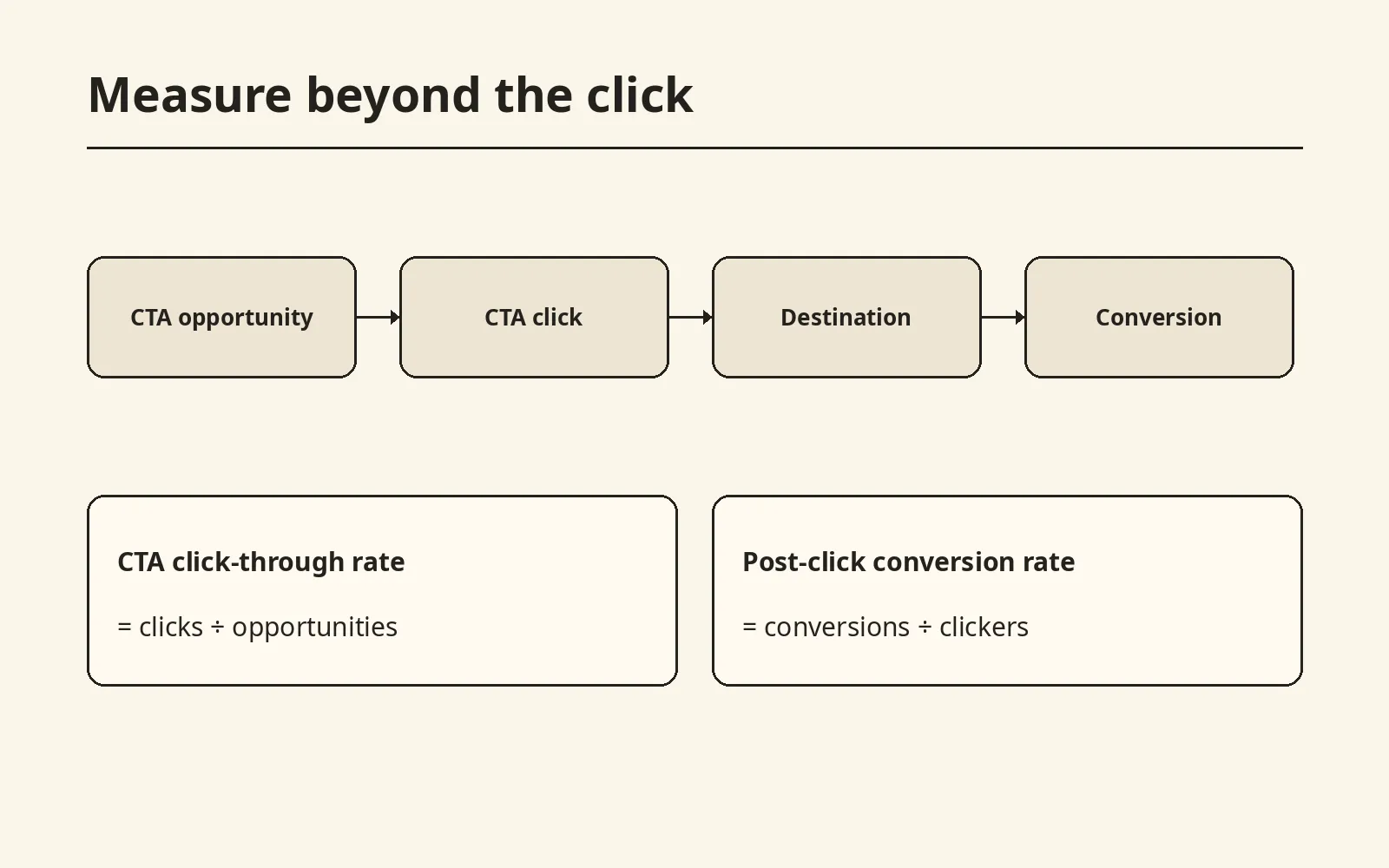 Keep the click-through and post-click conversion denominators separate.
How do you add a CTA with the SmartVideo WordPress plugin?
SmartVideo WordPress Plugin 2.4 introduced per-video CTA overlays in the block editor and the [smartvideo] shortcode (SmartVideo changelog). CTA overlays are included on Growth and above, not Startup. Use a current plugin release connected to that account.
- In Settings → SmartVideo, choose Stable under Player → Version. Stable selects the new player. The classic player does not display CTA overlays. The plugin’s WordPress listing explains this switch.
- Open the page in the block editor and select its SmartVideo block. In the block settings, expand Call to action and turn on Enable call to action.
- Enter the action in Text and the full destination in Link URL (optional). Supply the URL for a clickable CTA; leaving it blank produces text only. Links open in a new tab, so make that clear in your label.
- Choose Position, Show from, and Hide after. Show-from choices are On play, 3 seconds, 5 seconds, or 10 seconds; the default is 3 seconds. Choose Until end to leave it visible through playback, or a hide timestamp later than the show time.
- Save the page, then play it on the front end. Check the timing, click destination, keyboard access, and whether the overlay covers captions or controls on a phone.
For a Shortcode block, replace the sample URLs and text in this example:
[smartvideo src="https://example.com/demo.mp4" overlay_enabled="true" overlay_text="See the reporting workflow (opens in a new tab)" overlay_url="https://example.com/reporting/" overlay_start="5" overlay_align="top"]The released shortcode implementation accepts these overlay_* attributes. Its shared overlay renderer suppresses the CTA on the classic player and Startup tier. This is a timed overlay, not a dedicated end-screen trigger; use a page-level link when you need a persistent next step. Measure the destination conversion separately from playback events.
SmartVideo’s embedded player is ad-free and branded for your site, without suggested videos or a “Watch on YouTube” link in the frame. The CTA can point viewers to your next step rather than another platform’s content.
FAQ: Video CTA questions
Choose a clickable player interaction or a separate page link, then match its timing and destination to the video’s purpose. These answers cover implementation, measurement, and common placement decisions.
How do I add a clickable link to a video on my website?
Use a host or player with an interactive overlay or end-screen link, or add an HTML link beside the video. Text burned into the file is not clickable by itself.
Should a video CTA appear in the middle or at the end?
Place it after the proof or explanation that makes the action relevant. A mid-video CTA can follow a product moment; an end CTA suits a completed lesson, demo, or explainer. For long videos, add a page-level fallback for viewers who leave early.
What is a good CTA for a product demo video?
Use a CTA that follows the demonstrated benefit, such as “Start the free trial” or “Book a product walkthrough.” Match the destination to the label: the trial button should open the signup step, while a walkthrough link should go to a booking page.
Where should a CTA go in an online course lesson?
The end of the lesson is usually the clearest place to link to the next lesson or exercise. For a longer lesson, add a visible next-step link near the player or a non-blocking cue earlier, so learners who pause can still find it.
How do I track clicks on a video CTA?
Track the CTA opportunity, click, destination conversion, and assisted conversion separately. Label events by placement and compare clicks with watch progress. If the host does not report player clicks, measure destination visits and page-level links while documenting which events each number includes.
How should I test when a video CTA appears?
Start with a point after the viewer has enough context to understand the offer, then check whether it appears before a typical drop-off. Test one timing or placement change at a time and compare clicks with the viewers who reached the CTA.
Can I make text in an exported video file clickable?
No; treat text rendered into the picture as a visual prompt, not a working link. Add an interactive layer in the player or a separate HTML link on the page, and give it the same action label as the video.
Should a video CTA pause playback?
Pause only when the viewer can reasonably stop watching to decide or act. For a reminder during an explanation, prefer a non-blocking link or page-level button; preview it with captions and player controls visible before choosing its position.
How can you make the next step part of the viewing experience?
An effective video CTA follows from the reason the video gave the viewer to act. Choose the placement that fits their state, make one specific promise, and measure clicks separately from conversions. Keep the page-level CTA available and test on mobile with captions enabled.


