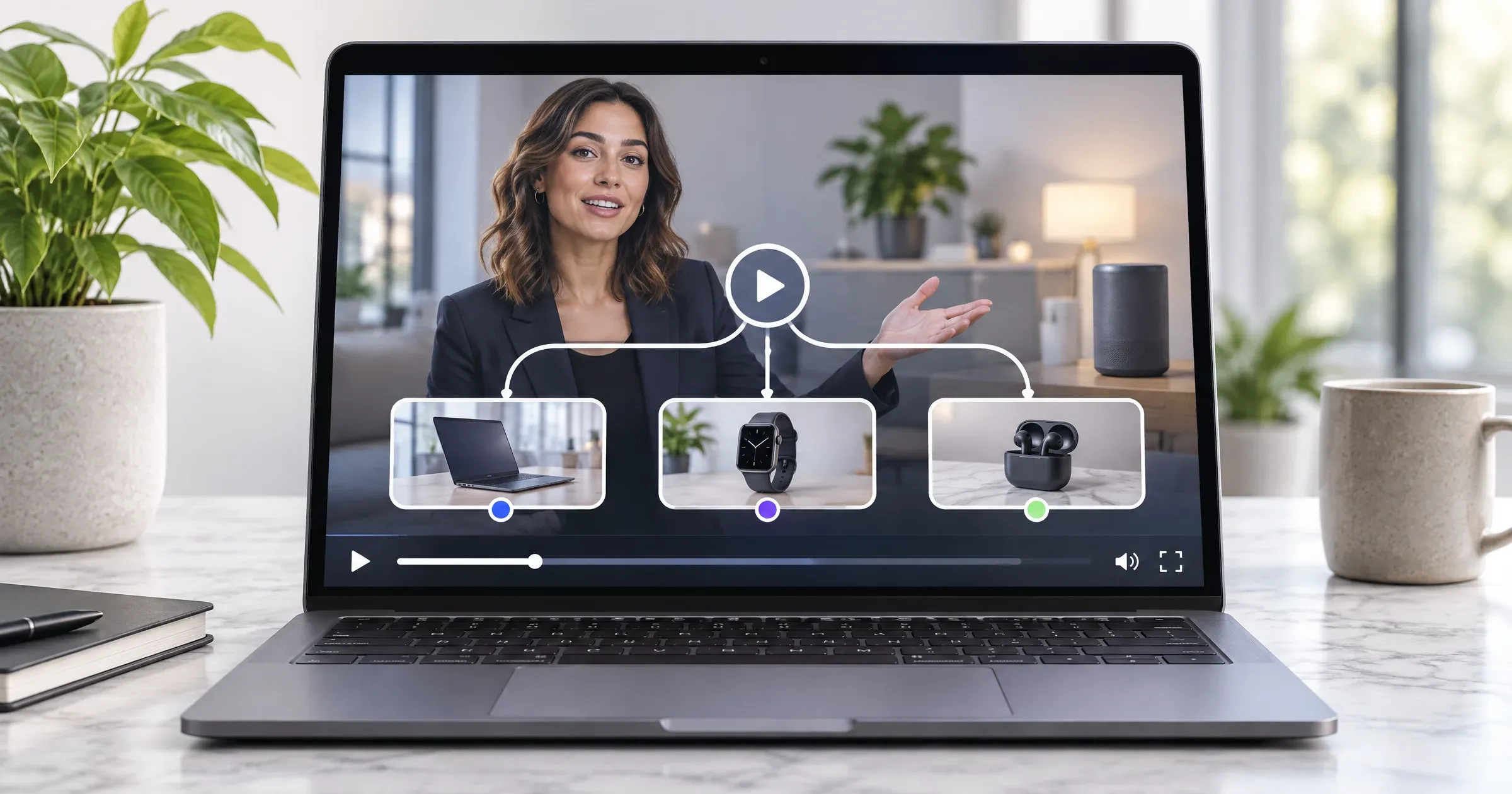
Interactive video is a video experience that lets website visitors choose what they see or where they go next. A product demo can branch by need, a quiz can check understanding, and a menu can jump to a relevant section. An authoring layer creates interactions; a video host and player handle media delivery and playback, though some platforms bundle both.
Use interactivity when a viewer’s choice changes the next step. If visitors only need chapters or a link, a linear video may be simpler. This guide covers website demos, quizzes, and navigation, not shoppable checkout or social-feed discovery.
📋 TL;DR • Start with a viewer decision: Build around a real question, such as which product setup fits or what a learner needs to review. • Map the path first: Keep branches short, explain each choice, and provide a clear way back or forward. • Separate authoring from hosting: An authoring tool creates interaction logic; a host stores and delivers video through a player. • Test the published experience: Check keyboard access, captions, mobile controls, every branch, and the analytics events you rely on. • Assign maintenance: Give someone ownership of links, product details, and retesting after site or player changes.
What is interactive video on a business website?
A conventional video plays in sequence. An interactive video lets viewers choose a branch, answer a question, open a chapter, or follow a link.
Depending on the tool, a choice may change the next clip, jump to a timestamp, reveal information, or open a page. “Interactive” describes what viewers can do, not a single file format. An authoring product connects ordinary video files with buttons, questions, rules, and destinations, then publishes an embed. Other tools add interactions to video hosted elsewhere.
According to H5P’s documentation, Interactive Video supports questions, adaptive jumps, and bookmarks (H5P, 2026). These illustrate interaction capabilities, not a compatibility promise for any particular external host or player. We checked this documentation in November 2026.
That distinction matters: a responsive player does not automatically provide branches or quizzes, and an interaction tool may not be the right place to store and deliver video. Confirm which product owns each job before choosing a setup.
Which interactive video formats suit business websites?
Branching demos, quizzes, and chapter navigation serve different viewer needs. Choose the simplest format that helps viewers get their answer.
| Format | What the viewer does | Good fit | Watch for |
|---|---|---|---|
| Branching product demo | Chooses a need, use case, or setup and follows a tailored path | Several audiences share a product, but need different explanations | Too many branches can multiply filming and review work |
| Quiz or knowledge check | Answers a question and receives a response or next step | Onboarding, product education, or checking whether an explanation landed | A score is not useful unless it leads to a clear action |
| Chapter or topic navigation | Selects a section or jumps to a moment | Long demos, feature tours, and explainers with distinct topics | Simple chapters may be enough; conditional branching may be unnecessary |
A branching demo might ask, “What are you trying to do?” and offer “Publish a video on my site” or “Organize a training library.” Each choice should lead to a useful explanation and next step.
A quiz can check whether someone understood a setup step or help a prospect identify a feature to explore. Tie questions to the video’s purpose. If answers do not change the explanation or next action, a callout or FAQ may do the job with less friction. In our testing of H5P’s interactive video demo, opening a multiple-choice question paused playback; after we selected an answer and checked it, the quiz displayed feedback and a Continue button.
For learning content, Cynthia Brame’s published review organizes effective educational video around cognitive load, engagement, and active learning (Brame, 2016). That is a reason to design questions around a learning goal, not evidence that adding a quiz will increase sales. The review concerns education, not business-site conversion rates.
In a quasi-experiment by Deng, Yang, and Shen, 109 university students in three classes were assigned to videos with questions, interactive questions, or no questions. The interactive questions did not improve knowledge acquisition or application beyond questions in linear video. This classroom result is not a business conversion estimate, but it is a useful reminder to compare interaction against a simpler alternative.
In a higher-education case study by Ekaterina Pechenkina, 58.5% of learners watched at least one video and 48.8% completed at least one quiz. These figures describe one course, not an expected engagement rate for a business website.
A navigation menu gives viewers control without changing the story: a chapter list, topic cards, or links to specific moments. Start here when users need to browse rather than make decisions that alter the content.
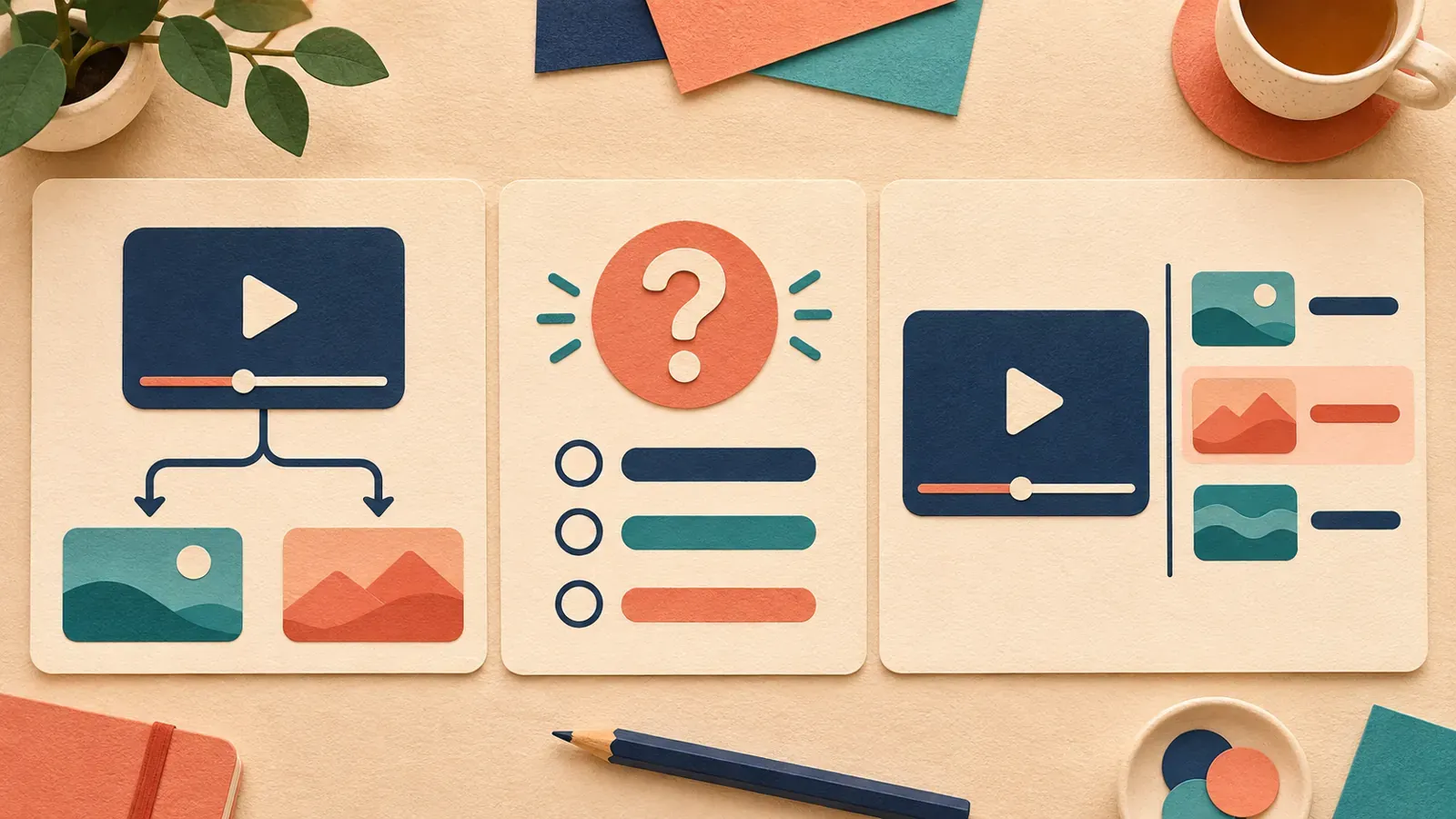 Branching, quizzes, and chapter menus give viewers different ways to interact with video.
How do you plan interactive video paths before recording?
Plan interactive video by sketching the viewer journey before filming or configuring a tool. Start with the page’s question and the choice that changes the answer.
A useful first map can be a few boxes and arrows:
- Opening: State who the experience is for and what viewers can explore.
- Choice: Offer a small number of clear options using labels that make sense without the video narration.
- Response: Show the relevant demo, explanation, or answer.
- Next step: Let the viewer continue, return to the menu, or follow a relevant page link.
- Completion: Provide a clear ending instead of leaving a branch at a dead end.
Write branch labels as viewer questions, not internal product categories. “I need to add video to a landing page” is clearer than an unfamiliar feature name. Keep paths focused; if every choice leads to the same long introduction, the choice is not doing useful work.
Use a branch map to estimate production effort and note which scenes can be shared. Different openings, demos, and endings may require separate footage or narration. For source-footage planning, see how to create a product video.
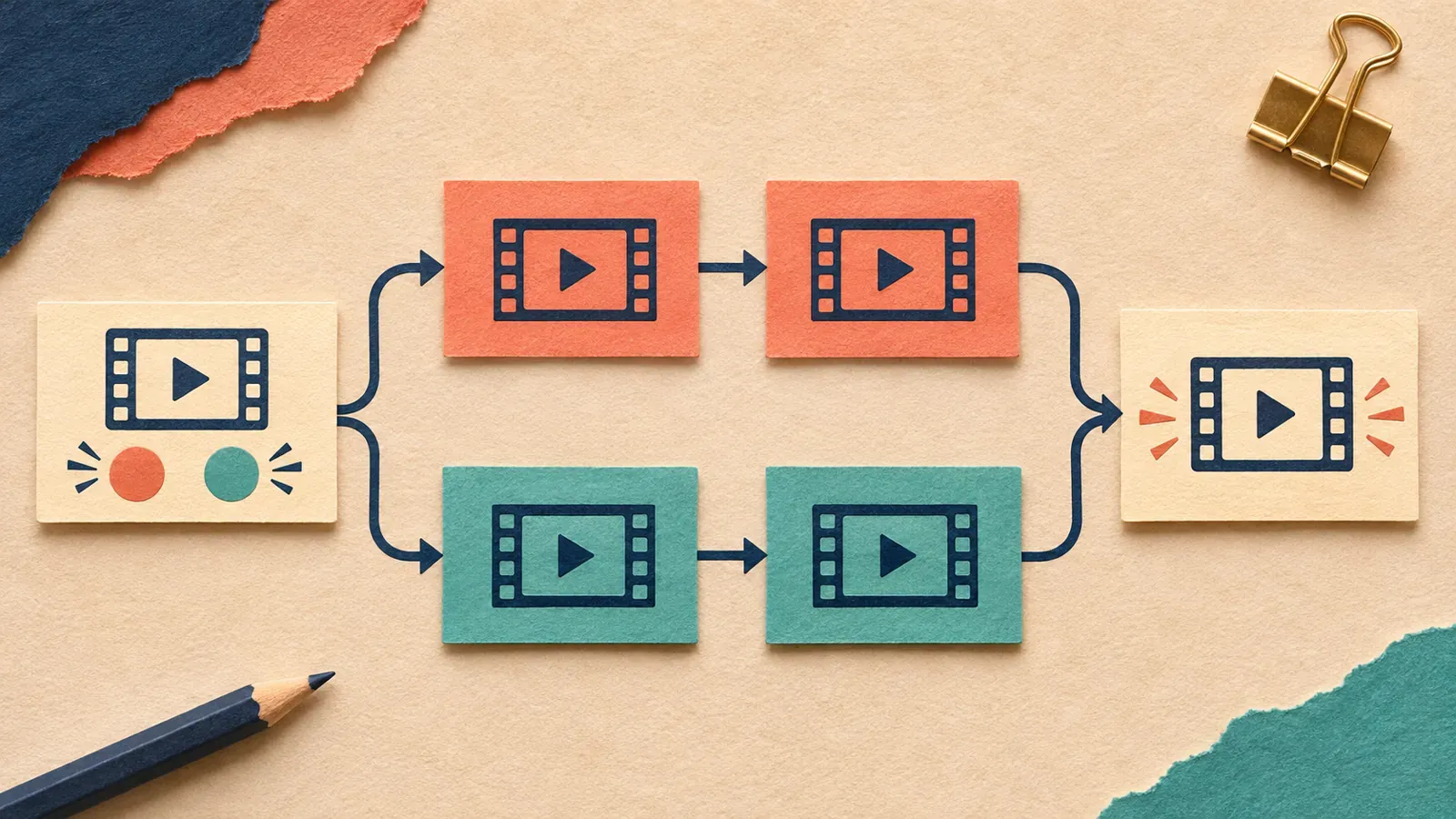 Mapping branches before filming helps identify footage that can be shared across paths.
Set a destination for each outcome before launch. Check that linked feature pages, help articles, or forms exist and match the video’s promise. Keep a linear route for viewers who prefer not to make selections.
How does interactive video authoring differ from hosting?
Interactive video authoring creates choices and logic; hosting delivers the media. Some platforms bundle both, while other setups pair an interaction tool with a separate host and player. The correct split depends on the product’s capabilities and the experience you need.
| Responsibility | Interaction authoring layer | Video host and player |
|---|---|---|
| Main job | Build branches, questions, buttons, rules, and destinations | Store, encode, deliver, and play video in an embed |
| Questions to ask | Can it create the path logic and publish the controls you need? | Does it deliver reliably on your site and support the embed and playback requirements? |
| Data to confirm | Which choices, answers, and CTA actions are recorded, and where? | Which playback events and errors are reported, and what data is collected? |
| Common boundary | May rely on another service for video delivery | A host alone may not create conditional branches or quiz logic |
Costs and capabilities can change with the authoring and hosting setup. These published examples, checked November 2026, illustrate why the interaction layer and delivery plan should be budgeted separately; confirm current terms and compatibility before purchasing.
| Published plan | Price and relevant limit or capability |
|---|---|
| H5P.com Premium | H5P’s calculator shows $1,560/year for three authors in its displayed configuration; detailed reports are an optional add-on requiring an LMS with LTI. |
| Mindstamp Basic | Mindstamp lists $99/month billed monthly, with five active videos and 10,000 streaming minutes per month. |
| Mindstamp Core | Mindstamp lists $299/month billed monthly, with 50 videos and 50,000 streaming minutes per month. |
| Mindstamp Pro | Mindstamp lists $499/month billed monthly, adding conditional logic and 100,000 monthly streaming minutes. |
| Wistia Business | Wistia lists $79/month billed annually, with CTAs, forms, and advanced video analytics. |
The Wistia example describes hosting and marketing features, not a claim that it provides the conditional branching or quizzes in a dedicated authoring tool. Check whether each product supplies the interactions, embed, and events you need.
Test the published embed, not just the feature list. Check that it works in your content management system, that the player fits the page, and that the authoring tool records useful events. Confirm where viewer data is stored and who can access it.
For a custom build, keep the branch map, answer state, and choice controls in a page-level interaction layer. Connect that layer to the player’s documented playback API: it needs to know when to show a question and how to pause, seek, or switch clips. According to MDN, native HTML video’s currentTime is the playback position in seconds; assigning a new value seeks within available media (MDN, 2026). Do not assume a third-party embed exposes the same API or accepts an authoring tool’s video sources. Prove that integration with a small working example before producing the full branch library.
If a few chapters and links meet the need, use those. Choose a dedicated authoring product when conditional paths, answer feedback, or interaction reporting justify the added editing and maintenance work. For the delivery side, compare video players for websites and business video hosting options. For broader embedding methods, see how to embed video on a website.
🚀 Separate the viewer’s choices from the delivery decision A well-mapped demo still needs a player and hosting setup that fit your website. Once you have proved the interaction layer, compare SmartVideo plans for your site’s video hosting and embeds. Test your chosen authoring tool and player together before committing to the full experience.
How do you embed and test an interactive video?
Embed interactive video on a staging page first, then test the devices, browsers, and page templates your audience uses. A button in the authoring preview may be obscured or behave differently in the live embed.
Walk through every route, including less obvious cases:
- Start from each available choice and confirm it reaches the intended clip or destination.
- Use back, replay, and return-to-menu controls where available.
- Leave a question unanswered, choose each answer, and check the feedback.
- Open external links and confirm they still work and match their labels.
- Test on a phone in portrait orientation and check that controls do not cover essential video content.
- Try a slower connection and confirm that the page and player communicate loading or playback problems clearly.
- Reload the page and check whether the experience restarts predictably.
If the player or interaction tool cannot load, keep the page useful with a summary, transcript, or plain video link. Essential information should not depend on completing a branch. For embed planning, see ways to embed video on a website.
What did our local chapter-and-hotspot test show?
In our testing on October 22, 2026, a native HTML <video> with ordinary chapter buttons was enough for a small navigation prototype. We generated a silent 12-second test clip and served it locally, then tested Chromium 145 at 1280 × 800 and 390 × 844 viewport sizes. In both layouts, all three chapter buttons sought to their intended positions: 0, 4, and 8 seconds. Tab followed by Enter activated the 4-second chapter; Tab followed by Space activated the 8-second chapter. Neither layout produced horizontal page overflow.
We noticed a timing detail worth designing around: our hotspot’s first playback timeupdate inside its 2–4-second visibility window arrived at about 2.06 seconds in both layouts, not exactly 2.00. Clicking the hotspot paused playback, sought to 8 seconds, and hid the hotspot in both runs. MDN documents that timeupdate frequency depends on system load; use a time range rather than requiring currentTime === 2.
This was a local Chromium prototype, not a test of H5P, SmartVideo, real phones, screen readers, or conversion performance. It demonstrates chapter seeking and a timed overlay, not a production branching engine. Keep a persistent chapter route so the timed hotspot is optional, and test captions, focus handling, fullscreen, and your actual host separately.
How do you make interactive video choices accessible?
Accessible interactive video needs accessible media and operable choices. An accessible source video does not guarantee accessible interactions: review whether viewers can understand and operate choices, quiz controls, and navigation in the published embed.
Use accurate captions for spoken content, include important non-speech audio, and provide a transcript for review. According to W3C’s media accessibility guidance, captions, transcripts, descriptions of visual information, and accessible players serve distinct needs. A transcript is not a blanket substitute for captions or audio description. For native HTML video, MDN documents <track> and its five track kinds, including captions and chapters; adding a track does not establish that custom interaction controls are accessible.
Make buttons and links keyboard-operable, show a visible focus indicator, and use labels that describe the destination or result. “See pricing options” is clearer than “Click here” or “Option 2.” Do not make color, sound, or a visual cue the only way to identify a correct choice or important state.
The surrounding page matters too. In its 2026 analysis of 1,000,000 home pages, WebAIM detected empty buttons on 30.6% of pages and ambiguous link text on 15.2%. These are page-level findings, not estimates for interactive video players; they make a useful case for checking the labels and controls around an embed as well as inside it.
Give viewers time to read and respond. W3C’s WCAG 2.2 criterion 2.2.1, Timing Adjustable, includes an option to adjust a time limit to at least 10x its default, alongside other options and specified exceptions. Avoid disappearing choices; provide a persistent or untimed route through essential content instead.
Test with a keyboard and, where possible, a screen reader. Check the order in which focus moves, whether the current question and selected answer are announced clearly, and whether the viewer can get out of the player controls. The video accessibility guide covers captions, transcripts, and player considerations in more depth.
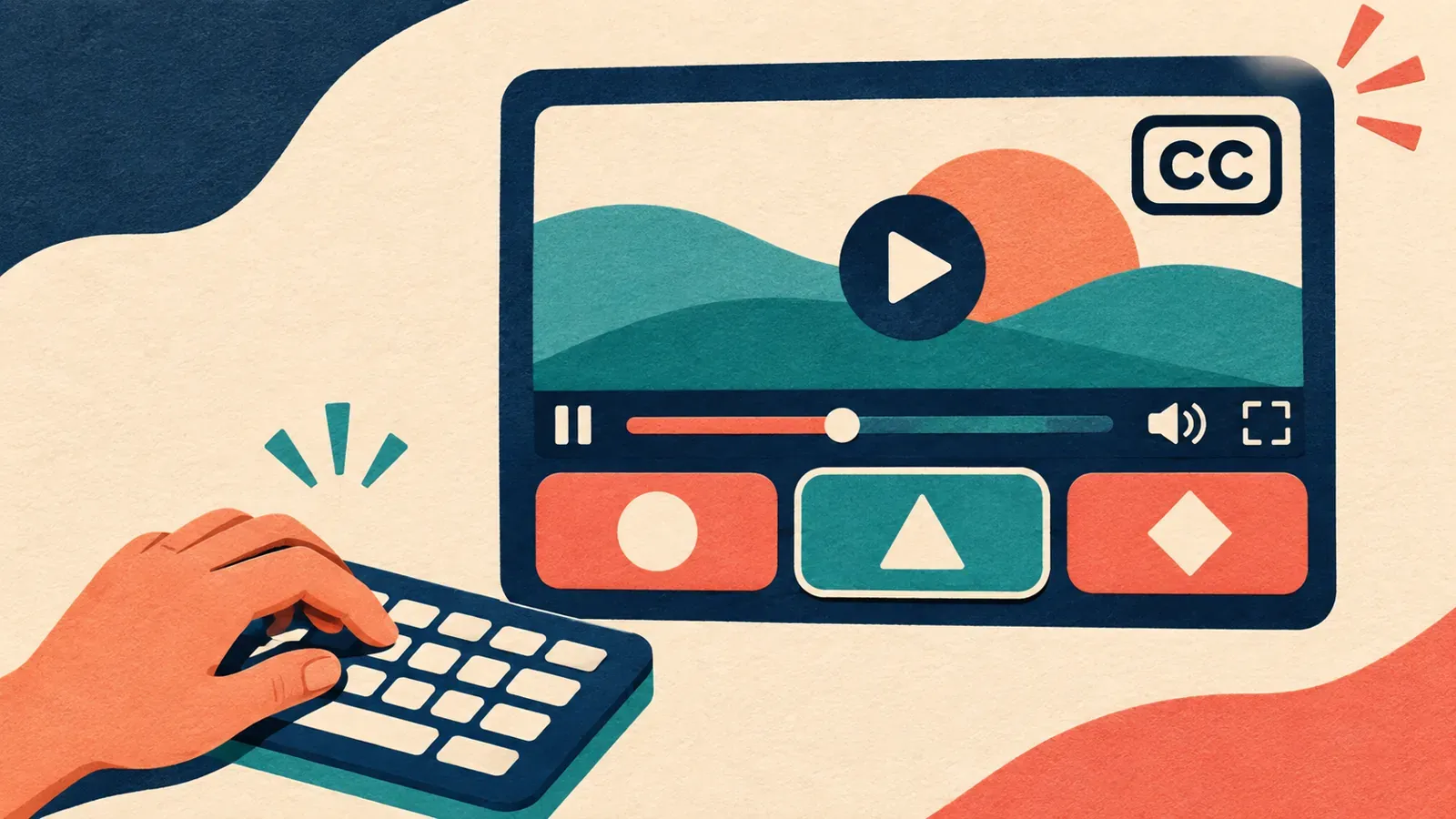 Test captions, keyboard navigation, and choice controls in the published experience.
Test combinations relevant to your audience rather than assuming one screen reader represents everyone. In WebAIM’s 2023–2024 survey, 91.3% of respondents said they used a screen reader on a mobile device; the uncontrolled sample is not representative of every screen reader user.
W3C’s WCAG 2.2 criterion 2.1.1, Keyboard, calls for keyboard operation without specific keystroke timing, subject to its path-dependent-input exception. Its criterion 2.4.3, Focus Order, requires focus order to preserve meaning and operability when the navigation sequence affects them. When a question replaces the video controls, check where focus goes and whether the viewer can return to playback; do not treat captions alone as proof that the experience is accessible.
How should you measure interactive video performance?
Measure interactive video with separate events for choices, answers, and playback. Decide what success means before publishing.
For product guidance, measure whether visitors select a path and reach its endpoint. For a setup lesson, measure completion and answers that reveal where people need help.
A measurement plan may include:
- Starts and completion: Whether visitors begin and reach the end of the experience.
- Branch selection: Which paths viewers choose and where they leave each path.
- Quiz responses: Which answers are selected and whether the feedback leads to the intended next step.
- CTA actions: Whether viewers follow a relevant link, request a demo, or continue to another page.
- Playback issues: Errors, buffering, or exits that may prevent the interaction from working.
Keep interaction events distinct from video playback events. A view does not tell you which branch a person chose, and a button click does not prove that a viewer became a qualified lead. Connect events to your site analytics only where the integration, consent requirements, and data practices are understood. The video analytics guide explains how to interpret playback measures alongside business outcomes.
Define each event before instrumenting it: include the experience version, branch or question identifier, selected option, and outcome where relevant. For a branch-selection rate, use viewers who actually reached that choice as the denominator, not every page visitor. Count completion for the selected path rather than requiring viewers to watch every alternative. Avoid sending answer text or personal information into analytics by default, and verify that your tool exports the events you need instead of assuming its view counter includes them.
Use results to find friction, not to assume interactivity caused a conversion change. If viewers select a branch but leave before its explanation, inspect the path and page load. If they finish but do not take the next step, check whether the CTA fits their need. To measure a lift, compare a defined version against a baseline and account for other changes.
How do you maintain interactive video after launch?
Maintain interactive video by assigning an owner and retesting its paths whenever dependencies change. Product details change, pages are retired, and player updates can break controls.
Record the branch map, source files, embed, destinations, analytics events, and last test date.
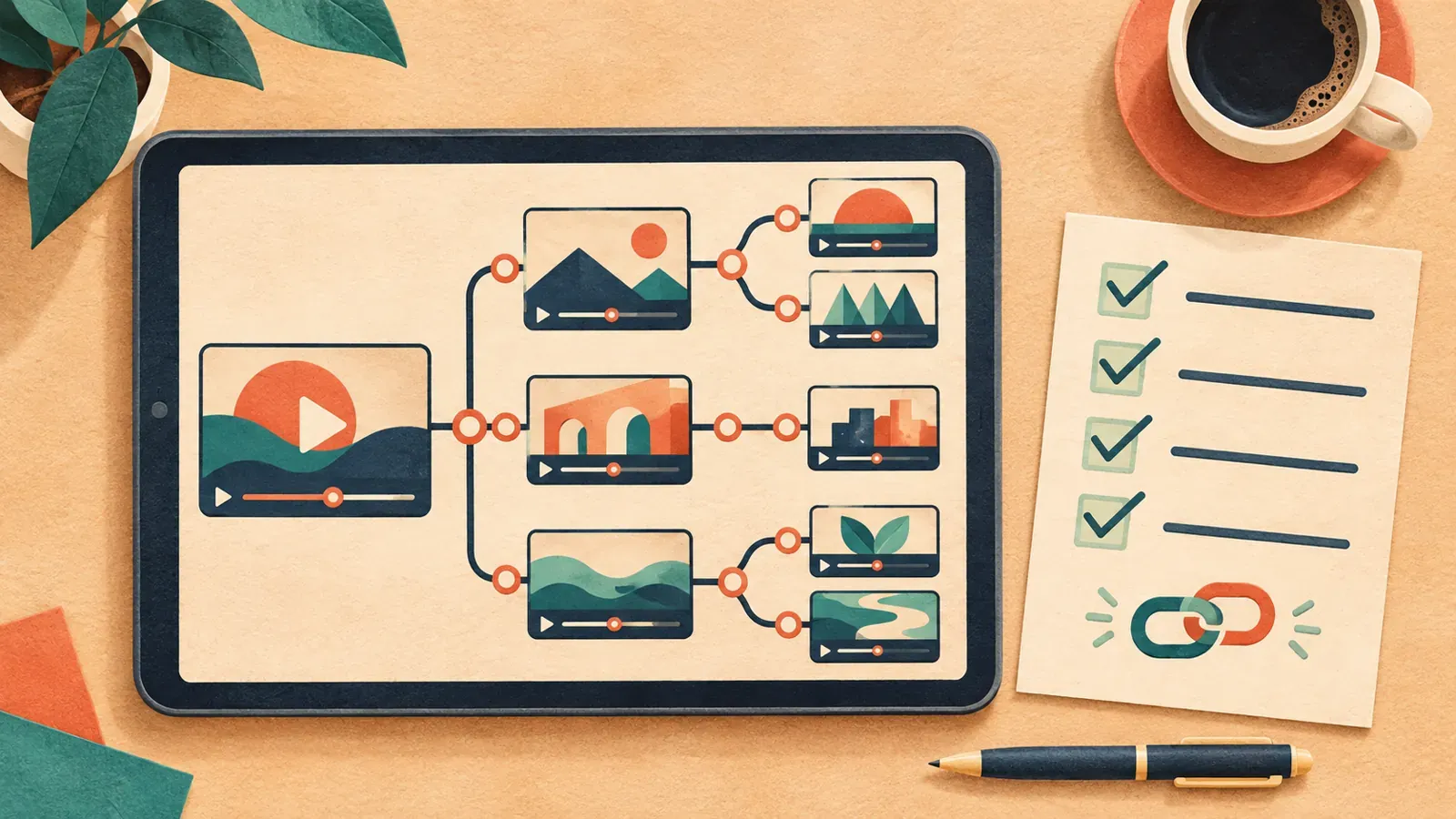 Maintain a record of paths and destinations so changes can be checked across the experience.
Retest every path when the video, authoring tool, player, site theme, or destinations change. Checking only the opening will miss broken branches and outdated links. Include mobile and keyboard checks after layout or player updates.
Review analytics for signs that the map no longer fits viewer needs. A rarely selected branch may be unclear or unnecessary; frequent exits may signal a dead end or misleading label. Check page context, update the map, and retest after editing.
When is a linear video the simpler choice?
A linear video is simpler when everyone needs the same explanation in the same order. Interactivity adds choices for viewers and maintenance work.
Use chapters when viewers mainly need to skip around, or page links when audiences need different destinations but the same explanation. Choose branching when the viewer’s answer materially changes which information they need next. Choose a quiz when the answer produces meaningful feedback or a useful next step. If the same video and CTA serve everyone, a standard embedded player and a clear page layout may be easier to use, measure, and keep current.
Start with one focused experience and a short path map. Confirm the choices solve a viewer problem, then select the authoring and hosting setup, make controls accessible, and test the published embed.
Compare SmartVideo Plans for Your Website →
What else should you know about interactive video?
Start with the viewer’s goal, then confirm authoring, hosting, accessibility, and measurement requirements. These answers summarize the decisions to make before building.
What is an interactive video?
An interactive video lets viewers control part of the experience through choices such as branches, quiz answers, buttons, or topic navigation. On a business website, those controls can guide someone to a relevant product explanation or help them review information. The interaction is typically created by an authoring layer connected to the video and player.
How do I make a video interactive on my website?
Define the viewer’s goal, map the choices and outcomes, then use an authoring tool that supports the interactions you need. Connect it to a video host and player, publish the embed on a test page, and check every path on desktop and mobile. Review keyboard access, captions, links, and analytics before making the experience public.
What is the difference between interactive video authoring and video hosting?
Authoring creates the branches, quiz rules, buttons, and destinations. Hosting stores and delivers the video, while the player displays it and handles playback controls. Some services combine these jobs; in a separate setup, verify that the authoring tool works with the chosen host and player.
Can I add a quiz to a business video?
Yes, if your authoring tool supports questions and response logic. Keep each question connected to the video’s purpose and decide what the viewer should learn or do after answering. Test that questions are understandable, keyboard-operable, and usable without relying only on color or sound.
Are interactive videos accessible?
They can be, but accessibility depends on both the video and its interactive controls. Provide accurate captions, clear labels, keyboard operation, visible focus, enough response time, and an equivalent route through essential information. Test the final embedded experience with the input methods your audience may use.
What analytics should I track for interactive video?
Track starts and completion, branch choices, quiz answers, CTA actions, and playback errors according to the page’s goal. Keep those interaction events separate from views and watch time so you can tell what viewers chose from whether the video played. A click by itself is not proof of a business outcome.
Does interactive video work on mobile devices?
It can work on mobile when the authoring tool and player support responsive embeds and touch controls. Test the published version on a phone, including portrait layout, button size, text legibility, playback, and every branch. Also offer a way to reach essential content if the interactive controls do not work as expected.
How often should I maintain an interactive video?
Retest it whenever its source video, player, website layout, interaction logic, or destination pages change. Assign an owner, keep the branch map and links together, and check every route rather than only the opening. A scheduled review also helps catch product details and links that have become outdated.