
📋 TL;DR • Desktop-only deletion: Go to YouTube Studio > Settings > Channel > Advanced Settings > Remove YouTube Content (YouTube Help, 2026). • Channel vs. Google Account: Deleting a channel removes your videos, playlists, and comments, but keeps your Gmail and Google Account intact. • Export before deleting: Download your full video library using Google Takeout before confirming permanent removal. • Brand Account rule: Brand Accounts must be deleted via Google Account settings by an owner who has held the role for at least seven days. • Website migration: Deleting a channel breaks all existing YouTube embeds on your site, requiring a migration to an independent host.
To delete your YouTube channel, open YouTube Studio on a desktop browser, select Settings from the left navigation sidebar, click Channel, select the Advanced Settings tab, and click Remove YouTube Content at the bottom of the page. After re-entering your password, select I want to permanently delete my content, check the confirmation boxes, and click Delete my content.
A frequent point of confusion when searching how to delete youtube account data is the difference between deleting a YouTube channel and deleting your entire Google Account. Deleting your YouTube channel removes only your YouTube presence—including uploaded videos, playlists, watch history, subscriptions, comments, and your channel URL. Your primary Google Account, including Gmail, Google Drive, Google Photos, and Google Docs, remains active and untouched.
Leaving is a deliberate choice against a lot of gravity: 84% of U.S. adults say they ever use YouTube (Pew Research Center, 2025), the platform counts more than 1 billion monthly active viewers of podcast content (YouTube Blog, 2025), and it reports 125 million YouTube Music and Premium subscribers globally, including trials (YouTube Blog, 2025). Businesses and creators still close channels regularly — to rebrand, to consolidate assets, or to stop paying the true cost of YouTube’s free video player on a commercial website.
Channel deletion is permanent and irreversible. Follow this guide to back up your media library via Google Takeout, choose the correct deletion path for personal or Brand Accounts, or hide your channel instead.
Before You Delete: Google Takeout Backup and Verification
Before initiating deletion in YouTube Studio, extract and verify your raw video files. YouTube does not archive deleted content, and local editing projects often lack finalized renders, subtitles, or metadata.
Exporting Your Video Library via Google Takeout
The official method for downloading your entire channel archive is Google Takeout. This tool packages your original video uploads, metadata, playlists, and community posts into downloadable archives.
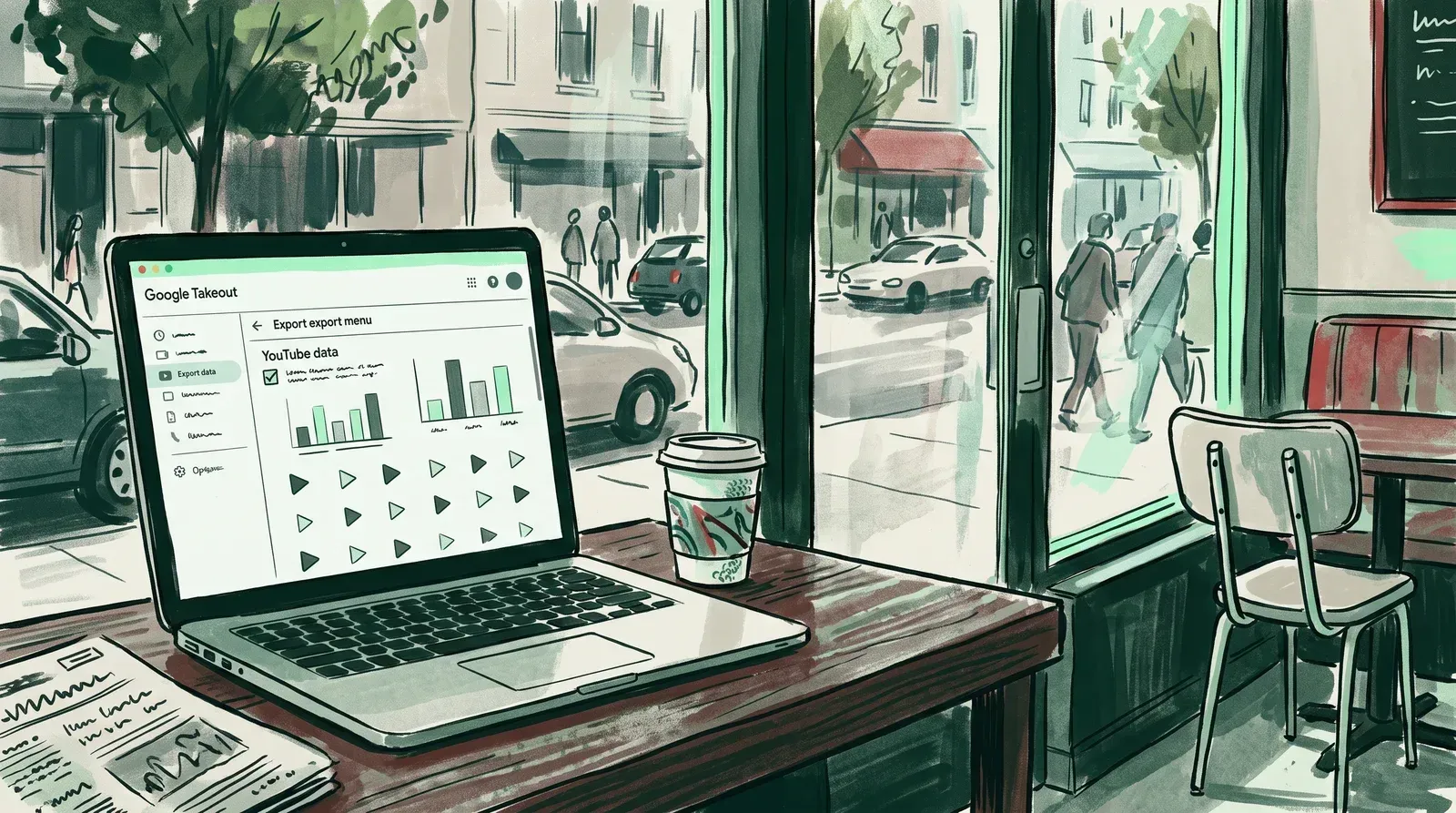 Google Takeout compiles your channel’s uploaded videos and metadata into a downloadable archive before deletion.
To export your channel data (Google Account Help):
- Navigate to Google Takeout on a desktop browser. Google preselects every product that holds your data.
- Uncheck every product except YouTube and YouTube Music.
- If you only want part of your YouTube data, use the data-selection button on that product row and uncheck what you do not need. Leave videos, playlists, history, and subscriptions checked.
- Click Next step at the bottom of the page.
- Choose your Destination (email download link, Google Drive, Dropbox, OneDrive, or Box).
- Set Export type to One-time archive.
- Choose Zip as the file type — Google notes these open on almost any computer.
- Choose a maximum archive size. Google’s own guidance is that selecting the 50GB limit decreases the chance your export gets split across multiple archives.
- Click Create export.
Verifying Archive Integrity and Brand Account Switching
Google says an export can take anywhere from a few minutes to a few days depending on your library size. Do not proceed to deletion until the archive finishes, you download it locally, and you verify the files.
Unzip the archive and confirm that primary video files (.mp4) play properly. If you manage a business channel, check which identity was exported. Google Takeout defaults to whichever Google profile is active in your browser. If your downloaded archive is missing videos, switch to your Brand Account profile in the upper right corner of Google Takeout and run a new export. Keep the verified archive somewhere durable before you delete anything — a multi-terabyte channel export is not something you want living on one laptop, and the best video upload sites and cloud storage services cover the practical options.
Personal Channels vs. Brand Accounts: Choosing the Right Path
YouTube channels fall into two structural categories: personal channels and Brand Accounts. The deletion steps, permission rules, and service impacts differ between them.
| Account Dimension | Personal YouTube Channel | YouTube Brand Account |
|---|---|---|
| Account Linkage | Tied directly to a single Google Account email address. | Standalone business entity managed by multiple authorized Google Accounts. |
| Deletion Location | YouTube Studio > Settings > Channel > Advanced Settings. | Google Brand Accounts dashboard (myaccount.google.com). |
| Required Permissions | Primary account credentials and password verification. | Primary Owner or Owner with at least 7 days tenure. |
| Scope of Deletion | Erases YouTube channel assets; Gmail and Google Drive remain active. | Deletes the Brand Account entity and linked Google properties. |
If your channel was created with your personal Gmail address and has no extra managers, it is a personal channel. If your channel uses a company name, has multiple managers, or operates under a distinct profile name, it is a Brand Account.
How to Delete a Personal YouTube Channel
Deleting a personal YouTube channel takes place entirely within YouTube Studio on a desktop computer. This permanently removes your videos and channel data while keeping your Google account intact.
The Step-by-Step Desktop Deletion Flow
Follow these steps using the official interface labels (YouTube Help, 2026):
 The removal control is found near the bottom of Advanced Settings on desktop, and the final confirmation permanently deletes the channel.
- Sign in to YouTube Studio in a desktop web browser.
- Click Settings in the left-hand navigation sidebar.
- Select Channel, then click the Advanced Settings tab.
- Scroll to the bottom and click Remove YouTube Content.
- Enter your Google Account password or passkey when prompted.
- Select I want to permanently delete my content.
- Check the confirmation boxes acknowledging the loss of videos, playlists, subscriptions, comments, search history, and watch history.
- Click Delete my content.
What Gets Deleted vs. What Remains
Once the deletion goes through, YouTube removes your channel from public view. Understanding what disappears versus what persists prevents operational confusion:
Permanently deleted: Your videos, comments, messages, playlists, and history — that is YouTube’s own summary of what closing a channel destroys.
Remains active: Your Google Account and the products signed in to it. YouTube’s help page is explicit that closing a channel deletes the channel, not the account behind it. Expect thumbnails of your old videos to keep appearing for a short time after the channel is gone.
If you only want to clean up older content without closing your channel or losing subscribers, review how to delete any YouTube video individually instead.
Why Mobile Channel Deletion Is Not Supported
You cannot delete a YouTube channel using the YouTube mobile app or YouTube Studio app on iOS or Android. While the mobile apps allow deleting individual videos, full channel removal requires advanced security settings accessible only through desktop web browsers (YouTube Help, 2026).
How to Delete a YouTube Brand Account
Brand Accounts represent distinct entities within the Google ecosystem and must be deleted through Google Account settings rather than YouTube Studio.
Deleting the Brand Account Entity in Google Settings
To delete a Brand Account and its linked YouTube channel (Google Account Help):
- Open the Google Brand Accounts dashboard on a desktop browser.
- Select the Brand Account you want to delete under “Your Brand Accounts”.
- Click Delete account.
- Enter your Google Account password to re-authenticate.
- Read the disclosure statements confirming the removal of all linked Google properties.
- Check the acknowledgment boxes and click Delete Account.
The 7-Day Ownership Rule and Account Restoration
Google enforces a strict security restriction: only a Primary Owner or Owner can delete a Brand Account, and that user must have held the owner role for at least seven consecutive days (Google Account Help, 2026). If you were newly added as an owner to help close a channel, you must wait seven full days before Google unlocks deletion permissions.
If a Brand Account is deleted by accident, navigate back to Google Brand Accounts, click Deleted accounts, and select the restore icon. Restoration is time-sensitive and not guaranteed for extended periods.
🎬 Leaving YouTube to reclaim control of your video traffic? Eliminate third-party tracking, competitor recommendations, and player buffering on your business website. See why businesses switch to SmartVideo.
Hiding Your YouTube Channel as a Reversible Alternative
If you are pausing video production, restructuring your brand, or transitioning hosting, permanently deleting your channel might be premature. Hiding your channel deactivates your public profile while preserving your library on YouTube servers.
When Hiding Is Smarter Than Permanent Deletion
Hiding is recommended if you might reactivate your channel in the future. YouTube’s own description is that hiding makes your channel name, videos, likes, subscriptions, and subscribers private, and that you can re-enable the channel later. You never have to re-upload anything.
Before confirming your choice, compare public versus private distribution. Understanding YouTube unlisted vs. private options and reviewing the pros and cons of YouTube can help you decide between hiding and full deletion.
Steps to Temporarily Hide Channel Content
To hide your channel (YouTube Help, 2026):
- Sign in to YouTube Studio on desktop.
- Navigate to Settings > Channel > Advanced Settings.
- Scroll down and click Remove YouTube Content.
- Re-enter your account password.
- Click I want to hide my channel.
- Check the confirmation boxes and click Hide my channel.
Two caveats worth knowing before you choose. Hiding is the reversible branch — your videos stay on YouTube’s servers — whereas permanent deletion is what destroys your comments and history for good. And YouTube warns that while a channel is hidden your view counts may be inaccurate; after you re-enable it, the counts can take up to a week to update.
Post-Deletion Website Migration Checklist
Deleting your YouTube channel removes your content from the platform, but business websites that relied on those videos require immediate remediation.
Auditing and Replacing Dead Website Embeds
The moment a channel is deleted, every YouTube iframe embed on your site turns into a dead player showing a black or grey error screen. Broken embeds hurt user experience, damage conversion rates, and signal poor maintenance to search engines.
Audit your website to find all embedded videos. Standard YouTube embeds create performance and tracking issues that illustrate why YouTube embeds hurt your website. Furthermore, fallback solutions like what YouTube-nocookie actually does cannot prevent player errors once the source channel is gone.
Updating Video Schema and Sitemaps
Search engines crawl video content via structured data markup. If your site uses JSON-LD VideoObject schema linking to deleted YouTube URLs, search bots will flag 404 and unavailable media errors.
Update your structured data by replacing deleted YouTube URLs with your new independent video URLs. If you are rebuilding those blocks from scratch, our guide to video schema markup covers the required properties. Then follow best practices on how to embed video on a website so the new embeds and their metadata get indexed cleanly.
Selecting a Dedicated Business Video Host
Moving your Takeout archive to an independent hosting platform restores your site’s media assets while delivering a professional, ad-free viewing experience.
 Migrating to a dedicated business video player keeps visitors focused on your brand without third-party exit ramps.
When evaluating the best video hosting platforms, check what each one actually meters, because the billing dimension decides what a traffic spike costs you. Assessing YouTube vs. Vimeo for business is instructive: Vimeo caps bandwidth at 2 TB per month on every self-serve paid tier — Starter, Standard, and Advanced alike — on top of a separate lifetime storage cap (Vimeo, 2026). One video that outperforms can push a modest library into an upgrade.
If you want to host videos without YouTube, SmartVideo is one option built for business sites: CDN-accelerated delivery, no third-party ads, and no competitor recommendations at the end of your videos. It meters monthly views rather than bandwidth, and the self-serve plans carry storage tiers from 1 TB to 5 TB, so you budget against your audience size rather than your file sizes. The player is deliberately lightweight, which keeps embed page weight down and keeps viewers on your domain.
Frequently Asked Questions
Does deleting my YouTube channel also delete my Google Account?
No. Deleting your YouTube channel only removes your YouTube-specific assets, including uploaded videos, playlists, comments, and channel history. Your primary Google Account, including Gmail, Google Drive, Google Photos, and Google Docs, remains active and unaffected (YouTube Help, 2026).
Can I delete my YouTube channel from the mobile app on my phone?
No. Google does not support channel deletion within the native YouTube mobile app or the YouTube Studio mobile app on iOS or Android. You must sign in to YouTube Studio using a desktop web browser to access Advanced Settings and complete channel removal (YouTube Help, 2026).
Can I recover a permanently deleted YouTube channel?
Treat it as permanent. YouTube’s own warning is that if you choose to permanently delete your channel, it may have a harder time recovering your account, and there is no self-service undo once the deletion is confirmed. Brand Accounts are the one partial exception: a recently deleted Brand Account can sometimes be restored from the Deleted accounts view in Google Brand Accounts, though nothing guarantees your videos come back (Google Account Help, 2026).
What is the difference between deleting and hiding a YouTube channel?
Deleting permanently removes your videos, comments, messages, playlists, and history from YouTube, and it cannot be undone. Hiding is the reversible branch: it makes your channel name, videos, likes, subscriptions, and subscribers private, and you can re-enable the channel later without re-uploading anything (YouTube Help, 2026).
How long does it take for YouTube to delete a channel?
Your channel stops being publicly reachable once the deletion goes through, but the cleanup is not instantaneous everywhere. YouTube notes that thumbnails of your videos may still appear for a short period afterward, which is why you should update your own site’s embeds rather than wait for the leftovers to clear (YouTube Help, 2026).
How do I back up my videos before deleting my channel?
Use Google Takeout at takeout.google.com on a desktop browser. Google preselects every product that holds your data, so uncheck everything except YouTube and YouTube Music, then pick your delivery destination and a Zip archive. Google generates a downloadable package containing your original video files and metadata, and it suggests the 50GB size limit to reduce the chance the export is split across several archives (Google Account Help, 2026).
What happens to my comments on other channels when I hide or delete my channel?
Permanent deletion is what destroys them. YouTube lists comments among the content that closing a channel permanently deletes, alongside your videos, messages, playlists, and history. Hiding is different: it makes your channel name, videos, likes, subscriptions, and subscribers private and is reversible, so it is the option to choose if you may want the channel back (YouTube Help, 2026).
Why can’t I delete a Brand Account immediately after being added as an owner?
Google enforces a mandatory 7-day waiting period for security purposes. An account manager or newly added owner must hold the owner role for at least seven consecutive days before Google permissions allow them to delete the Brand Account entity or transfer primary ownership (Google Account Help, 2026).


