
TL;DR: Video schema markup (VideoObject JSON-LD) tells search engines what your video is about, who made it, and how long it runs. Pages with video schema earn up to 3x more impressions and 2x more clicks than those without. Google requires name, thumbnailUrl, and uploadDate, plus either contentUrl or embedUrl. Add description and duration too — they’re technically recommended but practically essential. Test with Google’s Rich Results Test, then pair with a video sitemap for maximum coverage.
Google can’t fully understand your video from the file alone. It can fetch and process video bytes for things like previews, but it can’t interpret what your video is about, who made it, or why it matters — unless you tell it explicitly.
That’s what video schema markup does. It’s a small block of structured data (JSON-LD code) that sits in your page’s HTML and describes your video in a language search engines actually understand: title, description, duration, thumbnail, upload date.
When Google reads that structured data, your page becomes eligible for video rich results — those eye-catching thumbnails with play buttons and duration badges that appear directly in search results. Across all rich result types (not just video), a 2023 analysis found pages with structured data drew a 58% click-through rate compared to 41% for standard listings (Milestone Research, 2023).
And with VideoObject schema taking on a second life as a key signal for AI search engines — which rely on structured data alongside page text and transcripts to understand video content — getting this right in 2026 matters more than ever.
Here’s how to add it, test it, and avoid the mistakes that silently prevent your videos from appearing as rich results.
What Is Video Schema Markup?
Video schema markup is structured data that describes a video on your web page using the VideoObject type from Schema.org. You add it as a JSON-LD script in your page’s HTML, and search engines read it during crawling to understand your video’s content without watching it.
Think of it as a detailed label on a shipping box. The video file itself is the contents, but without the label, a search engine only knows there’s something on the page — not what it is, how long it runs, or when it was published.
Three organizations created the Schema.org vocabulary in 2011: Google, Microsoft (Bing), and Yahoo. Today it’s the shared language all major search engines use to interpret structured data. The VideoObject type specifically covers videos, and Google recommends JSON-LD as the preferred format for implementing it.
A 2023 Searchmetrics analysis found that only 18% of organizations implemented structured data on their websites (Searchmetrics, 2023); we have not found a larger or more recent measurement since. That’s an opportunity — especially for video SEO, where most site owners skip schema entirely. We’ve implemented VideoObject schema across our own blog posts at Swarmify and consistently see video-enriched search results within days of publishing.
What Rich Results Can Video Schema Unlock?
Adding VideoObject schema makes your page eligible for three types of enhanced search results:
Standard Video Rich Result
 Video rich results display a thumbnail with a play button directly in search — impossible to miss next to plain text listings.
The most common type. Your page appears with a video thumbnail, duration badge, and upload date directly in Google’s search results. This is the “play button overlay” that catches the eye and drives clicks. In one notable case study, Indonesian streaming platform Vidio saw 3x more video impressions and close to 2x more clicks within a year of implementing VideoObject markup — though their published video count also grew by about 30% in that period (Google, 2023).
Key Moments
If you add Clip or SeekToAction markup alongside your VideoObject, Google can display specific timestamps as clickable links below your video result. Users jump directly to the section they care about. This works best for tutorials, how-to videos, and long-form content where viewers want to skip ahead.
LIVE Badge
For live-streamed video, adding BroadcastEvent markup shows a red “LIVE” badge on your search result. This signals real-time content and drives immediate clicks. It requires an Indexing API integration to notify Google when the stream starts and ends.
All three types start with the same foundation: a properly structured VideoObject. Get that right first, then layer on Clip or BroadcastEvent markup for the advanced features. Important caveat: adding schema makes your page eligible for rich results — it doesn’t guarantee Google will display them. Google decides based on query relevance, page quality, and other ranking signals.
Required vs. Recommended VideoObject Properties
Google’s documentation lists some properties as “required” and others as “recommended.” In practice, include as many recommended properties as you can — each one gives Google more confidence in your video and improves your chances of earning rich results.
| Property | Required? | What It Does | Example |
|---|---|---|---|
name | Yes | Video title | "How to Add Schema Markup to Any Page" |
description | Recommended | What the video covers (strongly recommended) | "Step-by-step walkthrough of adding JSON-LD..." |
thumbnailUrl | Yes | Preview image URL (min 60x30px; 1280x720 recommended) | "https://example.com/thumb.jpg" |
uploadDate | Yes | ISO 8601 publish date | "2026-05-19" |
contentUrl | Yes* | Direct URL to the video file | "https://cdn.example.com/video.mp4" |
embedUrl | Yes* | URL of the embeddable player | "https://player.example.com/embed/123" |
duration | Recommended | Video length in ISO 8601 format | "PT5M30S" (5 min 30 sec) |
interactionStatistic | Recommended | View count | WatchAction with count |
expires | Recommended | When the video becomes unavailable | "2027-01-01" |
hasPart | Optional | Clip markup for Key Moments | Array of Clip objects |
*You need at least one of contentUrl or embedUrl. Both is ideal. contentUrl points to the actual video file (MP4, WebM); embedUrl points to the player page. If you self-host your videos, you likely have both. If you embed YouTube videos, you typically only have embedUrl.
How to Add Video Schema Markup (Step-by-Step)
The fastest path is JSON-LD injected into your page’s <head> section. Here’s a copy-paste template:
1. Start with the JSON-LD Template
Copy this code and replace the placeholder values with your video’s actual details:
<script type="application/ld+json">
{
  "@context": "https://schema.org",
  "@type": "VideoObject",
  "name": "Your Video Title Here",
  "description": "A clear description of what this video covers.",
  "thumbnailUrl": "https://example.com/thumbnail.jpg",
  "uploadDate": "2026-05-19",
  "duration": "PT5M30S",
  "contentUrl": "https://cdn.example.com/video.mp4",
  "embedUrl": "https://example.com/embed/video-123"
}
</script>
2. Place It in Your Page HTML
Paste the script tag inside the <head> section of the page where your video appears. If you’re using a CMS that doesn’t give you direct access to the <head>, place it anywhere on the page — Google reads JSON-LD regardless of its position in the HTML.
One important rule: the video described in your schema must be visible on the page. Google cross-references the markup against the actual page content. If the video isn’t there, the schema gets ignored.
3. Add Multiple Videos (If Needed)
If your page has more than one video, you can nest multiple VideoObject entries in a single JSON-LD block using an array:
<script type="application/ld+json">
[
  {
    "@context": "https://schema.org",
    "@type": "VideoObject",
    "name": "First Video Title",
    "description": "Description of the first video.",
    "thumbnailUrl": "https://example.com/thumb1.jpg",
    "uploadDate": "2026-05-19",
    "contentUrl": "https://cdn.example.com/video1.mp4"
  },
  {
    "@context": "https://schema.org",
    "@type": "VideoObject",
    "name": "Second Video Title",
    "description": "Description of the second video.",
    "thumbnailUrl": "https://example.com/thumb2.jpg",
    "uploadDate": "2026-05-15",
    "contentUrl": "https://cdn.example.com/video2.mp4"
  }
]
</script>
4. Test Before Publishing
Paste your page URL (or the raw JSON-LD) into Google’s Rich Results Test. Green checkmarks mean you’re eligible for video rich results. Warnings are worth fixing but won’t block eligibility. Errors will prevent rich results entirely.
How to Add Video Schema in WordPress
If you run WordPress, you don’t need to touch code directly. Several SEO plugins generate VideoObject schema automatically:
Yoast SEO (Premium): Detects embedded videos and generates VideoObject markup in the page’s JSON-LD output. Works with YouTube, Vimeo, and self-hosted videos. The free version doesn’t include video schema — you need Premium ($118.80/year).
Rank Math (Free + Pro): The free version handles basic VideoObject schema for detected video embeds. The Pro version (free, or Pro at ~$108/year — $107.88/yr at renewal, discounted to ~$72/year for the first year as of July 2026) adds advanced features like auto-detection of video thumbnails and timestamps for Key Moments markup.
AIOSEO: Offers video schema through its Video Sitemap addon (Pro plan, $199/year). Generates both VideoObject markup and a companion video sitemap from a single configuration.
For all three plugins: add a video to your post, publish, then check the page source for the VideoObject entry in the JSON-LD block. If it’s there, you’re set. If it’s missing, the plugin may not have detected the video format — check the plugin’s schema settings or fall back to the manual method above.
YouTube Embeds vs. Self-Hosted Video: Schema Differences
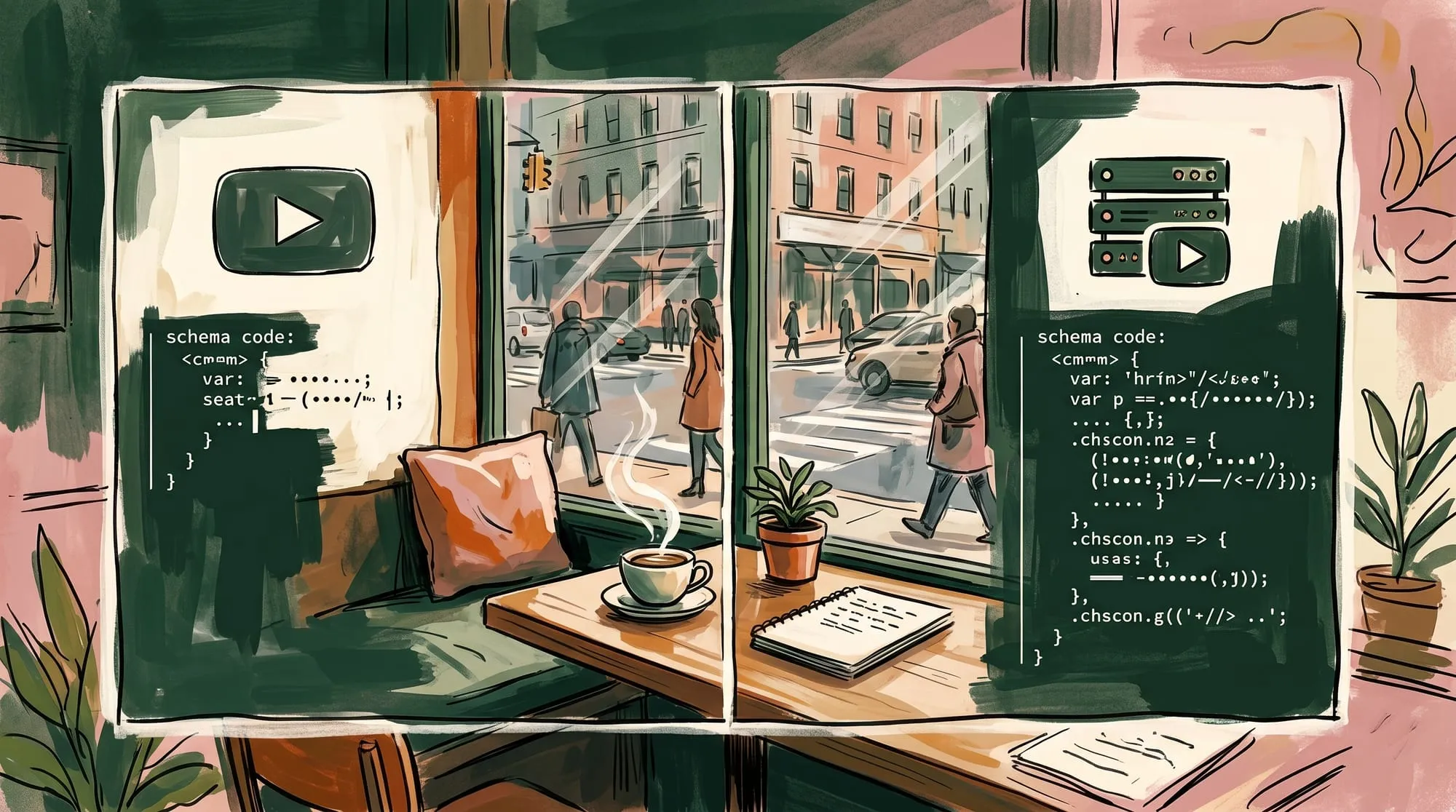 YouTube embeds give you partial schema at best. Self-hosted video lets you fill in every property Google cares about.
This is where most guides get it wrong — or skip the topic entirely.
When you embed a YouTube video, you don’t control the video file. You can set embedUrl to the YouTube embed URL, but you can’t provide a contentUrl because YouTube doesn’t expose direct MP4 links. Your thumbnail is locked to whatever YouTube generates (or what the uploader set), and you can’t guarantee that URL stays stable.
With self-hosted video (through a platform like SmartVideo, Wistia, or your own CDN), you control everything:
| Property | YouTube Embed | Self-Hosted Video |
|---|---|---|
contentUrl | Not available | Your CDN URL (MP4/WebM) |
embedUrl | youtube.com/embed/ID | Your player embed URL |
thumbnailUrl | YouTube CDN (may change) | Your hosted thumbnail (stable) |
| Rich result credits | Often points to YouTube, not your site | Points to your domain |
| Schema completeness | Partial (missing contentUrl) | Full (all properties available) |
The practical difference: when Google sees a YouTube embed with VideoObject schema, it may surface the YouTube URL in rich results instead of your page. With self-hosted video, the rich result typically points back to your domain because you own both the content URL and the embed URL. Rich results are never guaranteed — Google decides what to show — but we’ve seen this play out repeatedly with Swarmify customers — once they move from YouTube embeds to self-hosted video, their pages (not YouTube’s) start appearing in video rich results.
If you’re already using YouTube embeds and considering a switch, see our guide on why YouTube embeds hurt your website — page speed is another reason to make the move.
Schema tells Google what your video is. A video sitemap tells Google where to find it. Use both for maximum visibility. If you haven’t set one up yet, our video sitemap guide walks you through it in 15 minutes.
Advanced: Key Moments with Clip and SeekToAction
Key Moments are the timestamped links that appear below a video result in Google Search. They let users jump directly to specific sections of your video. Two markup approaches enable them:
Clip Markup (Manual Timestamps)
Use this when you want to define specific sections by hand. Add a hasPart array to your VideoObject with individual Clip objects:
"hasPart": [
  {
    "@type": "Clip",
    "name": "Introduction",
    "startOffset": 0,
    "endOffset": 30,
    "url": "https://example.com/video-page#t=0"
  },
  {
    "@type": "Clip",
    "name": "Step 1: Install the Plugin",
    "startOffset": 30,
    "endOffset": 120,
    "url": "https://example.com/video-page#t=30"
  }
]
Each Clip needs a name, startOffset (in seconds), and a url with a timestamp fragment. endOffset is recommended but not strictly required. The URL must point to the same page where the video appears.
SeekToAction (Automatic)
If your video player supports URL-based seeking (most modern HTML5 players do), you can use SeekToAction to let Google generate Key Moments automatically:
"potentialAction": {
  "@type": "SeekToAction",
  "target": "https://example.com/video-page?t={seek_to_second_number}",
  "startOffset-input": "required name=seek_to_second_number"
}
SeekToAction requires less maintenance than manual Clips — you don’t need to update timestamps when you re-edit the video. But it gives Google full control over which moments to surface.
Common Mistakes (and How to Avoid Them)
 Valid schema doesn’t mean working schema. These six mistakes silently prevent your videos from appearing as rich results.
Valid schema doesn’t guarantee rich results. Here are the silent failures that trip up most implementations:
1. Thumbnail too small. Google requires thumbnails to be at least 60x30 pixels, but anything that small looks terrible in search results. Use 1280x720 (16:9) for reliable, professional-looking results. The thumbnail must also be crawlable — a URL that returns a 404 or is blocked by robots.txt will silently prevent rich results.
2. robots.txt blocking the video. Your JSON-LD can be perfect, but if your robots.txt blocks Googlebot from accessing the video file URL in contentUrl, Google can’t verify the video exists. Check with curl -I your-video-url and verify no Disallow rules cover that path.
3. Video not visible on the page. Google cross-references your schema against the actual page content. If the video is hidden behind a click, loaded only via JavaScript that Googlebot can’t execute, or removed from the page after publishing, the schema gets silently ignored.
4. Duplicate name and description. Copying your page title into both the VideoObject name and description is a missed opportunity. The name should be the video’s specific title. The description should summarize what the viewer will learn — treat it like a mini pitch.
5. Missing uploadDate. This is technically required, and omitting it is the most common validation error. Use ISO 8601 format: 2026-05-19 or 2026-05-19T08:00:00+00:00.
6. Schema on a page with no primary video. If your page is primarily an article with a small supplementary video, adding VideoObject schema can confuse Google about the page’s intent. Schema should reflect the page’s primary content. A video that’s the main attraction deserves schema. A 30-second clip in the sidebar probably doesn’t. In our experience managing video across hundreds of customer sites, this mismatch is the most common reason schema “doesn’t seem to work” — the markup is valid, but Google correctly ignores it because the video isn’t the page’s focus.
How to Test Your Video Schema
Testing happens in two stages: validation (is the code correct?) and monitoring (is Google actually using it?).
Stage 1: Validate with the Rich Results Test
Go to Google’s Rich Results Test and paste your page URL. The tool will:
- Parse all structured data on the page
- Show which rich result types you’re eligible for
- Flag errors (blocks eligibility) and warnings (reduces chances)
Fix all errors before publishing. Warnings about optional properties are worth addressing but won’t prevent rich results.
Stage 2: Monitor in Google Search Console
After Google crawls your updated page (usually within a few days), check two reports in Google Search Console:
Enhancements > Video: Shows how many pages have valid video markup, plus any errors Google found during crawling. This is where you’ll catch issues the Rich Results Test missed — like videos that validated in testing but fail in production because of server-side rendering differences.
Performance > Search Appearance: Filter by “Video” to see impressions, clicks, and CTR specifically for pages appearing as video rich results. This is your ROI metric — if impressions and clicks increase after adding schema, it’s working.
Video Schema and AI Search
Here’s why structured data matters even beyond traditional search results: AI search engines can’t watch video either.
When ChatGPT, Perplexity, or Google’s AI Overview encounters a page with an embedded video, it processes the surrounding text, any available transcript, and the structured data. The text gives context. A transcript gives content. But the schema gives machine-readable facts — title, description, duration, topic — that AI can cite directly and confidently.
As RankMath noted in May 2026: “Schema Markup isn’t just for rich results anymore — it’s becoming one of the biggest secrets behind LLM SEO.”
Backlinko’s 2024 analysis put 72.6% of first-page results on schema markup already (Backlinko, 2024); those pages have a head start here. Adding VideoObject schema positions your video content for both traditional search results and AI-generated answers.
The Schema + Sitemap One-Two Punch
Video schema markup and video sitemaps solve different problems, and you want both:
| Video Schema (VideoObject) | Video Sitemap | |
|---|---|---|
| What it tells Google | What the video is (title, description, duration) | Where the video lives (URLs, all pages with video) |
| Format | JSON-LD in page HTML | XML file submitted to Search Console |
| Scope | One page at a time | All videos across your entire site |
| Enables | Rich results, Key Moments, LIVE badge | Faster discovery, video indexing |
| Best for | Pages where video is the primary content | Sites with many videos across multiple pages |
Schema tells Google what. A sitemap tells Google where. Together, they give search engines a complete picture of your video content. Our video sitemap guide covers creation, submission, and automation — pair it with the schema implementation from this guide for full coverage.
Want faster video delivery alongside better SEO? SmartVideo handles video hosting, optimization, and delivery so your site loads fast while you focus on content. See plans and pricing.
What is video schema markup?
Video schema markup is structured data (specifically the VideoObject type from Schema.org) that you add to your page’s HTML to describe a video. It tells search engines the video’s title, description, thumbnail, duration, and upload date in a machine-readable format. Google recommends using JSON-LD to implement it.
Does video schema markup improve SEO?
Yes. Pages with VideoObject markup can earn video rich results in Google, which display a thumbnail, play button, and duration directly in search results. Research from Milestone found that rich results earn a 58% CTR versus 41% for standard listings. A Vidio/Google case study showed 3x more impressions and 2x more clicks after implementing video schema.
What is a VideoObject in Schema.org?
VideoObject is the specific Schema.org type used to describe video content. It includes properties like name, description, thumbnailUrl, uploadDate, contentUrl, embedUrl, and duration. Google reads these properties to understand your video and determine eligibility for rich results.
What properties are required for VideoObject schema?
Google requires three properties: name, thumbnailUrl, and uploadDate. description, duration, contentUrl and embedUrl are all listed as recommended rather than required. In practice you still want at least one of contentUrl (direct link to the video file) or embedUrl (link to the embeddable player), because Google needs a way to reach the video itself, and including both maximizes your chances of earning rich results.
How do I add video schema in WordPress?
Use an SEO plugin: Yoast SEO Premium ($118.80/year), Rank Math (free, or Pro at ~$108/year — $107.88/yr at renewal, discounted to ~$72/year for the first year as of July 2026), or AIOSEO (Pro at $199/year) all generate VideoObject schema automatically when they detect a video on your page. Add a video to your post, publish, then check the page source for the VideoObject entry in the JSON-LD block.
Can I add video schema to a YouTube embed?
Yes, but with limitations. You can set the embedUrl to the YouTube embed URL (youtube.com/embed/VIDEO_ID), but you can’t provide a contentUrl because YouTube doesn’t expose direct video file links. The bigger risk: Google may surface the YouTube URL in rich results instead of your page, since YouTube already has its own VideoObject markup.
What is SeekToAction schema?
SeekToAction is a schema property that tells Google your video player supports URL-based seeking (jumping to specific timestamps). When present, Google can automatically generate Key Moments — timestamped links below your video result in search. It requires less maintenance than manual Clip markup since you don’t need to define each timestamp yourself.
How do I test my video schema markup?
Use Google’s Rich Results Test (search.google.com/test/rich-results) to validate your markup before publishing. After the page is live and crawled, monitor the Video enhancement report in Google Search Console to confirm Google is reading the schema correctly and your pages are eligible for rich results.
Why isn’t my video showing as a rich result?
Common causes: a thumbnail below Google’s 60x30 pixel minimum, in an unsupported format (BMP, GIF, JPEG, PNG, WebP, SVG and AVIF are supported), or mostly transparent (at least 80% of its pixels must have an alpha value above 250), robots.txt blocking the video URL, video not visible on the page (hidden behind JavaScript or removed after publishing), missing required properties like uploadDate, or the video not being the primary content of the page. Validate with Google’s Rich Results Test and check the Video report in Search Console for specific errors.
What is the difference between contentUrl and embedUrl?
contentUrl points directly to the video file itself (e.g., an MP4 on your CDN). embedUrl points to the embeddable player page (e.g., an iframe-compatible URL). Self-hosted videos typically have both. YouTube embeds only have embedUrl. Google recommends providing both when possible, as contentUrl gives stronger signals about the video’s location and format.


