Recommended installation instructions for sites using Squarespace
If you are using Squarespace and editing template code isn’t your cup of tea, we recommend following the instructions in this article.
Account setup:
If you already have a SmartVideo account, scroll down to What happens after I install?
If you do NOT, create your SmartVideo account. Once registered, you’ll be given a unique key to access the Swarmify API. This Swarm CDN Key is required to configure your site for video delivery by Swarmify.
Before installing, read the SmartVideo getting-started overview!
What happens after I install?
After installing our script into your site’s header, SmartVideo will begin scanning your site for videos. Replace YouTube & Vimeo embeds is on by default in the Configuration tab of your Swarmify dashboard, so the snippet includes autoreplace: { youtube: true, vimeo: true }, and any Vimeo videos on your site will be automatically converted to SmartVideo. See Automatic Vimeo conversions for details.
SmartVideo imports Vimeo videos whose Who can watch setting is Anyone. To keep those videos private to your own site while SmartVideo serves them, set Where can this be embedded to Specific domains and list your website’s domain. Password-protected and Only me videos stay on Vimeo; change the setting to convert them.
A video usually converts to SmartVideo in about as long as it runs, so a 10-minute video takes about 10 minutes. A Vimeo embed switches to the SmartVideo player once its video has converted — look for its floating rounded control bar in place of your original embed. A YouTube embed switches right away and streams from YouTube inside the SmartVideo player until our copy is ready. For more ways to confirm it’s working, see How do I know SmartVideo is working?.
Note on YouTube: YouTube conversion is best-effort — YouTube’s download restrictions mean the fetch can fail, so some videos convert and some don’t. For playback you can rely on, download the video and upload it to your SmartVideo library through your SmartVideo dashboard, then place it on your page with a SmartVideo tag.
If auto-conversion is off, or your site has no Vimeo or YouTube embeds, our script won’t transform your current videos; they will have to be manually placed in a SmartVideo tag.
No worries, it’s not as difficult as it sounds 😉
Installation:
- Visit the Configuration tab in your Swarmify dashboard, follow the on-screen instructions, and copy the snippet to your clipboard.
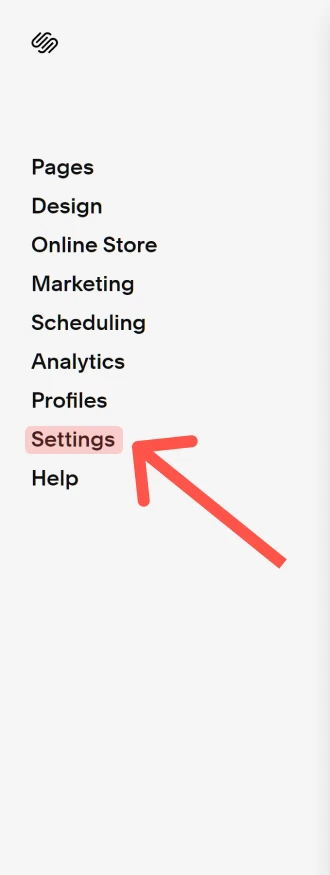
- Navigate to your Squarespace dashboard and click Settings.
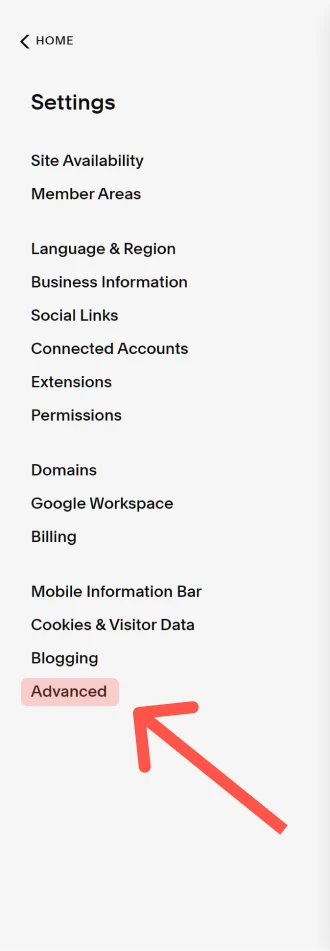
- Click Advanced.
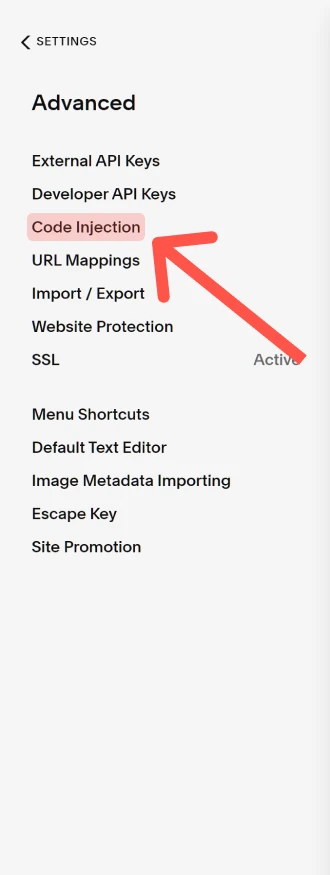
- Click Code Injection. This requires a Core, Plus, Advanced, or eligible legacy billing plan.
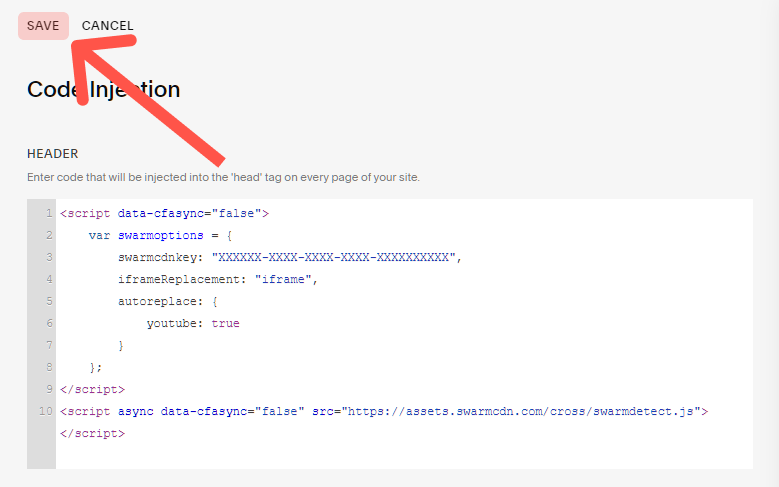
- Paste the snippet into the Header textbox.
- Click Save.
And that’s it! 🎉
To add videos directly to your site, learn how to add a video to your site.
Evaluating SmartVideo for Squarespace? See the Squarespace video hosting overview.