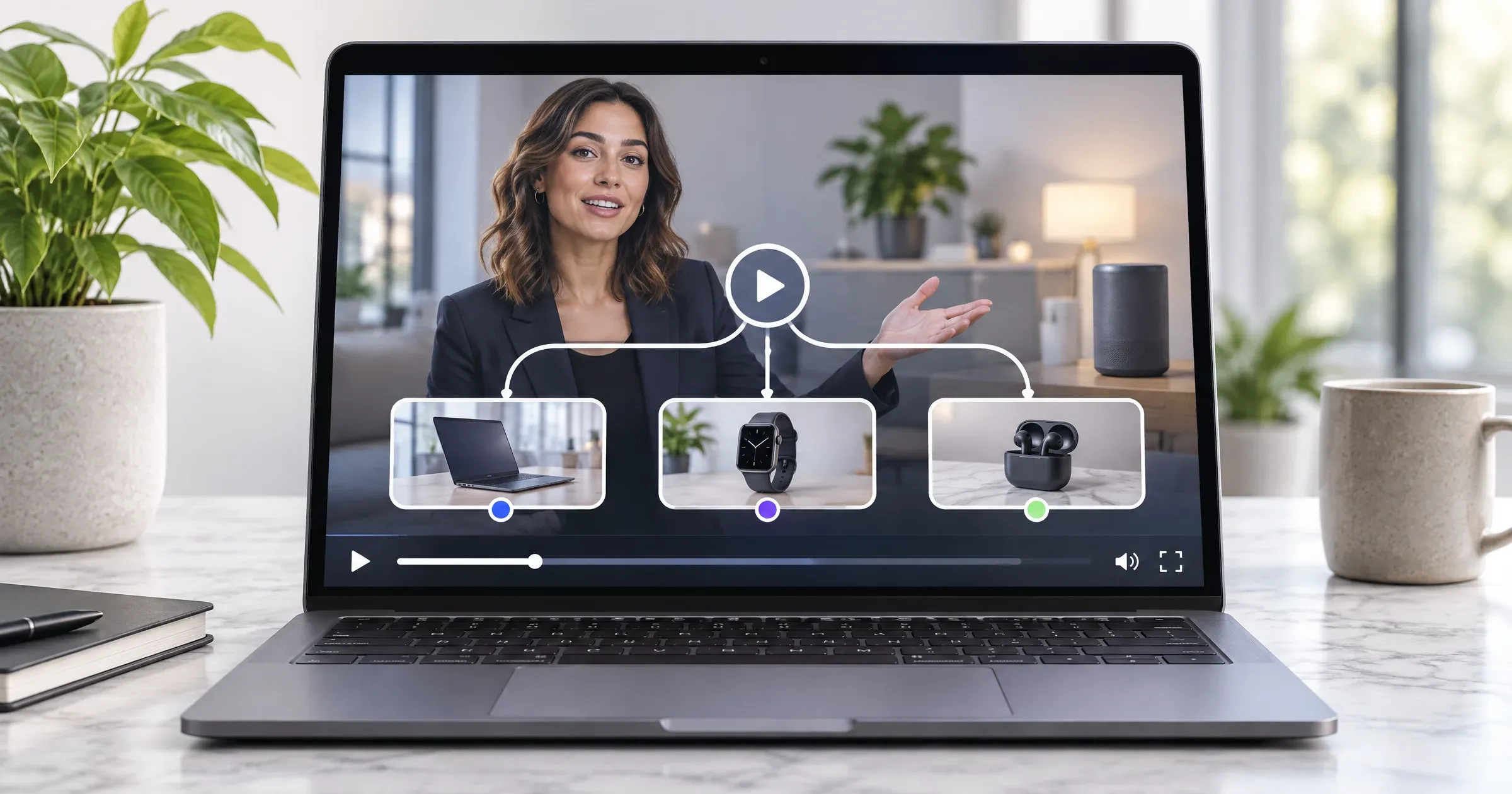
A good video thumbnail for a business website is a clear, honest preview that still makes sense at the player’s actual size. Choose a representative frame, check the mobile crop, compress the image, and use the HTML poster attribute to display it before playback. Treat video preloading as a separate decision.
📋 TL;DR • Choose the frame yourself: Automatic extraction generates candidates, not an editorial decision. • Measure the export: Our 1280×720 test frame ranged from 111,614 bytes as WebP to 2,774,185 bytes as uncompressed PNG. • Separate website and platform rules: A browser poster and a YouTube custom thumbnail do not share an upload specification. • Check loading: In local Firefox, WebKit, Chromium, mobile-emulated Chromium, and Safari tests,
preload="none"fetched the poster without requesting the MP4 before playback.
What is the difference between a video thumbnail and a poster?
A video poster is the preview inside an in-page player before playback. “Thumbnail” can also mean a library card, social preview, or YouTube creator image.
Those images serve different placements; this guide focuses on the image visitors see on your own website. For feed-specific exports, see our guide to social media video formats.
According to the HTML Standard, last checked October 22, 2026, poster identifies an image intended to represent the video, typically a non-blank frame that gives the visitor an idea of its contents (WHATWG HTML Standard, 2026). A social thumbnail identifies a video in a feed; an Open Graph image represents a shared page. Do not assume one crop suits all three.
How do you choose an honest poster frame?
A useful video thumbnail shows what the video actually explains: the product in a demo, the customer in a testimonial, or a recognizable step in a tutorial. Skip black fade-ins and unrelated promotional art. An opening logo may identify your company without explaining why someone should watch. The first frame is not automatically the right poster. Scrub to a moment that makes the subject clear, then check it behind the play control. A designed poster is also an option, but its headline and artwork should not promise a result, feature, or person absent from playback.
Before exporting, ask:
- Can a first-time visitor tell what the video is about?
- Does the image match what appears after pressing play?
- Is the subject clear at the displayed size and behind the play button?
- Does the composition survive the mobile crop?
Check the actual frame in the player rather than relying on an automatically chosen opening image.
What did three FFmpeg extraction methods select?
FFmpeg can extract a chosen timestamp, select a representative frame from a batch, or identify scene changes. Each method generates a candidate for human review.
We tested those three methods on October 22, 2026, using Blender Foundation’s Big Buck Bunny. They produced different candidates: a tree hollow at 30 seconds, a landscape at 6.375 seconds, and a stream at 11.875 seconds. None of those candidates showed the title character.
The source was the official 720p H.264 download, not a customer’s video. ffprobe reported 1280×720, 24 fps, and a video-stream duration of 596.458333 seconds. According to Blender Foundation’s license page, the film is Creative Commons Attribution 3.0. Attribution for the extracted stills: © copyright 2008, Blender Foundation / www.bigbuckbunny.org. The test extracts and resizes frames; it does not alter the depicted scenes.
 The frame selected at 30 seconds includes a faint “BIG BUCK BUNNY” title overlay. © 2008 Blender Foundation / www.bigbuckbunny.org, CC BY 3.0.
 The first 240-frame batch produced a different candidate. © 2008 Blender Foundation / www.bigbuckbunny.org, CC BY 3.0.
 The first frame above the scene-change threshold. © 2008 Blender Foundation / www.bigbuckbunny.org, CC BY 3.0.
These commands reproduce the selections with FFmpeg 8.1.3 after unzipping the source file as input.mov:
# A moment you choose after watching the video
ffmpeg -ss 30 -i input.mov -vf scale=1280:720 -frames:v 1 fixed.png

# One candidate from the first 240-frame batch
ffmpeg -i input.mov -t 60 -vf "thumbnail=240,scale=1280:720" -frames:v 1 automatic.png

# First frame above this scene-change threshold, within 60 seconds
ffmpeg -i input.mov -t 60 -vf "select=gt(scene\,0.35),scale=1280:720" -frames:v 1 scene.png
According to FFmpeg’s filter documentation, thumbnail selects a representative frame from a sequence of consecutive frames. Here, 240 frames at 24 fps covers the first ten seconds, not the entire film. Scene-change selection finds transitions; it does not understand which image explains your business. Use either method to narrow a review, then make the final choice yourself.
How large should a website video thumbnail be?
A website video thumbnail should suit the player’s shape and rendered size; a 1280×720 export is a useful starting point for a wide player, not a universal requirement.
Measure the file rather than trusting the extension or a quality slider.
For our file-size test, every export used the same 30-second frame at 1280×720. JPEG used FFmpeg’s -q:v, PNG used -compression_level, and WebP used libwebp -quality. These settings are not interchangeable quality scores. PNG’s compression levels change lossless encoding effort, not a lossy visual-quality target.
| Format | FFmpeg setting | Exact file size |
|---|---|---|
| JPEG | -q:v 2 |
414,843 bytes |
| JPEG | -q:v 5 |
215,411 bytes |
| JPEG | -q:v 10 |
117,731 bytes |
| PNG | -compression_level 0 |
2,774,185 bytes |
| PNG | -compression_level 3 |
1,578,391 bytes |
| PNG | -compression_level 9 |
1,536,950 bytes |
| WebP | -quality 50 |
111,614 bytes |
| WebP | -quality 75 |
156,596 bytes |
| WebP | -quality 90 |
292,374 bytes |
The uncompressed PNG was substantially larger than the same frame at compression level 9. These are single-frame measurements, not a claim that one format always wins. Inspect the exported face, product details, and text at the displayed size before choosing the smaller file.
Platform rules are separate. YouTube Help, last checked October 22, 2026, recommended 3,840×2,160 for video thumbnails, with a minimum width of 640 pixels and a 16:9 aspect ratio. The page named JPG and PNG, and listed 2 MB for mobile video-thumbnail uploads versus 50 MB on desktop (YouTube Help, 2026). Check the current guidance rather than relying on an old blanket “1280×720 and under 2 MB” rule.
WebP was tested for an owned-site poster, not verified as a YouTube upload format. No YouTube upload was attempted, and the 1280×720 exports do not match YouTube’s recommendation as last checked.
How do you check the desktop and mobile crop?
A video thumbnail needs to remain understandable in the actual player, not only in your image editor. Decide the player shape before cropping. Preview the candidate in the real component at your narrowest supported viewport. Keep faces and product details away from edges that the layout may crop.
Preserve the image’s aspect ratio when the full composition matters. According to MDN’s object-fit reference, object-fit: cover fills its box by cropping overflow, and object-position lets you move the focal point. Test each breakpoint rather than assuming a center crop will work.
In a headless Chromium 159 test on Fedora, we placed the 16:9 tree-hollow frame in a square video box, centered within that box, at viewport sizes 1366×768, 390×844, and 768×1024. With cover, the left and right sides disappeared at all three sizes; with contain, the whole frame remained visible with dark bands above and below. The box was 350 pixels wide on the phone-sized viewport and capped at 640 pixels on the others. This is one square layout, not a prediction for every responsive player.
According to the WHATWG HTML Standard cited above, the native poster value is one image URL; it is not responsive <img> markup with srcset and sizes. If separate mobile artwork is essential, use a custom image facade with responsive image selection. That adds responsibility for its button, focus, and transition into playback.
A lighter poster solves only the preview. If you are also reviewing how the full video is hosted and served, compare SmartVideo plans against your current delivery setup.
How do you add a poster to HTML video?
Add a poster image URL to the <video> element, keep native controls, and choose a video preload policy explicitly.
This example leaves video fetching until playback is requested while allowing the preview to load:
<video
  controls
  preload="none"
  poster="/media/product-demo-poster.webp"
  width="1280"
  height="720"
  style="max-width: 100%; height: auto;">
  <source src="/media/product-demo.mp4" type="video/mp4">
  <p>Your browser does not support HTML video.
    <a href="/media/product-demo.mp4">Download the video</a>.
  </p>
</video>
Replace the sample URLs with your own files and match the dimensions to your video. According to MDN, last checked October 22, 2026, explicit video dimensions help avoid layout shifts; the text inside <video> is fallback content for browsers without video support, not alt text for the poster (MDN, 2026).
A native poster has no separate alt field. Put essential context in nearby page text. A custom image-based play control also needs an accessible name, rather than relying on words drawn into the artwork. For player options, see how to embed video on a website and the website video player comparison.
Does preload stop the poster from downloading?
preload controls a hint about video data, not a switch that disables the poster image. In local tests, every browser requested the poster under all three settings; none requested the MP4 during the 1.5 seconds before playback with preload="none".
On November 18, 2026, we retested on Fedora with Playwright 1.65.1: headless Firefox 159, WebKit 27.2, Chromium 159, and Chromium 159 emulating an iPhone 13. We also tested real Safari 26.6 on macOS 26.6 with SafariDriver. Each case used a new context or session, no autoplay or lazy loading, and a 156,400-byte poster. The silent, stream-copied opening excerpt was 12.041667 seconds and 10,139,043 bytes, with MP4 metadata at the front.
| Browser | Poster for none / metadata / auto? | MP4 before play: none / metadata / auto |
|---|---|---|
| Firefox 159 | Yes / yes / yes | No / yes, 5,439,488 bytes / yes, 10,139,043 bytes |
| WebKit 27.2 | Yes / yes / yes | No / yes, 10,139,043 bytes / yes, 10,139,043 bytes |
| Chromium 159 | Yes / yes / yes | No / yes, 5,111,808 bytes / yes, 10,139,043 bytes |
| Chromium 159, mobile emulation | Yes / yes / yes | No / yes, 7,405,568 bytes / yes, 10,139,043 bytes |
| Safari 26.6 on Mac | Yes / yes / yes | No / yes, 10,139,045 bytes / yes, 10,139,045 bytes |
These are server-side response counts, not exact browser-received totals. Safari made a two-byte range request followed by a full-file range, so its total includes two repeated bytes. The mobile run emulates device settings on a desktop browser, not a phone or mobile network. Our earlier Chromium 145 run used a 156,596-byte export of the same frame and streamed 4,390,912 MP4 bytes for metadata; the version and poster differ, so that result is not directly comparable.
To repeat the method, create a 12-second silent MP4 with front-loaded metadata from the film download: ffmpeg -i input.mov -t 12 -an -c:v copy -movflags +faststart sample.mp4. Serve it and a poster from a local HTTP server that supports byte ranges and records response bytes. For each setting, open a fresh browser context on a page containing <video controls preload="none" poster="/poster.webp"><source src="/sample.mp4" type="video/mp4"></video>, substituting metadata and auto in turn. Wait 1.5 seconds without calling play and record both requests; disable caching and autoplay. Your browser, network, server and file layout can change the result.
According to MDN, preload is only a hint; the browser is not forced to follow it. These local results are not a bandwidth guarantee. Check your own player with caching disabled in the Network panel.
MDN also documents loading="lazy" as deferring the video and poster until near the viewport in supporting browsers. We did not test lazy loading here. Check browser support before relying on it, and keep an immediately visible poster eager. According to web.dev’s video performance guide, a poster that is the page’s Largest Contentful Paint element can merit an image preload hint; that does not mean every poster should be preloaded. See also how video load speed affects marketing results.
How do you make the play overlay accessible?
An accessible play control needs keyboard operation, visible focus, a clear name, and sufficient contrast. W3C’s media-player guidance identifies those requirements and warns that building an accessible player requires advanced HTML and JavaScript skills. Native controls are a reasonable starting point, not evidence that the whole video experience is accessible.
If your design uses a custom clickable poster, use a real <button type="button"> with a name such as “Play product demo,” not a clickable <div>. Preserve usable playback controls after activation. Keep essential instructions outside the image, where cropping cannot remove them. For captions and transcripts, see video accessibility guidance.
We built a small local example with a named button over a poster and native controls after activation. In headless Chromium 159 on Fedora, Tab reached the button and showed a four-pixel focus outline; Playwright’s accessibility snapshot exposed it as “Play product demo.” Both Enter and Space removed the button, exposed controls, and started the silent test clip. An axe scan reported no violations but marked its video-caption check incomplete. This checks one example, not screen readers, contrast in every design, captions, or the full player experience; removing a focused button also makes focus management after activation worth testing in your own implementation.
How do you fix a missing, stretched, or slow poster?
A missing video poster usually calls for a URL and network check before a redesign. Open the image URL directly and confirm it returns an image rather than a login page or HTML error. Then inspect the deployed markup and the browser’s Network panel for path mistakes, failed requests, or deferred loading.
For a stretched poster, stop forcing the image into a mismatched shape: preserve its ratio or intentionally crop it. For a missing face or product detail on mobile, adjust the composition or the facade’s focal position. A single native poster URL does not select separate mobile artwork by itself.
For a slow poster, compare a smaller export at the actual display size and inspect the image host’s response and caching. Check whether lazy loading is intentionally postponing the request. Do not mistake a large video transfer under preload="metadata" for the poster’s own file weight.
Frequently asked questions
What makes a good poster frame for a business video?
A good poster clearly represents the video’s subject and stays readable behind the play control. Choose the product, customer, or tutorial step viewers will actually see. Avoid black fade-ins and unrelated imagery, then check the real mobile crop.
Can FFmpeg choose a video thumbnail automatically?
The FFmpeg thumbnail filter can select a representative frame from a batch. In this test, a 240-frame opening batch selected the landscape at 6.375 seconds, not the title character. Use the output as a candidate, not a substitute for watching the video.
Is WebP always smaller than JPEG for a poster?
No universal result follows from this test. The WebP at quality 50 was 111,614 bytes, while the JPEG at -q:v 10 was 117,731 bytes. Those settings are not matched visual-quality scores. Inspect your own export before choosing a format.
Can I use srcset or alt text on a native video poster?
The HTML Standard’s native poster attribute accepts one image URL, not srcset, sizes, or a separate alt value. Provide important context in nearby text. If you need responsive artwork, a custom image facade can use image markup, but its play control also needs an accessible name and keyboard behavior.
Does preload=“none” prevent the poster from loading?
No. In our local Firefox, WebKit, desktop and mobile-emulated Chromium, and Safari tests, every browser requested the poster without requesting video data before playback during the 1.5-second observation. MDN describes preload as a video-data hint, not a poster switch. Lazy loading is a separate feature that can defer both resources in supporting browsers.
Why is my HTML video poster not showing?
Check that the poster URL is correct, publicly reachable, and returns an image. Inspect the browser’s network requests and deployed asset paths. If lazy loading is enabled, check whether the video is still outside the browser’s loading distance.
Does YouTube still recommend 1280×720 thumbnails?
YouTube Help, last checked October 22, 2026, recommended 3840×2160 for video thumbnails, with a minimum width of 640 pixels. Its documented upload-size limits differed between mobile and desktop. The 1280×720 files measured here are website-poster test exports, not a claim of following its recommended resolution.
Will preload=“metadata” download only a few bytes?
Do not assume a fixed byte budget. In the cross-browser test above, the server recorded 5,111,808 to 10,139,045 MP4 response bytes for metadata, depending on the browser. These server-side counts are not exact browser-received totals, and Safari’s includes two repeated bytes. Browser behavior and the file’s structure can change the result.
What should you check before shipping the thumbnail?
A website video thumbnail is ready when its image matches the content, its crop works in the real player, its file weight is measured, and its play control is usable.
Finally, verify poster and video requests separately after deployment. A good preview should explain the video without forcing visitors to download it first.