When you need to password protect a video, the correct approach is determined entirely by whether you are sharing a standalone file directly or embedding a player on a website. If you just need to send a private file to a colleague, encrypting an MP4 locally works fine. But if you are trying to gate a paid course or share internal company meetings online, a simple shared password won’t stop unauthorized sharing.
📋 TL;DR: The 4 Ways to Protect a Video • Platform Password: Basic protection using Vimeo or Wistia’s built-in settings. Easy to set up, but passwords can be shared. • Membership Gate: Putting the video behind a paywall or user login on your own site. Required for paid courses. • Signed & Expiring URLs: Enterprise-grade security where links expire after a set time. Ideal for protecting premium streaming content. • Local Encryption: Using ZIP files or third-party software to lock an MP4 file before sending it. Best for direct file transfer.
| Method | Security Level | Best For |
|---|---|---|
| Platform Passwords (Vimeo, Wistia) | Low to Medium | Client reviews, portfolio drafts |
| Membership Gating (WordPress) | High | Paid courses, subscriber content |
| Signed & Expiring URLs | Very High | Premium streaming, anti-piracy |
| Local Encryption (ZIP) | High (for files) | Sending raw source files securely |
Why Basic Video Passwords Aren’t Enough (The Leaky Password Problem)
A single password added to a Vimeo link feels secure until you realize how easily it can be shared.
A single “secure” password meant for 50 paying members can easily be circulated to hundreds of unauthorized viewers within weeks — sometimes starting with a single screenshot shared in a Discord server or WhatsApp group.

The core weakness is human: roughly 65% of people reuse the same password across multiple accounts (Google/Harris Poll, 2019). The code you hand one subscriber is often one they already use everywhere else — and one they’ll paste into a group chat without thinking twice. If your monetization relies on a single string of text that anyone can copy into a WhatsApp group or forum, your content is exposed. When choosing a platform to host your password-protected content, you have to look beyond basic access codes. Real protection means structural safeguards — controls that stop one URL or password from being reused across dozens of devices at once.
How Do You Password Protect a Video on Vimeo or Wistia?
The most common way businesses protect their content is by using the built-in privacy settings of their hosting provider. In our testing, this works well for low-stakes videos where you don’t need ironclad security.
How Platform Passwords Work
Platforms like Vimeo allow you to select “Password” under their privacy settings. You generate a single password, save the video, and send the link and password to your audience. When a user clicks the link, they hit a landing page prompting them to enter the code before the player loads. Pros:
- Straightforward setup that takes seconds.
- Doesn’t require any coding knowledge or website changes.
- Effective at stopping search engines from indexing the video page.
Cons:
- Anyone with the password can watch the video, making it unsuitable for paid content.
- Vimeo applies a 2TB-per-month bandwidth threshold across its self-serve plans. If a shared password causes your video views to spike, repeated overages can prompt Vimeo to ask you to reduce usage or move to a Custom or Enterprise plan.
- Adds friction — viewers hit an extra gate before the video even plays.
If you are using this method on a free platform, you should also consider why YouTube’s “Unlisted” feature isn’t real security. Anyone with the URL can watch an unlisted YouTube video, and there is no password protection feature available on the platform at all.
How Do You Gate a Video Behind a Membership or Paywall?
If you are protecting a paid course or membership site, you should gate the webpage itself, not just the video player.
This means requiring a user to log in to an account they have paid for before the page containing the video will even load.
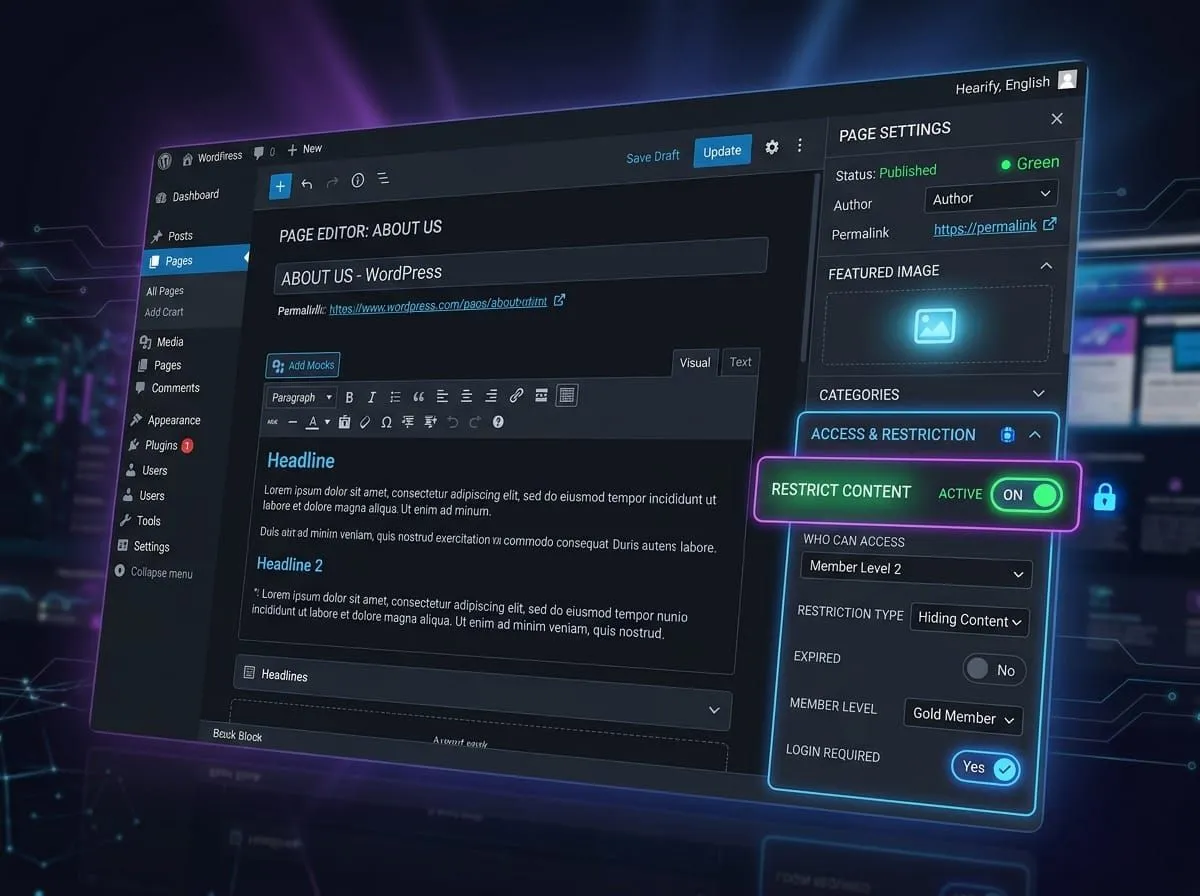
Setting Up a Membership Gate
Using a content management system like WordPress, you can install plugins like Restrict Content Pro or MemberPress. In our setups, we’ve found that gating the webpage itself provides the most seamless user experience.
- Upload your video to a secure host (not directly to your media library).
- Embed the video on a standard WordPress page using a shortcode or block.
- Apply a restriction rule to the page using your membership plugin, specifying that only logged-in users with an active subscription can view the content.
This method solves the shared password problem because users must log into their own accounts. But a login gate only holds if the video URL itself isn’t exposed in the page source. If a user can right-click your video player, find the direct MP4 link in the page source, and share that URL directly, the membership gate is bypassed entirely.
🚀 Need to secure your premium content? SmartVideo delivers fast, buffer-free playback while keeping your video source URLs hidden from unauthorized viewers. Compare SmartVideo Plans →
How Do Signed and Expiring URLs Protect Your Video?
To actually protect your video streams, you need a mechanism that generates unique, temporary access for every view session. Signed and expiring URLs do exactly that — and they’re the standard for enterprise video delivery.
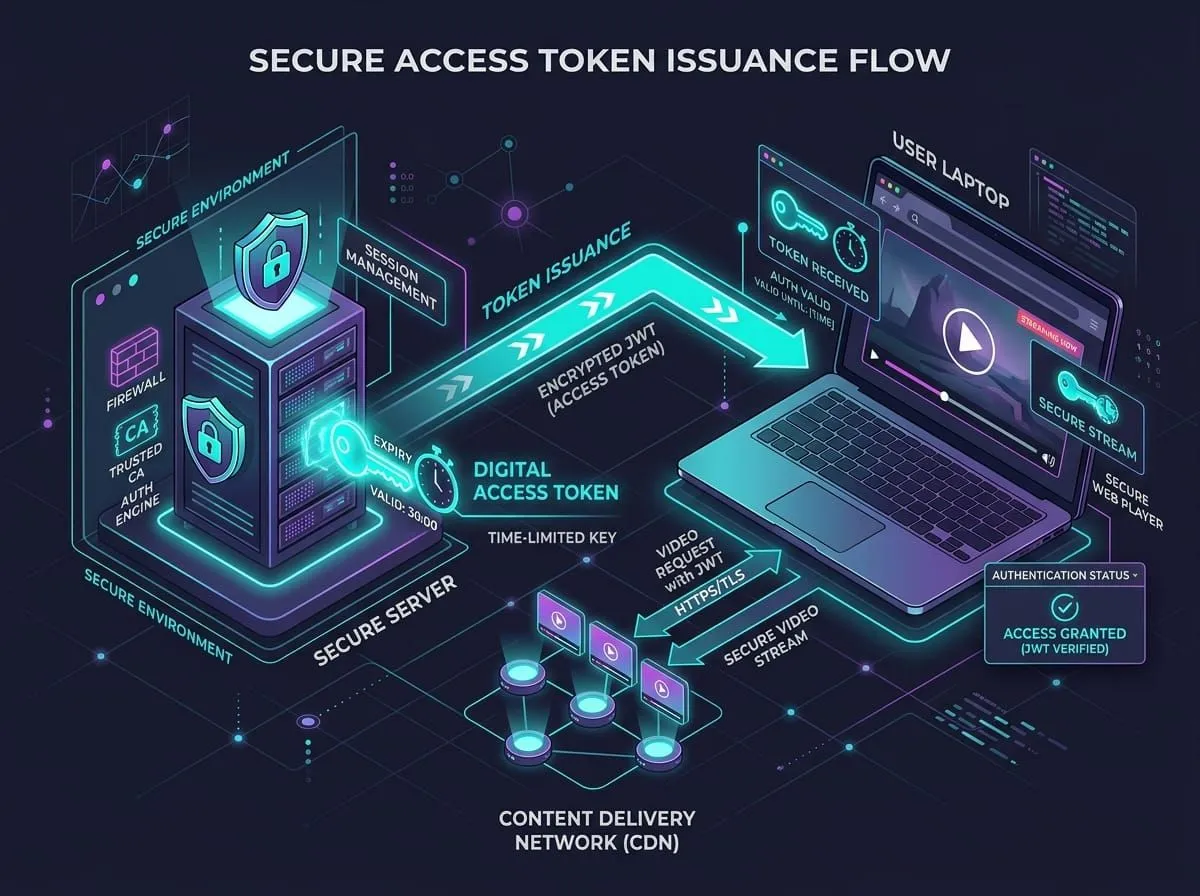
ℹ️ What is an expiring URL? A dynamically generated web address containing an encrypted signature and a timestamp. Once the time limit passes (often just a few minutes), the URL becomes invalid and the video cannot be loaded.
Implementing Expiring URLs
Rather than relying on a static password, the video player requests a secure token from the server at the exact moment the page loads. We’ve found that having the server verify permissions and issue a temporary URL is the most reliable way to stream securely. This is how major streaming services prevent piracy. If someone copies the network request or grabs the source URL to share on a message board, it will result in a 403 Forbidden error for anyone who clicks it, because the timestamp has already expired. While setting this up manually requires custom backend development, professional video hosting solutions handle token authentication automatically, keeping the raw MP4 file hidden from the public internet entirely. If your goal is monetization rather than just privacy, signed URLs are an absolute requirement. Online piracy costs the U.S. economy at least $29.2 billion a year — and as much as $71 billion — with streaming now responsible for over 80% of all video piracy (U.S. Chamber of Commerce, 2019). Don’t leave your revenue exposed by relying on basic passwords.
How Do You Password Protect a Video Folder with .htaccess?
If you are self-hosting your video files on an Apache web server, you can use server-level directory protection to require a password before the server will deliver any files from a specific folder.
This is a technical method that bypasses the website’s front-end entirely.
Using .htaccess and .htpasswd
You can restrict access to an entire directory (like /premium-videos/) by placing an .htaccess file inside it, following Apache’s official authentication and authorization guide for Basic Auth.
- Create an
.htpasswdfile: This file stores usernames and encrypted passwords. You can generate the contents using free online hashing tools. Place this file in a secure location on your server, ideally above the public HTML root so it cannot be downloaded. - Create the
.htaccessfile: In your video folder, create a file named.htaccesspointing to the absolute server path of your.htpasswdfile, the authentication type, and a valid-user requirement. A minimal version looks like this:
AuthType Basic
AuthName "Restricted Video Library"
AuthUserFile /home/yoursite/.htpasswd
Require valid-user
On most Linux hosts you generate the matching .htpasswd entry from the command line — the -c flag creates the file the first time, then drop it for each additional user:
htpasswd -c /home/yoursite/.htpasswd subscriber1In our tests, when a browser attempts to load the video or the page containing it, a native browser prompt appears immediately asking for the username and password. This method is highly effective at stopping unauthorized access, but it provides a poor user experience. It’s difficult to manage access for large groups, and every viewer shares the same handful of credentials — so a single leaked username and password reopens the whole directory. Managing plain-text credential files and server configs by hand also adds operational risk that a managed host handles for you.
How to Password Protect a Local Video File (MP4, ZIP)
Sometimes you don’t want to embed the video on a website at all.
If you are sending a raw MP4 file to a client via email or Dropbox and want to ensure only they can open it, local file encryption is the proper approach.

Encrypting with a ZIP Archive
In our experience, the simplest way to protect a local file across both Windows and Mac operating systems is to place it in a password-protected ZIP archive before transferring it.
- Windows: You will need third-party archiving software like 7-Zip. Right-click your MP4 file, select “Add to archive,” and enter a secure password in the encryption section.
- Mac: You can use the built-in Terminal application. Open Terminal, type
zip -er archive_name.zip, drag your video file into the window to paste its path, and press Enter. You will be prompted to type and verify a password.
Once the file is encrypted, send the ZIP file to your recipient, and share the password through a different, secure channel (like Signal or a temporary secure note). Once your video is secure for web delivery, you need to embed it correctly on your site to maintain fast page load times and ensure high conversion rates.
What Else Should You Know About Password Protecting Video?
The answers below cover locking an MP4, protecting video on an iPhone, Google Drive and YouTube, whether Vimeo’s password is enough, and sending a link that works only once.
Can you put a password on an MP4 file?
Yes, you can password protect an MP4 file by compressing it into an encrypted ZIP archive using tools like 7-Zip on Windows or Terminal on Mac. However, you cannot add a password directly to the MP4 file format itself without altering it; the protection exists at the folder or archive level (Microsoft Support).
How to password protect a video on iPhone?
You can hide a video in the Hidden album within the iOS Photos app, which requires Face ID, Touch ID, or your passcode to access. For sharing a protected video from an iPhone, upload it to a secure cloud storage service like Google Drive or iCloud and restrict link access to specific email addresses rather than using a shared password (Apple Support).
Is Vimeo password protection secure?
Vimeo’s password protection is secure against unauthorized search engine indexing and casual browsing, but it cannot prevent authorized viewers from sharing the password with others. If your business model relies on strictly controlling access to paid content, a shared password is an insufficient security measure for protecting your revenue (Vimeo Help Center).
How to send a video that can only be viewed once?
You can send a view-once video using platforms with self-destructing links or expiring URLs, where the access token is invalidated immediately after the first playback session completes. Commercial video hosting solutions offer more granular control over token expiration and playback limits than standard consumer file-sharing apps.
How to password protect a YouTube video?
YouTube does not offer a password protection feature for videos. You can only set a video to “Private” (requiring specific Google accounts to be manually invited) or “Unlisted” (accessible to anyone who possesses the link, with no password required) (YouTube Help).
How to password protect a video on Google Drive?
Google Drive does not allow you to set a custom password on a specific video file. To protect a video, you must restrict the sharing settings so that only specific, invited email addresses can view the file, requiring them to log into their Google accounts to gain access (Google Workspace Learning Center).
How to put a password on a video website?
To put a password on an entire video website, use a membership management plugin if you are on WordPress, or configure server-level directory protection using an .htaccess file. This ensures that the webpage containing the video player is entirely inaccessible without valid login credentials.
Securing your video content means moving past easily shared passwords and controlling access at the source. Whether you’re building a membership site or delivering paid courses, you need something that fits into your existing site without slowing it down or leaking your source files. To keep premium content locked down and load times fast, a dedicated video hosting service gives you both performance and protection in one place.