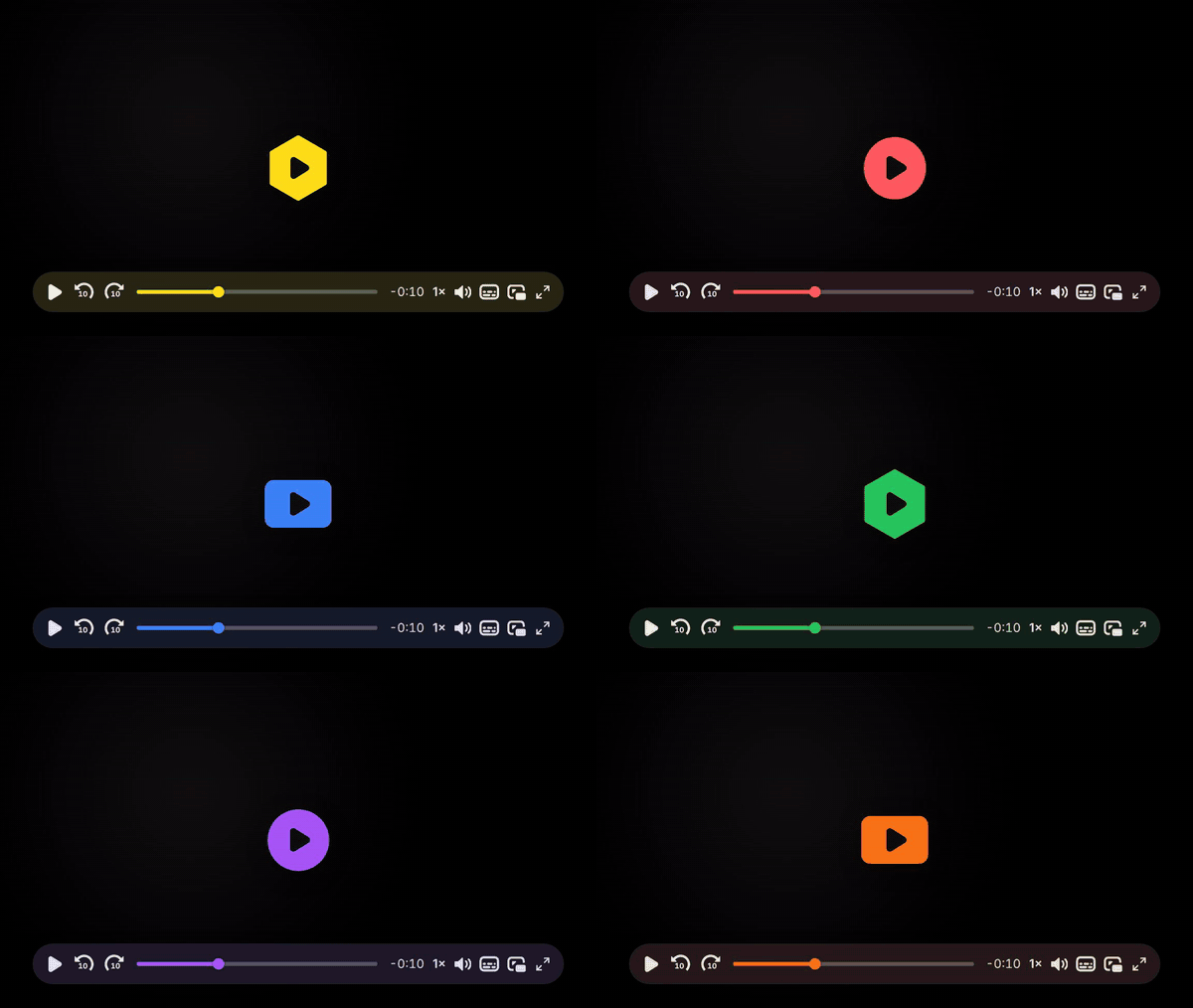
It finally looks and feels the way we always wanted it to.
Rebuilding the player is something we’ve wanted to do for years. Instead, we kept adding to what we had, and it started to show its age. It never handled different screen sizes gracefully, and the parts people touch most - the play button, the control bar, dragging through a video - were the parts that showed it.
So it got rebuilt: the player now sizes itself to whatever space it’s in, the controls and play button scale with it, and scrubbing keeps up with your cursor instead of lagging behind it. It spent months in beta with a group of customers finding the rough edges.
What’s new
Some of these have been on our request list for a long time. Skip buttons and keyboard shortcuts were the most-asked-for player feature, and Google Analytics support was not far behind.
A new Configuration tab in your dashboard controls most of it, with a live preview as you edit.
The look
A cleaner frameRounded corners and a lighter, less boxy player.
Frosted glass controlsThe control bar sits on a blurred panel and picks up a tint from your brand color.
No more black barsWhen a video’s shape doesn’t match its container, the gap fills with a blurred version of the frame instead of black.
Controls
Skip forward and backTen-second jumps from the control bar or the keyboard.
Keyboard shortcutsArrow keys to seek with an adjustable step, J and L for ten-second jumps, number keys to jump by percent, and M, F and C for mute, fullscreen and captions.
Picture-in-PicturePop the video out and keep it playing while you browse.
Playback speedA single button on the control bar that cycles through the speeds when clicked.
A captions menuPick a language, or toggle captions with one tap when there’s only one track.
Scrub without lagDrag the progress bar and the preview keeps up, with a time tooltip under your cursor.
Controls that make roomOn a narrow player, less-used controls tuck into a single menu button instead of crowding the bar.
On phones
Bigger touch targetsControls sized for thumbs rather than a mouse pointer.
Double-tap to seekTap either side of the video to jump, with a badge showing which way you went.
Haptic feedbackA light tap when you scrub or skip, on devices that support it.
Fullscreen that fitsThe control bar stays clear of notches and rounded corners.
Captions stay readableThey lift above the control bar while it’s showing.
Performance
Nothing jumps on loadThe player works out its size before it paints, so the page doesn’t shift around as the video appears.
Playback that doesn’t get stuckDragging back and forth no longer leaves the video spinning, and if playback reaches a gap it steps past it and keeps going.
No flash on swapped embedsA YouTube or Vimeo embed holds its size while it becomes a SmartVideo, so the layout stays put.
Accessibility
Respects system preferencesReduced motion turns off animation, and high contrast or reduced transparency swap the glass for solid backgrounds.
Keyboard navigableVisible focus rings throughout, and Tab stays inside the player in fullscreen.
Make it yours
Your colorsPrimary and secondary color, applied to the play button, progress bar and control bar tint.
Play button shapeHexagon, rectangle or circle, with adjustable corner rounding.
Player corner radiusSquare off the frame or round it as much as you like.
Google AnalyticsTurn on GA4 reporting and the player sends playback events, including progress milestones, to the Google Analytics already running on your page.
A few options - the call-to-action overlay, brand logo watermark and ad insertion - are tied to specific plans. Your settings page shows what applies to yours.
Old player, new player
The same video, loaded twice: once in the player customers ran before the rebuild, once in the one that ships today. Both are live - press play on either, or throw a preset at the new one.
Legacy playerNew player Classic
Restyle the new player
The same settings are yours to set, with a preview that updates as you edit: primary and secondary color, play button shape and rounding, player corner radius, control bar glass tint, auto-conversion of YouTube and Vimeo embeds, and keyboard shortcuts. On WordPress they live in the plugin, under SmartVideo → Settings → Player appearance; save and you’re done. Everywhere else they live in the Configuration tab in your dashboard - change a setting, then copy the generated script.
Update the SmartVideo plugin to the latest version.
Open SmartVideo in your WordPress admin sidebar, then the Settings tab.
Under Player, switch Version from Legacy to Stable.
If you run a caching plugin, clear your cache.
That’s the whole change. Updating the plugin on its own does not switch your player, so you can pick your moment. The appearance and playback settings start applying once you’re on Stable.
Step 4 matters if you cache: pages saved before the switch keep serving the old player until the cache clears, so a page that looks unchanged usually means a stale copy rather than a setting that did not take.
If something doesn’t look right, set Version back to Legacy and your site is on the old player again. The switch works in both directions, and the same cache note applies - clear it after switching back. Then email support@swarmify.com and tell us what looked wrong.
If your WordPress plugin says Beta
Just update the plugin
Just update the plugin. Unlike the Legacy default above, the beta toggle moves you to Stable on its own, so there’s no setting to change and nothing else to do.
If your script tag points at the beta player
Swap your script tag
Thanks for testing it. Look at your SmartVideo script tag - if the address has /beta/ in it, this is you. We’d suggest moving off the beta script now: open the Configuration tab in your dashboard, set things up how you want them, and replace the beta script tag on your site with the one shown there. The beta channel keeps getting pre-release builds, so this puts you on the same stable player as everyone else.
If you use the standard SmartVideo script tag
Nothing required
You’re already on the new player - the switch happened on our side on July 13, so there was nothing to install. Your script tag keeps working as it is.
Worth doing when you have a moment: open the Configuration tab in your dashboard, set the colors and controls with the live preview, and copy the script it generates into the <head> of your site. It carries your settings, loads the player in one request instead of two, and asks script optimizers on your site to leave it alone.
If you’ve built custom code around the player
Worth a check
The rebuild changed some internals, so if your site interacts with the player through JavaScript - custom controls, your own play triggers, or code that reacts to playback events - it’s worth a look. If something isn’t behaving the way it used to, email support@swarmify.com, describe what your code does, and we’ll help you get it working. While the legacy player is still available, we can also put your account back on it while we sort it out.
Questions about the new player?
Email support@swarmify.com and we’ll help you sort it out.