

How to Embed Video in WordPress: 5 Methods Explained (2026)
Add YouTube, Vimeo, MP4, or business-hosted video to WordPress with five methods, responsive settings, privacy guidance, and embed fixes included.


To embed a video in WordPress, paste a supported public video URL on its own line in the Block Editor, or add the provider's embed block and select Embed. For more control, use a Custom HTML iframe, the native Video block for an MP4, or a managed video host with a WordPress plugin.
The first method takes seconds, but your choice also affects ads, branding, privacy, accessibility, mobile sizing, and third-party code. Here are five distinct ways to add video to WordPress, followed by practical settings and fixes.
• Fastest public embed: Paste a YouTube or Vimeo URL on an empty line and let WordPress create the player.
• More provider control: Choose a native service block or use Custom HTML for an iframe with provider settings.
• For an MP4: Use the Video block when the file is small and your hosting plan is built to deliver media.
• For a business site: Use managed WordPress video hosting when ads, related videos, branding, privacy, analytics, or page weight matter.
Which WordPress video embedding method should you use?
Start with the video source, then decide how much control you need. URL paste and provider blocks both create external embeds: the file lives on the provider while WordPress stores the player placement.
| Method | Video lives on | Easiest for | Main trade-off |
|---|---|---|---|
| URL/oEmbed paste | External video platform | A quick public post | Little player control |
| Native service block | External video platform | A structured Block Editor layout | Provider support varies |
| Video block | Your WordPress host | A short, low-traffic MP4 | Storage and delivery become your responsibility |
| Custom HTML/iframe | External video platform | Start times and provider parameters | Code permissions and page weight |
| Managed host/plugin | A video delivery platform | Business, course, and landing pages | Adds a service cost and setup step |
WordPress powered 41.1% of all websites as of August 10, 2026 (W3Techs, 2026). These instructions assume self-hosted WordPress; WordPress.com plan limits can change available blocks, Custom HTML, plugins, or uploads.
Method 1: Paste a video URL for an auto embed
URL paste is the fastest way to embed a public YouTube or Vimeo video. WordPress uses oEmbed to recognize a supported video link and turn it into a player without requiring you to copy HTML. This is the workflow to try first for a blog post, documentation page, or simple announcement.
How to auto-embed a video URL
- Copy the public video URL from the provider's address bar or Share menu.
- Open the WordPress post or page in the Block Editor.
- Add a new Paragraph block, with the URL on its own line and no surrounding text.
- Paste the URL and wait for WordPress to convert it into an embed.
- Preview the page on desktop and mobile, then save or publish the post.
Use the canonical watch URL, not a shortened tracking link. A URL with text before or after it stays a plain link. If WordPress does not recognize the provider, move to Method 2 or Method 4.
Pros: It is quick, readable in the editor, and needs no plugin. Cons: The provider controls the player, recommendations, branding, privacy behavior, and much of the loading experience.
The most common auto-embed failure is not a broken video at all: it is a URL pasted into a paragraph that already contains text. Start with a blank line and you have fixed the problem before you ever open the code editor.
Method 2: Use a native provider embed block
A native provider block gives the URL-paste workflow a defined place in the page structure. Instead of relying on WordPress to infer what a URL means, you choose a YouTube, Vimeo, or other supported provider block from the inserter and then enter the video URL.
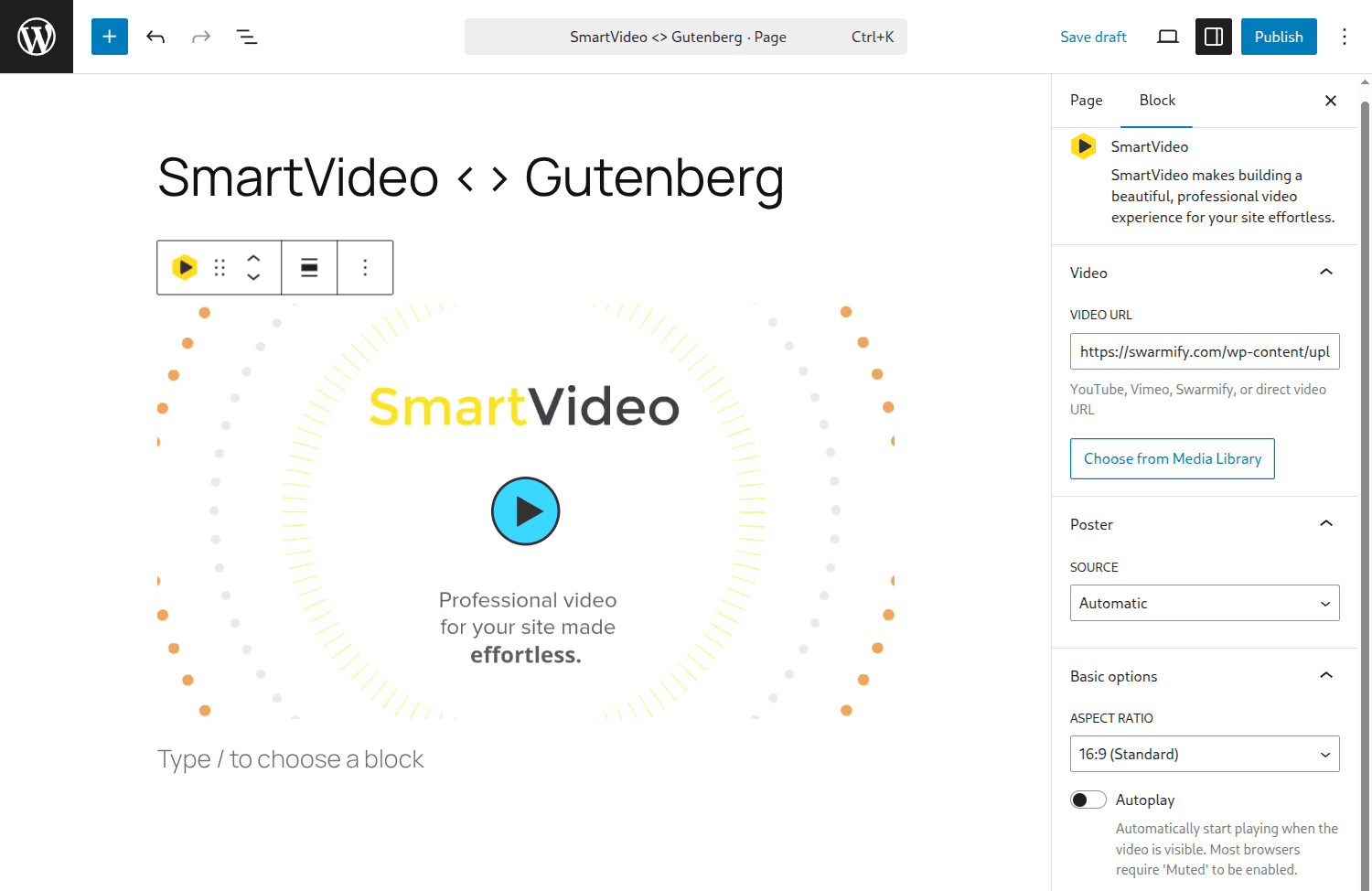
How to add a provider block
- Click the + icon where the player should appear.
- Search for the provider name, such as YouTube or Vimeo, or search for Embed.
- Select the block that matches the video source.
- Paste the video URL into the block field and click Embed.
- Open the block settings to adjust alignment, dimensions, or other provider-supported options.
The WordPress embeds documentation is the current source of truth for supported providers. Provider support and privacy rules can change, and a service-specific block does not remove ads, related content, or third-party scripts.
WordPress.com versus self-hosted WordPress
On WordPress.com, available blocks, Custom HTML, plugins, and uploads depend on your plan and site settings. On self-hosted WordPress, an administrator manages plugins and roles, but security plugins or the host may still restrict iframe code. Check which editor you use before following a tutorial for the other platform.
Method 3: Use the native Video block for an MP4
The native Video block is for a video file you upload to WordPress or reference from a file URL. It works well for a short product loop, internal clip, or low-traffic page when your hosting account is built to serve media. Nothing about it is an external embed: the file, the bandwidth, and the delivery path stay yours.
How to add an MP4 with the Video block
- Click + in the Block Editor and search for Video.
- Choose Upload, Media Library, or Insert from URL.
- Set a poster image so the page has a useful preview before playback.
- Choose whether to show controls, allow autoplay, and set the preload behavior.
- Add captions with a WebVTT text track, then preview with sound off and on.
WordPress documents the Video block's controls, including poster images, preload, autoplay, and text tracks. Autoplay should be muted and should not be the only way a visitor can understand the video. For broad browser compatibility, an MP4 encoded with H.264 video and AAC audio is a practical baseline; the video format guide covers the trade-offs among MP4, WebM, and AV1.
Before uploading, check the file size, your host's storage quota, and the site's bandwidth policy. A shared WordPress plan can handle a small clip but become an expensive media server when a landing page attracts a large audience. This is why the guide on why not to upload video directly to WordPress recommends separating page hosting from video delivery for business libraries.
Method 4: Add an iframe with Custom HTML
Use a Custom HTML block when the provider gives you an iframe embed code or when you need a setting that the regular block does not expose. You can set a start time, choose privacy-enhanced YouTube domains, or preserve a provider's documented parameters. The iframe is still dependent on the external service, so extra control over markup does not mean control over the video platform.
How to add an iframe
- Open the video's Share or Embed menu on the hosting platform.
- Choose the available privacy, size, caption, and start-time options.
- Copy the complete iframe code.
- In WordPress, add a Custom HTML block at the target position.
- Paste the code, use Preview, and check the rendered player at a narrow viewport.
For YouTube, the official IFrame Player API reference documents the supported embed behavior. You can also review YouTube's embed and privacy settings before copying code. Do not add arbitrary parameters from an old snippet without checking what the provider still honors.
Iframe security and responsive sizing
Custom HTML is a permission boundary. If the editor strips the iframe after saving, your role, security plugin, WordPress.com plan, or hosting policy may disallow the tag. WordPress's roles and capabilities documentation explains why an administrator may see controls unavailable to an editor. Do not weaken site-wide filtering to force one iframe through; ask for an approved block or plugin instead.
Give the iframe a stable aspect ratio and a width that shrinks with its container. A fixed width can create phone scrolling; a missing height can collapse or shift the player. Inspect the theme or builder wrapper as well as the iframe.
URL paste and iframes are convenient, but the public platform still controls ads, related videos, branding, and viewer flow. See how managed WordPress video hosting gives you faster, ad-free embeds.
Method 5: Use managed WordPress video hosting
A managed video host stores and delivers the video outside your WordPress server, while its plugin or block handles player placement. Evaluate this method when video is part of a sales page, product demonstration, course, membership site, or recurring content library. It adds delivery infrastructure and control that a free public embed does not provide.
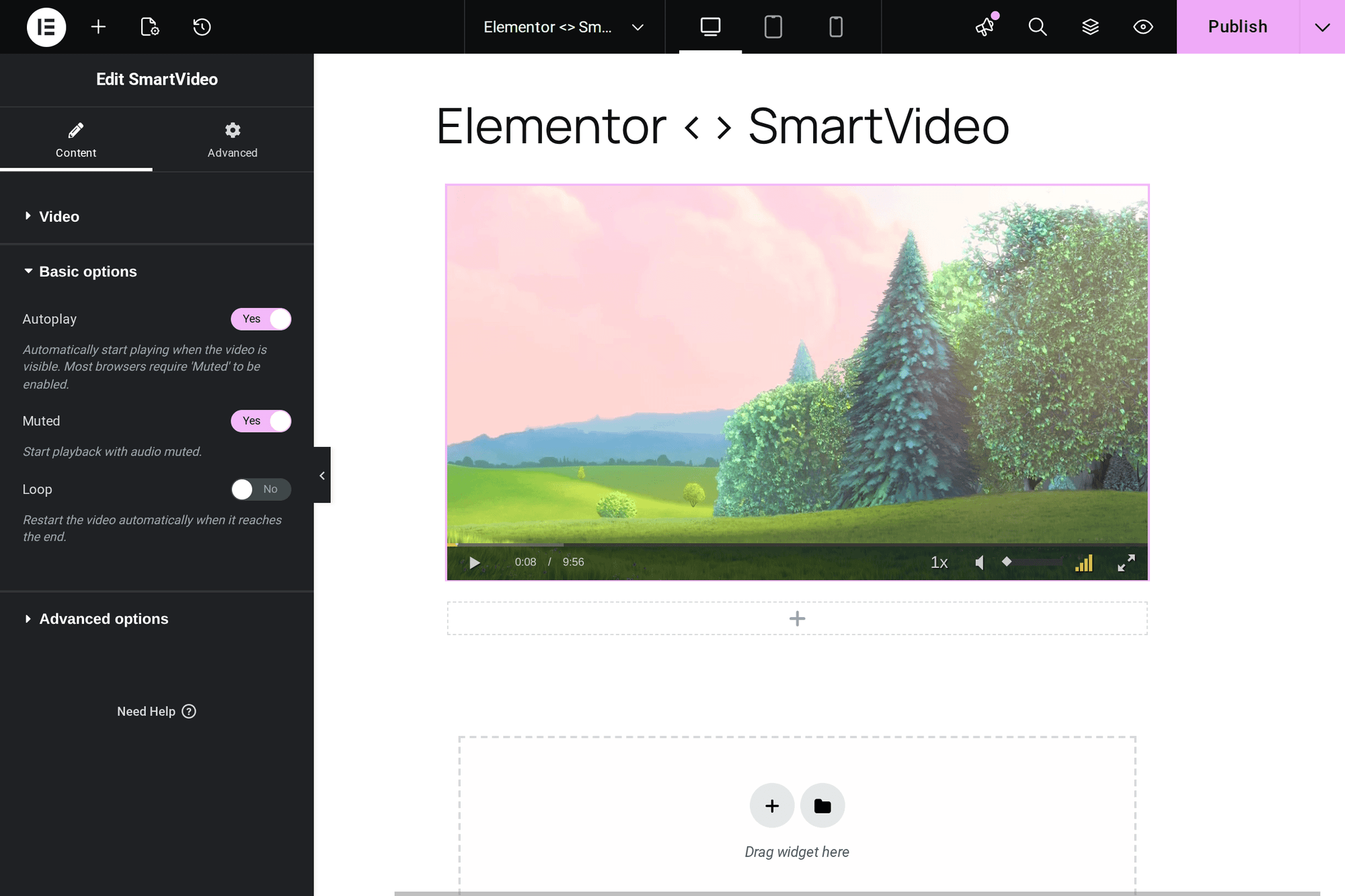
How managed hosting works in WordPress
- Install the provider's WordPress plugin or add its approved site script.
- Upload the video to the video platform, not the WordPress Media Library.
- Insert the provider's WordPress block or shortcode into a post, page, widget, or builder module.
- Set the poster, controls, captions, responsive dimensions, and access rules.
- Test the player on a phone, a desktop, and a connection with browser caching disabled.
SmartVideo provides a WordPress block and shortcode for posts, widgets, and page builders, with CDN-accelerated delivery, adaptive bitrate playback, and lazy loading. Its published comparison reports about half the page weight of a YouTube embed—707 KB versus 1,513 KB, across 17 versus 25 requests. SmartVideo bills by views and storage rather than bandwidth, with unlimited bandwidth on all plans.
That makes managed hosting a strong fit when a business needs an ad-free player, no competitor recommendations, consistent branding, or a call to action near the video. It is not automatically the right choice for a casual public clip: start with URL paste if you do not need those controls.
Widgets, page builders, and reusable placements
Widgets and page builders change placement, not hosting. A sidebar, footer, template part, or builder module can contain a provider block, iframe, native Video block, or managed-host shortcode.
Add video to a sidebar or footer
In a classic theme, open Appearance → Widgets, choose the sidebar or footer, and add a Video, Embed, Custom HTML, provider block, or managed-host shortcode. In a block theme, open the relevant template part in the Site Editor. Keep global players intentional: repeating one across every page adds requests and competes with primary content.
For a deeper placement guide, see how to add WordPress video widgets without slowing your site. The same sizing rule applies: reserve the player's aspect-ratio space and check that it does not force a narrow sidebar to overflow.
Add video with Elementor, Divi, or Beaver Builder
Use the builder's Video widget or a managed host's native module when available. Elementor, Divi, and Beaver Builder accept common external sources, but a builder cannot fix a provider that blocks embedding or remove third-party scripts from an iframe.
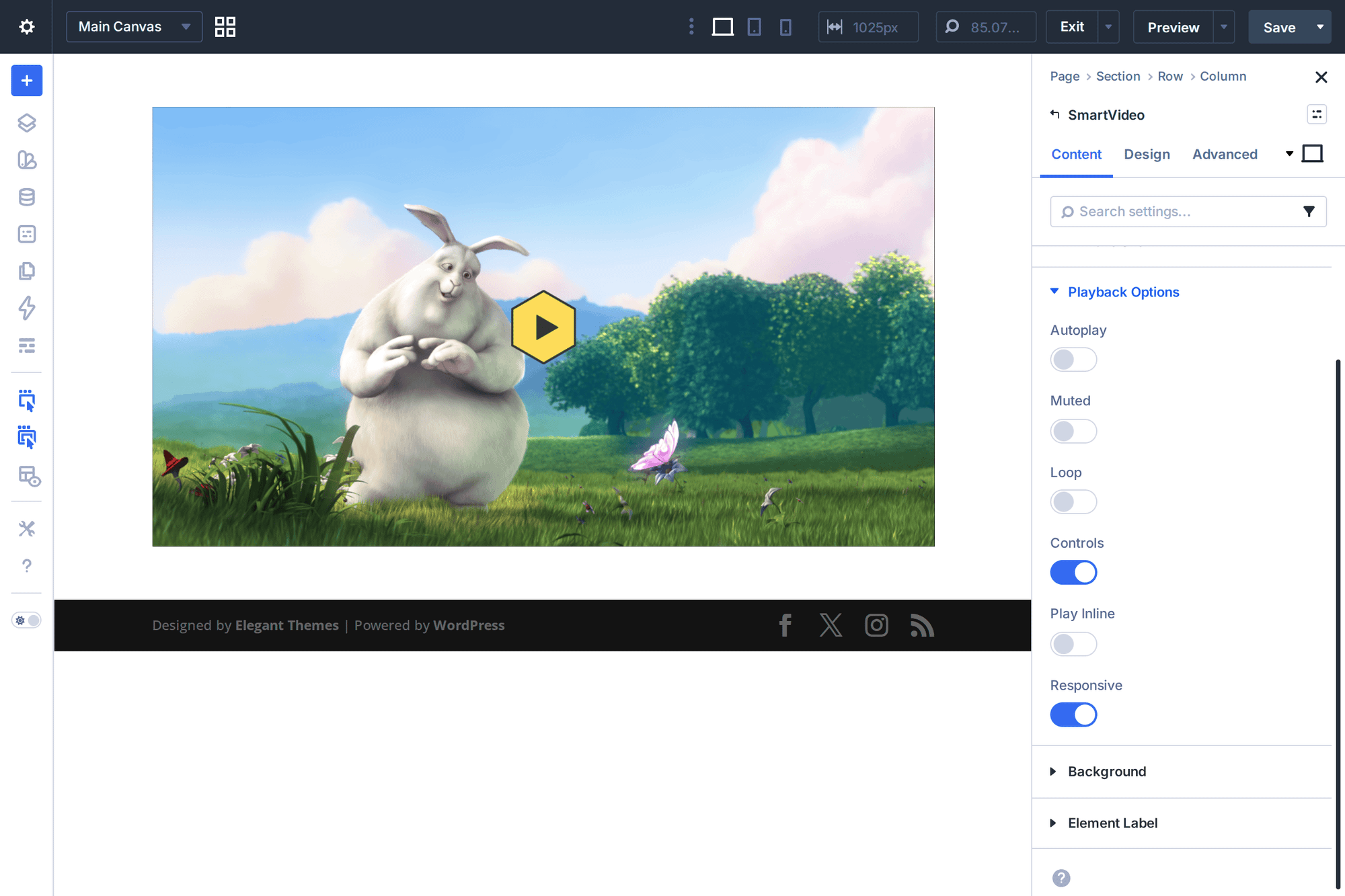
Confirm whether the module accepts a watch URL, direct MP4 URL, iframe, or provider ID. Check the generated page on mobile; if the builder adds a fixed height, change its aspect-ratio or responsive height setting instead of adding CSS to the iframe.
Performance, accessibility, and privacy settings
Video can improve a page while making it harder to load or use. In July 2025, 48% of mobile websites and 56% of desktop websites met the “good” Core Web Vitals threshold (HTTP Archive Web Almanac, 2025). Treat that as context, not proof that one embed caused a score.
Reduce the cost of a video embed
Use a poster image and delay player work until the visitor reaches or activates the video when your player supports it. For a native Video block, review the preload choice: none avoids fetching media before interaction, while metadata can fetch basic information without downloading the entire file. The browser's HTML video reference explains these attributes and their limits.
Reserve space using the video's real aspect ratio, compress the poster image, and avoid autoplay unless the video is muted, short, and useful without sound. Several third-party players on one page multiply scripts, connections, and privacy prompts. If page weight is the real worry, the comparison in why YouTube embeds hurt websites is the next read.
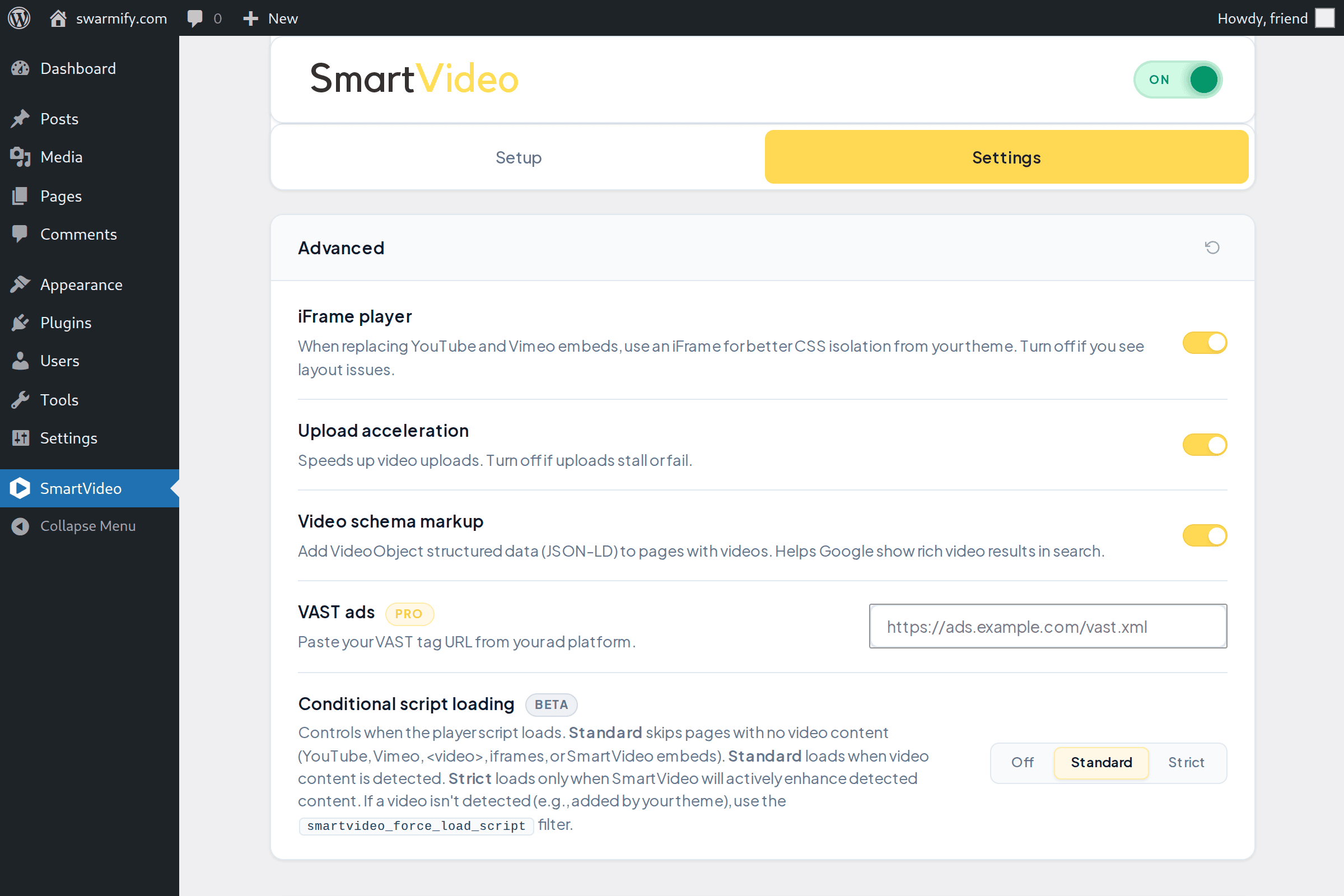
Make the player accessible
Add accurate captions. Provide a transcript or a concise text summary when the video carries information the page depends on. Give the video meaningful surrounding text so a visitor knows what they will learn before pressing Play. Check keyboard operation, visible focus, contrast, volume controls, and whether captions can be enabled without a mouse.
A poster image is more than decoration: it communicates the subject before playback and can prevent a blank rectangle while the player loads. The guide to video captions, transcripts, and WCAG covers the accessibility work that belongs around the embed as well as inside it. After the player works, add the video SEO basics described in the WordPress video SEO guide.
Choose the right privacy level
Public videos are discoverable and easiest to embed. Unlisted videos hide from a channel or search listing but can still be watched by anyone who obtains the URL; an unlisted link is not access control. Private or domain-restricted playback requires the provider's permission model and may need a signed player, login, or approved referrer.
For a careful comparison of two common public platforms, read YouTube versus Vimeo for business. YouTube's privacy settings guide explains the public, unlisted, and private choices. Decide whether your page needs discovery or containment before you copy an embed code.
We test the finished player while logged out and with browser caching disabled because an embed that works for an administrator can fail for a first-time visitor.
Landing pages, courses, and product pages often need a player that stays on-brand and keeps viewers on your site. Get faster, ad-free WordPress video embeds when those requirements matter.
Why is my WordPress video embed not working?
Most failures come from the source URL, provider permissions, editor permissions, or the container around the player. Work through this list in order:
- The URL stays as text: Put the full public URL on its own Paragraph block, without extra words or formatting.
- The provider is unsupported: Use the provider's iframe in Custom HTML or a managed-host block.
- The video is private: Make it public or unlisted, or configure domain-restricted playback.
- The iframe disappears: Check your role, WordPress.com plan, security plugin, and hosting policy.
- The player is cropped: Inspect the builder wrapper, responsive width, and source aspect ratio at a narrow viewport.
- The player is slow: Enable delayed loading, remove duplicate embeds, and compare the page with the player disabled.
- Playback is blocked: Check domain privacy, referrer policy, consent tools, and the browser console.
Which method fits your WordPress site?
Choose URL paste for a public video that only needs to play. Choose a native provider block when you want a defined editor workflow. Choose the Video block for a small MP4 that your host can deliver. Choose Custom HTML when you need documented iframe parameters. Choose managed hosting when playback is part of the business experience rather than a decoration inside a post.
That distinction matters on company websites: 91% of businesses report using video as a marketing tool, and 82% of marketers say it has produced good ROI (Wyzowl, 2026). These self-reported results are context, not a reason to put a player on every page. Use video where it explains a product, supports a decision, teaches a process, or gives a visitor a clear next step.
Compare hosts with the WordPress video hosting guide, then test the rendered player logged out on phone and desktop.
Frequently Asked Questions
How do I add a video to a WordPress page or post?
Can I embed a video in WordPress without a plugin?
How do I auto-embed a YouTube video in WordPress?
Can I embed a private or unlisted video in WordPress?
Does embedding a video slow down a WordPress site?
How do I make an embedded video responsive on mobile?
Should I upload an MP4 to WordPress or embed it from another host?
What should I do when WordPress strips my iframe?
Embed video without giving up control
WordPress makes the basic answer simple: paste a public video URL on its own line. Choose a controlled player for business content when ads, unrelated recommendations, branding, privacy, or delivery performance matter; managed WordPress video hosting keeps those decisions in your hands.