
📋 TL;DR • Install SmartVideo: You can install the plugin from WordPress.org, enter your API key, and the dedicated Elementor widget appears automatically. • Widget method: Drag the SmartVideo widget into any Elementor section, choose your video source (YouTube URL, Media Library, or direct .mp4 link), and publish. • Shortcode method: Paste a SmartVideo shortcode into an Elementor HTML widget for more granular control over player attributes. • Why it matters: Standard YouTube embeds add 1-3 seconds of load time and display competitor ads, which helps neither your Core Web Vitals nor your conversion rate. SmartVideo is a drop-in fix for both.
The short answer: SmartVideo is a WordPress plugin that replaces Elementor’s native video widget with a faster, ad-free player. You can drop it into any Elementor layout as a dedicated widget or paste a shortcode into an HTML block. Either method works in under two minutes.
Elementor powers over 22 million sites and 13% of the web as of 2026, making it the most widely used WordPress page builder by a wide margin (Elementor, 2026). Its drag-and-drop interface makes building professional-looking pages straightforward, even if you’ve never touched a line of code.
But there’s a catch when it comes to video. Elementor’s built-in options - the native Video widget with YouTube embeds or the WordPress Media Library - each come with significant trade-offs. YouTube injects ads and “related videos” that pull viewers away from your site. Self-hosted videos from the Media Library lack adaptive streaming, which means **buffering on slower connections and a hit to your **Core Web Vitals.
In our testing, a single standard YouTube embed adds 1-3 seconds to page load time on a typical Elementor landing page (full breakdown here).
This is a bigger deal than most Elementor sites realize. WordPress powers roughly 43.5% of all websites, and a substantial share of those WordPress sites run Elementor, so the quality bar for WordPress video on Elementor page builders shapes a noticeable slice of the web (W3Techs, 2025).
This guide walks you through two methods for adding SmartVideo to your Elementor site: the dedicated widget (the fastest path for most pages) and the shortcode approach (the most flexible option when the widget doesn’t fit). It also covers customization options, lazy loading behavior, and fixes for the common issues that trip people up on first install.
What do you need before you start?
Before you set up SmartVideo in Elementor, make sure you have these in place:
| Requirement | Details |
|---|---|
| WordPress site | Version 5.6 or later (6.x recommended) |
| Elementor | Free or Pro - SmartVideo works with both |
| SmartVideo plugin | Install from WordPress.org or upload via Plugins → Add New |
| SmartVideo API key | Free 14-day trial at swarmify.com/pricing - a card is required to start, and you won't be charged until day 15 |
| A video to embed | YouTube URL, .mp4 file in your Media Library, or a direct link to an .mp4 hosted elsewhere |
💡 Quick tip: If you’re on Elementor Pro, SmartVideo still works alongside Pro’s video features. You don’t need to choose between them - use the SmartVideo widget where performance matters most (landing pages, above-the-fold content) and Elementor’s native widget for less critical placements.
How do you install and activate SmartVideo?
If you already have SmartVideo installed and configured, skip ahead to Method 1. Otherwise, here’s the quick setup:
Step 1: Install the plugin
In your WordPress dashboard, go to Plugins → Add New and search for “SmartVideo.” Click Install Now, then Activate.
 SmartVideo in the WordPress plugin search results, ready to activate.
Step 2: Enter your API key
After activation, go to Settings → SmartVideo in your WordPress sidebar. Paste your Swarmify CDN key into the API key field and click Save Changes. You can find your CDN key in the SmartVideo dashboard after starting your free 14-day trial - a card is required to start it, and you won’t be charged until day 15.
Step 3: Customize the player (optional)
Before you start adding videos to your pages, take a minute to set your player defaults. In Settings → SmartVideo → Player Appearance, you can pick an accent color for the play button and choose the button shape (circle, rounded square, or pill). These defaults apply to every SmartVideo player on your site, so you only configure them once.
 The Player Appearance panel lets you set a site-wide accent color and play button shape.
How do you embed video using the SmartVideo widget in Elementor?
The widget method is the simplest approach and the one we recommend for most users.
Once SmartVideo is installed, a dedicated SmartVideo widget appears in Elementor’s widget panel. It works just like any other Elementor widget - drag, drop, configure.
Step 1: Open the Elementor editor
Navigate to the page you want to edit and click Edit with Elementor. If you’re building a new page, create one first and then launch the Elementor editor.
Step 2: Find the SmartVideo widget
In the Elementor sidebar, search for “SmartVideo” in the widget search bar. You’ll see the SmartVideo widget listed under the General or WordPress category. If you don’t see it, make sure the SmartVideo plugin is activated and you’ve entered your CDN key (see the installation section above).
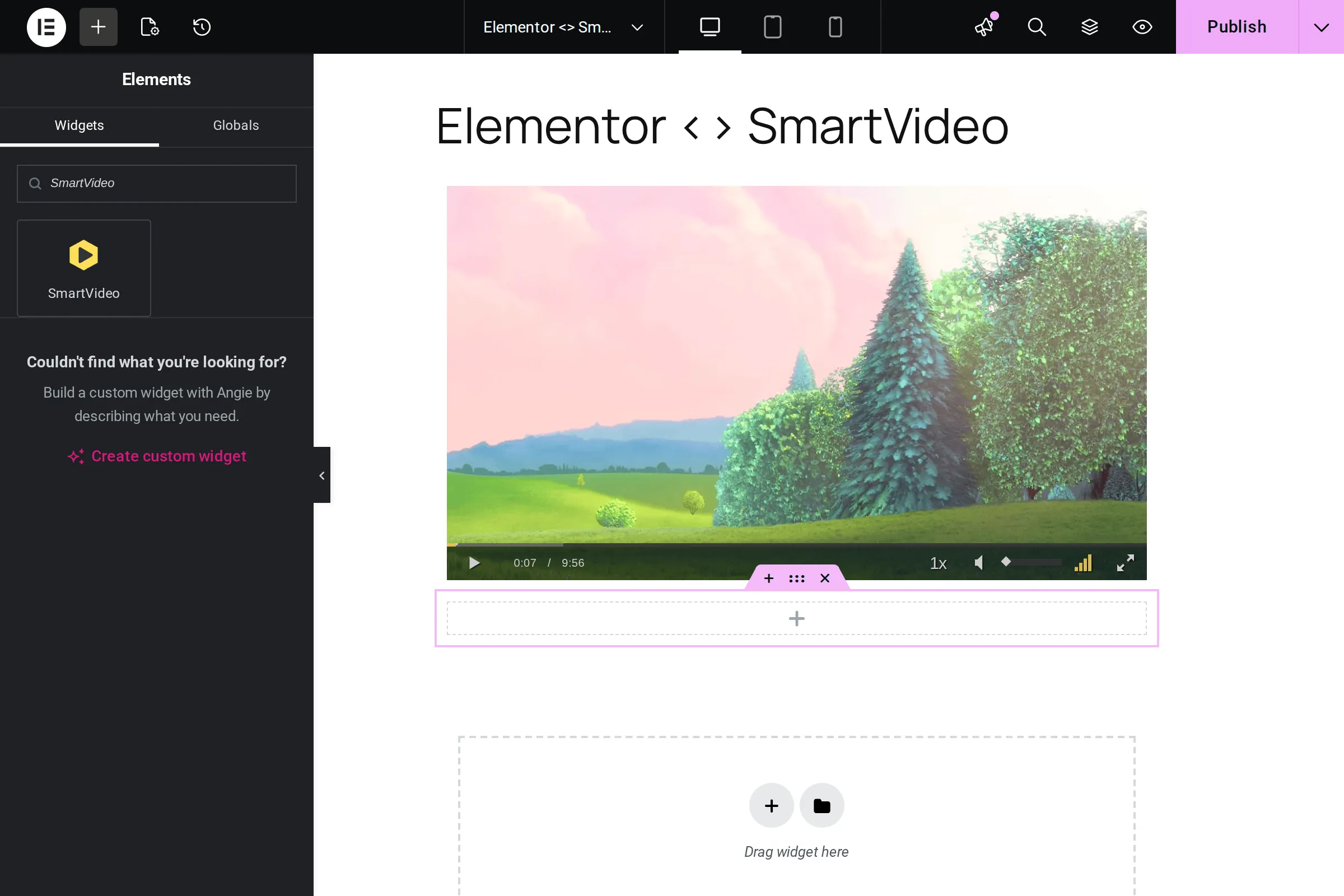 Searching “SmartVideo” in the Elementor widget panel surfaces the dedicated widget.
Step 3: Drag the widget into your layout
Drag the SmartVideo widget into the section where you want your video to appear. Elementor will show you the drop zone - place it in any column, full-width section, or even inside a nested container.
Step 4: Choose your video source
With the SmartVideo widget selected, you’ll see the video configuration panel on the left side. You have three source options:
- YouTube URL: Paste a standard YouTube video URL. SmartVideo will automatically pull the video, strip out ads and related video suggestions, and deliver it through its CDN.
- WordPress Media Library: Click Select Video to choose a video file you’ve already uploaded. SmartVideo will handle encoding and delivery - no more worrying about your server’s bandwidth or adaptive streaming.
- External URL: Paste a direct link to an .mp4 file hosted on Amazon S3, Google Cloud, Dropbox, or any other service. SmartVideo downloads, encodes, stores, and delivers it from its global network.
 The SmartVideo widget settings panel in Elementor, with autoplay, mute, and loop controls plus a live preview.
Step 5: Preview and publish
Click the eye icon in the Elementor bottom bar to preview your page. The video should appear with the clean SmartVideo player - no YouTube branding, no ads, no “related videos” overlay. When you’re happy with the placement, click Publish or Update.
💡 From our experience: The widget method is noticeably faster than manually coding embeds. We’ve timed it - going from “open editor” to “video live on page” takes about 90 seconds with the SmartVideo widget, versus 3-5 minutes when dealing with shortcodes or raw HTML.
How do you embed SmartVideo using a shortcode?
The shortcode method is for cases where you need finer control than the widget panel offers.
Use it if you are working inside an Elementor popup, a template that doesn’t play nicely with widgets, or you simply prefer typing exact attributes instead of clicking through a visual interface.
When to use shortcodes instead of the widget
Shortcodes suit a few specific situations where the widget approach gets in the way. Use them inside Elementor popups or loop templates where widgets can behave unpredictably, when you want to set attributes like width, height, or poster directly in the embed code, when you are embedding videos across multiple builders and want a consistent format, or when you prefer the precision of typing exact parameters over clicking through a visual interface.
Step 1: Build your shortcode
A basic SmartVideo shortcode for a YouTube source looks like this, and the same syntax works for Media Library uploads or external .mp4 URLs hosted anywhere:
[smartvideo src="https://www.youtube.com/watch?v=VIDEO_ID" width="100%" height="auto"][smartvideo src="https://yoursite.com/wp-content/uploads/video.mp4" width="100%" height="auto"]Beyond src, width, and height, you can pass optional attributes to control poster images, autoplay behavior, muted playback, and looping. The table below lists the attributes we reach for most often, the values they accept, and how each one affects the rendered SmartVideo player on the page.
| Attribute | Example Value | What It Does |
|---|---|---|
src |
YouTube URL or .mp4 link | The video source (required) |
width |
100%, 640px | Player width - use 100% for responsive layouts |
height |
auto, 360px | Player height - "auto" maintains aspect ratio |
poster |
Image URL | Custom thumbnail displayed before playback |
autoplay |
true, false | Auto-start playback (must be muted on mobile) |
Step 2: Add an HTML widget in Elementor
In the Elementor editor, search for the “Shortcode” widget (or the “HTML” widget if you prefer raw HTML). Drag it into the section where you want the video.
Step 3: Paste the shortcode
Click on the Shortcode widget you just placed, and paste your SmartVideo shortcode into the text field. Elementor will render a placeholder in the editor - the actual video player will appear on the live page.
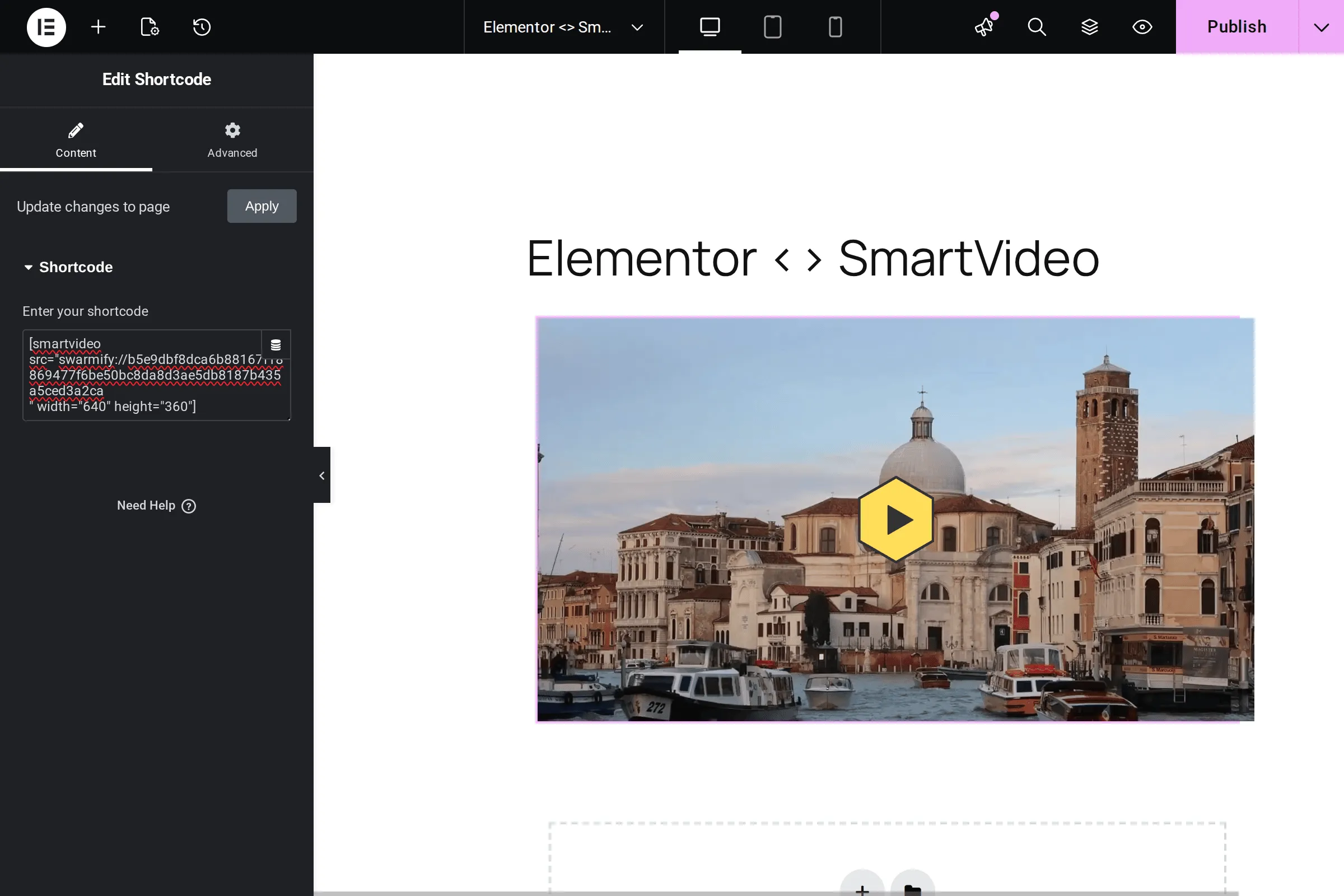 A SmartVideo shortcode pasted into Elementor’s Shortcode widget, rendered live in the editor.
Step 4: Preview and adjust
Use Elementor’s preview mode to check the video on the live page. Adjust the width and height attributes in the shortcode or use Elementor’s spacing and margin controls on the widget wrapper to fine-tune the layout.
Which player settings are worth customizing?
Once your video is in place, SmartVideo gives you several options to fine-tune the viewing experience. These settings live in the SmartVideo plugin settings (Settings → SmartVideo in WordPress) and apply globally, though some can be overridden per-embed.
Player appearance
SmartVideo’s player is intentionally minimal - no logos, no ads, no branding overlays, and no watermarks on any of the playback controls. The player chrome inherits your site’s look automatically, which keeps your Elementor design system consistent edge to edge. If you’re used to the YouTube player taking visual control of your page, this is a noticeable difference.
This distinction has real business consequences. A recent Wyzowl survey found that 93% of video marketers see video as an important part of their overall strategy and 91% of businesses now use video as a marketing tool, which means the branded player on your Elementor page is fighting for attention against every other brand the viewer has seen that week (Wyzowl State of Video Marketing, 2025).
Compare the experience: a standard YouTube embed on an Elementor page comes with the YouTube logo, a “Watch on YouTube” link, and related videos that promote competitor content when the video ends. SmartVideo strips all of that out. Your visitors stay focused on your content.
Responsive sizing
Both the widget and shortcode methods produce fully responsive video players by default. Set the width to 100% and SmartVideo will fill the available column width while maintaining the correct aspect ratio.
This matters especially in Elementor, where you might have multi-column layouts. A video in a 50% column will scale correctly, and it adapts on mobile when Elementor stacks the columns vertically. In our testing, no extra CSS is needed - the responsive behavior works out of the box with Elementor’s default breakpoints.
Lazy loading for faster pages
One of the biggest advantages of SmartVideo over standard embeds is **automatic **lazy loading. Instead of loading the entire video player and its resources when the page loads, SmartVideo waits until the viewer scrolls near the video before initializing the player.
Why this matters: Google’s Core Web Vitals thresholds rate a page as having “good” Largest Contentful Paint only when LCP stays under 2.5 seconds, and a single eager-loaded video iframe can push that number past 4 seconds, which Google classifies as “poor” (web.dev LCP guide, 2025). Lazy loading pulls the eager iframe out of the critical rendering path entirely.
This is significant for Elementor sites. If you have a video below the fold - say in a testimonial section or a “How It Works” block - lazy loading means that video won’t drag down your initial page load time. We’ve measured Largest Contentful Paint** improvements of 30-50%** on Elementor pages after switching from standard YouTube embeds to SmartVideo with lazy loading enabled.
The broader context is striking: the HTTP Archive Web Almanac has tracked a steady rise in median video bytes per page for years, with the top 10% of pages shipping multiple megabytes of video assets on initial load alone (HTTP Archive Web Almanac, 2022). For an Elementor site that cares about mobile conversion, lazy loading is the difference between shipping those bytes up front and shipping them only when a viewer actually scrolls into view.
Multi-builder compatibility
If you’re running a mixed WordPress stack - some pages built with Elementor, others with Beaver Builder, Divi, or the native Gutenberg editor - SmartVideo installs once and works across all of them. The same plugin exposes a dedicated widget or module inside each builder, so your team can pick whichever editor fits the page without re-learning the video workflow.
That also means the player appearance settings you configured earlier (accent color, button shape, lazy loading) apply globally. A video embedded in an Elementor hero section uses the same player as a video dropped into a Gutenberg post body, so the experience stays consistent no matter how the page was built. For a parallel walkthrough on another builder, see our Beaver Builder guide.
What goes wrong most often and how do you fix it?
Most setups go smoothly, but a handful of gotchas come up often enough that it’s worth listing them. Here are the issues we see most and how to fix them.
SmartVideo widget not appearing in Elementor
You search for “SmartVideo” in the Elementor widget panel and nothing shows up, even though the plugin is installed. Four things cause this in roughly that order of frequency, and all of them take under a minute to verify.
- Make sure the SmartVideo plugin is activated (Plugins → Installed Plugins - look for the green “Active” status)
- Check that you’ve entered a valid CDN key in Settings → SmartVideo
- Clear your browser cache and reload the Elementor editor - Elementor caches the widget list
- If you’re using Elementor 3.x or later, check Elementor → Settings → Advanced and make sure “Load Unfiltered Files” isn’t blocking third-party widgets
Video not playing on mobile
Video works on desktop but shows a blank space or frozen thumbnail on phones. This is almost always one of three issues, and the first one trips up about 80% of the Elementor users we help with mobile video problems.
- If you’re using autoplay, the video must be muted to autoplay on iOS and Android - this is a browser policy introduced in Chrome 66 in 2018, not a SmartVideo limitation
- Check that your Elementor section doesn’t have “Hide on Mobile” enabled in the responsive settings (Advanced → Responsive)
- Verify the video URL is accessible - some corporate firewalls block video CDN domains
Video loads slowly or buffers
The SmartVideo player appears but the video takes several seconds to start, or it buffers mid-playback. Four things typically cause this: fresh uploads still encoding, non-standard source formats, rate-limited external URLs, or unrelated page-weight problems on the Elementor page itself.
- If you uploaded a very large file (over 500MB), allow time for SmartVideo to process and encode the video - transcoding can take a few minutes for long or high-resolution files
- Check that your source file is a standard format (**.mp4 with **H.264 encoding is ideal)
- If using an external URL, make sure the source server isn’t rate-limiting downloads
- Run a PageSpeed Insights test to rule out other page weight issues unrelated to the video
Video appears but controls are missing
The video plays, but you can’t see play/pause, volume, or fullscreen buttons. This is almost always a CSS conflict from either the active theme or another plugin targeting the HTML5 video element. Inspect the player with your browser’s developer tools to confirm the buttons are in the DOM but hidden.
- Check if your theme or another plugin is overriding video player styles with aggressive CSS - inspect the player element in your browser’s developer tools
- Try disabling other video-related plugins temporarily to rule out CSS conflicts
- Ensure your Elementor theme isn’t applying a global
overflow: hiddento the section containing the video
Elementor editor is slow after adding video
The Elementor editor becomes sluggish after placing a SmartVideo widget. This happens because the editor preview loads the video inline as you edit, which burns memory and CPU on every auto-save. The fix is to keep the editor in a lower-overhead preview mode while you build the page.
- Switch to Elementor’s wireframe mode (the panel icon in the bottom bar) to reduce editor resource usage - the video still renders on the front end, just not inside the editor
- Limit the number of video widgets on a single page - if you need a video gallery or hosting page, consider using a separate template section that loads dynamically
⚡ Ready for faster, cleaner video on your Elementor site? SmartVideo hosts your video in a clean, accelerated player that improves your Core Web Vitals instead of hurting them the way a YouTube embed does. It works with Elementor Free and Pro. See how SmartVideo works with WordPress →
How do I get the most out of SmartVideo in Elementor?
After working with Elementor and SmartVideo for years, here are the patterns that consistently produce strong results in our experience.
A quick piece of context before the checklist: mobile is where most of this now lives. Over 60% of global web traffic comes from mobile devices (Statista, 2025), and video is heavily weighted toward that same traffic, so prioritizing mobile playback is not optional for serious Elementor sites.
- Put your most important video above the fold. If you have a product demo or explainer video, place it in the hero section or the first visible section. SmartVideo’s lazy loading is smart enough to load above-the-fold videos immediately while deferring everything below.
- Use custom thumbnails. A well-designed poster image gets more clicks than a random frame from the video. Upload a custom thumbnail through the SmartVideo widget settings or the
postershortcode attribute. - Keep videos under 10 minutes for marketing pages. From analyzing our platform data across millions of video views, we know engagement drops sharply after the 8-minute mark on most business websites - an observation echoed in Wistia’s own engagement research showing sharp dropoffs past the 2-minute mark on short explainers.
- Test with mobile page speed tools. Most of your Elementor traffic is probably mobile. Always check how your video pages perform on a mobile connection, not just desktop.
- Combine with Elementor’s responsive breakpoints. Use Elementor’s responsive visibility settings to show different video sizes or layouts on tablet vs. mobile if needed.
What do people ask most about SmartVideo and Elementor?
A few questions come up repeatedly in support tickets and onboarding sessions. Here are the ones worth bookmarking before you go live.
Does SmartVideo work with Elementor Free or only Elementor Pro?
The plugin works with both the free and premium versions of the page builder. The dedicated video widget appears in the widget panel regardless of which version you have installed. No Pro license is required.
Will SmartVideo slow down my Elementor page?
No. The plugin uses lazy loading by default, which means the video player only loads when a visitor scrolls near it. This is the opposite of standard YouTube embeds, which load multiple scripts and iframes on page load regardless of whether anyone watches the video. Most sites see improved page load times after switching.
Can I use SmartVideo in Elementor popups and templates?
Yes. The shortcode method is the most reliable approach for popups and dynamic templates. Place a Shortcode or HTML widget inside your popup template and paste the shortcode. The video will initialize when the popup opens. The widget method also works in most cases, but shortcodes give more predictable behavior in dynamic content.
What happens to my YouTube videos if I deactivate the plugin?
Your original YouTube embeds are restored exactly as they were. The plugin does not modify your database or permanently alter any embed codes. It applies the conversion at render time, so deactivating it simply stops the conversion and your original embeds display normally.
Why is my Elementor video not playing on iPhone or Android?
Mobile browsers enforce autoplay restrictions. If your video is set to autoplay, it must also be muted - this is a browser-level policy from Chrome and Safari, not a plugin limitation. For click-to-play videos, check that the section containing the video does not have “Hide on Mobile” enabled in the Elementor responsive settings. Also verify the video file format is compatible (MP4 with H.264 codec works on all mobile browsers).
Can I upload video directly to the Elementor editor?
You can upload videos through the WordPress Media Library, which the page builder accesses when you select a self-hosted video source. However, uploading large video files directly to your WordPress installation is not recommended for performance reasons. Self-hosted videos do not benefit from adaptive bitrate streaming or CDN delivery, meaning they will load slowly on mobile connections and can significantly increase your hosting bandwidth costs (Elementor Documentation, 2025).
What video formats work best with the Elementor video widget?
MP4 files encoded with H.264 video and AAC audio provide the widest browser compatibility. WebM with VP9 encoding is an alternative but is not supported by Safari on older iOS versions. For the most reliable playback, keep your source file at 1080p resolution or lower and compress it before uploading. Files over 100MB should be delivered through a video CDN rather than self-hosted to avoid buffering issues on slower connections (WordPress.org Documentation, 2025).
Where do you go from here?
You can keep the existing YouTube URLs or Media Library files you already use in Elementor. SmartVideo sits between the source and the viewer.
The plugin handles encoding, CDN delivery, and a clean player experience, so you do not have to choose between YouTube’s distractions and self-hosting’s performance problems.
If you’re building with Elementor and other page builders too, the same SmartVideo plugin works with Beaver Builder, Brizy, and Divi - one install covers everything.


