
How to Delete Your YouTube Channel: Step-by-Step Guide (2026)
Learn how to permanently delete or hide your YouTube channel in 2026. Covers desktop steps, Brand Accounts, backing up videos, and what happens after deletion.

• Go to YouTube Studio > Settings > Channel > Advanced Settings
• Scroll down to "Remove YouTube Content"
• Select "I want to permanently delete my content"
• Check the confirmation boxes and click "Delete My Content"
• Warning: This action is permanent and cannot be undone.
Some people have multiple channels with similar names and content and after a while, they want to get rid of the duplicate accounts. Often times, users want to delete all their accounts at once. Theoretically, when you think that the content you're posting is no longer of any interest to people or they're no longer relevant. Over the years, YouTube has made its name as a major video platform, but in 2026, many creators are looking for alternatives.
There are two types of YouTube channels: brand accounts and main accounts.
Brand Accounts: These are stand-alone channels that are accessed from your main Google account.
Main Accounts: These are directly linked to your Google account's email address.
| Method | Steps | Reversible? | What Gets Deleted |
|---|---|---|---|
| Main Account Deletion | YouTube Studio → Settings → Channel → Advanced Settings → Remove YouTube Content | No — permanent | All videos, comments, subscriptions, playlists, and channel history |
| Brand Account Deletion | Google Account settings → Delete Brand Account (channel removed separately from Google account) | No — permanent | Channel content and Brand Account; your main Google account is unaffected |
Since Google has streamlined its account services, the process of deleting an account has changed. Both accounts can be deleted by following a few steps from your YouTube account settings or Google account page on a computer.
Deleting a YouTube Channel
Whatever your reason may be, when you've decided to delete your channel, the following simple steps will help you in the process. For a broader look at managing your video presence, see our definitive guide to video marketing.
1. Sign in to your account
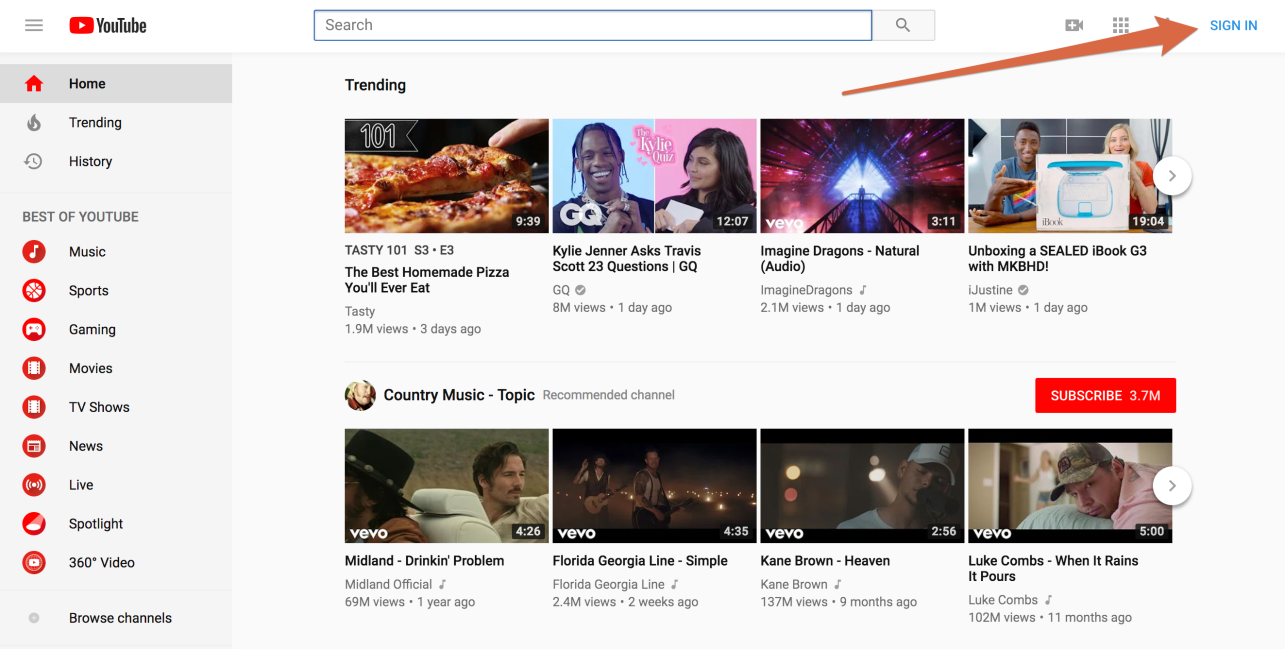
At the top right corner, sign in from the sign-in option. Then open YouTube advanced settings page.
2. Go to YouTube's advanced settings
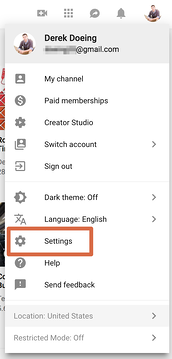
Under Settings, you'll have to select advanced settings.
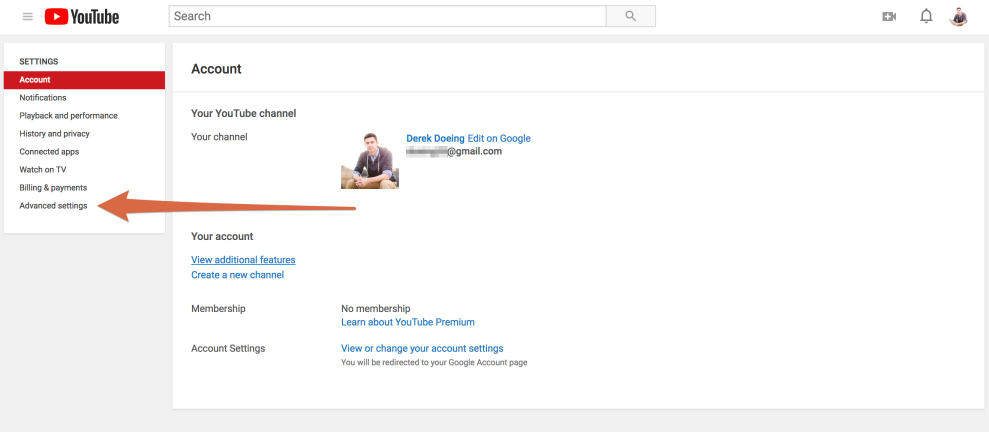
3. Delete YouTube channel
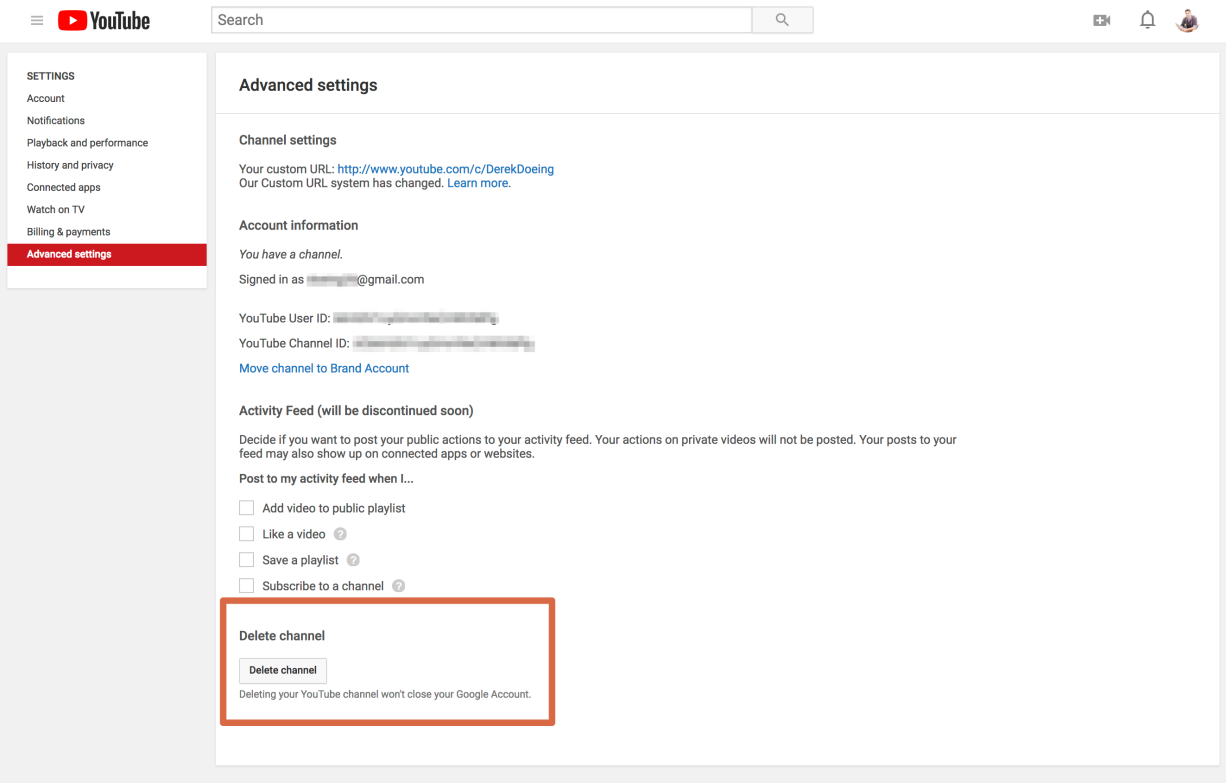
When the advanced settings are open, at the bottom of the window there is an option to delete your YouTube channel. Deleting your YouTube channel won't delete your associated Google account. You will then have to re-verify your login information.
SmartVideo gives you YouTube-quality playback without the ads, branding, or "related videos" stealing your traffic. See how SmartVideo compares to YouTube
4. Permanently delete content
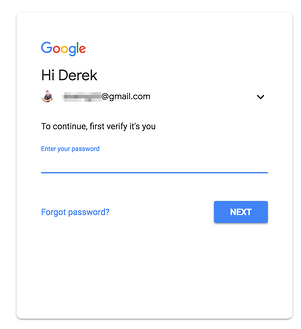
After you've re-verified the account a final screen will appear. There are two drop-down options, one will be to delete your account and the other will be to hide your account.
Hiding your channel means deactivation. When you select this option, your channel, name, all the videos and, subscriptions will be made private until you re-activate your account.
The more final option is the "delete your account" option. This will completely delete your channel information along with the media shared on it. Click this option and a drop-down window will appear.
5. Confirm you want to delete your YouTube channel
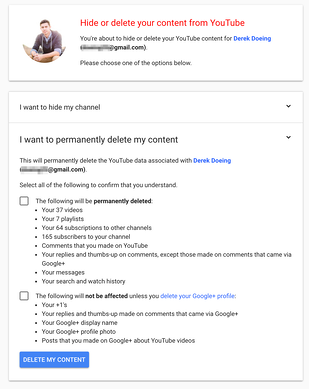
When you're absolutely sure you want to delete your channel, check both boxes to confirm your decision. YouTube will tell you whatever you're currently deleting and what will remain.
6. Delete permanently
Once you've checked the boxes click on delete my account to permanently delete your account. This might take some time as all your content will be deleted, step by step. YouTube states content may take time to be fully removed from servers.
Before you delete everything, consider if moving to another platform might be better. Check out our list of 10 best YouTube competitors & alternatives.
Deleting a Brand Account
If you manage a Brand Account, the process is slightly different:
- Enter your channel name when asked on the screen. For the brand channel, you will enter the name in the pop-up window.
- Click the "delete my content" option. It is located in the bottom right corner. By checking this off, your channel is removed from your account. Visit https://www.youtube.com/account in your web browser and sign in if necessary.
- Click the option of view all my channels or create a new channel. Select the channel you want to delete.
- Click on the profile icon and then click settings from the drop-down menu. Select the change or view your account settings option.
- Next, you will need to open your Google accounts page. Visit https://myaccount.google.com/
- Sign in if needed. If you're signed in, scroll down and click the option of Delete your account and services. It can be seen as a link at the bottom of the screen labeled "Account Preferences" on the right side.
- Select delete products on the right side of the screen.
- Enter your password for authentication. Click next.
- Look for the YouTube heading. Scroll down and look in the services section.
- Click on trash located on the right side of the YouTube heading.
- Retype your Google account password when prompted and proceed by selecting "Next".
- Click on "I want to permanently delete my content" heading in the middle of the page.
- Selecting it will expand the box and you need to check "the following will be permanently deleted."
- Click the blue-button saying "Delete my content", another window will pop up once you click here.
- You will need to re-enter your channel name and password in the middle of the screen.
This will delete all your content on the channel and the channel will be deleted afterward as well. This process also might take some time as mentioned for Main Account. Now you've deleted your account but you can still view the content available on YouTube as a free user.
Hide your channel or your channel's content
You can hide content from your YouTube channel and choose to re-enable it later. When you hide content, your channel name, videos, likes, subscriptions, and subscribers will be made private.
All your comments and replies will be permanently deleted. Your account data on other Google properties will not be removed. Be aware that hiding your channel can impact your audience. For more on the downsides of YouTube for business, see our pros and cons of YouTube embeds guide.
- First of all sign in to your YouTube account, you want to delete.
- Go to advanced settings. Click on "account" on the right side of the screen, in the left-hand corner "advanced" option can be seen. Select it.
- At the bottom of the screen, select "Delete channel". You will be redirected to another page where the option of deleting your channel and hide your channel.
- Select the option of "hide my channel" and check the hide content field as well.
- Reconfirm by selecting hide my channel again.
If you want to make your content viewable to others, or if you want to upload, comment, or use playlists, you can re-enable the channel.
Frequently Asked Questions
Does deleting my YouTube channel delete my Google account?
Can I recover a deleted YouTube channel?
How long does it take for a channel to be deleted?
Can I delete a YouTube channel on mobile?
What happens to my subscriptions if I delete my channel?
Can I delete a channel suspended by YouTube?
How do I download my videos before deleting?
Will my comments on other videos be deleted?
By the way - if you're deleting your channel because you're frustrated with ads and distractions, Swarmify SmartVideo offers a cleaner, professional hosting experience. It's designed to keep visitors on your site, not send them away to YouTube.
At Swarmify, our mission is to bring an accelerated, distraction-free video experience to websites of all sizes. Whether you're a website owner, an agency, or you just want to get in on our affiliate program, we have a plan for you!
