
What Is VR Streaming? A Practical 2026 Guide
VR streaming can mean wireless PCVR, public gameplay broadcasts, or immersive 180/360 video delivery. This guide shows where each setup fits.


VR streaming is the delivery of virtual reality content over a network, but the term covers three different jobs: sending a PCVR game from a gaming PC to a headset, broadcasting VR gameplay to flat-screen viewers, and delivering immersive 180° or 360° video to people inside headsets. If you pick the wrong workflow, you end up solving the wrong problem.
• VR streaming has three meanings: local PC-to-headset streaming, public VR gameplay streaming, and immersive 180°/360° video delivery.
• Quest matters most: Meta Quest 3 represented 28.55% of connected Steam VR headsets in February 2026, ahead of Quest 2 and Quest 3S (Valve, 2026).
• Latency and buffering matter in different places: wireless PCVR lives or dies on local network latency, while immersive video lives or dies on fast starts and stable bitrate ladders.
• Hosting choice changes the experience: a generic web player can be fine for standard video, but high-bitrate VR video needs adaptive delivery and a player that does not stall when viewers move their heads.
Which kind of VR streaming do you mean?
Most explainers blur these use cases together. That is where the confusion starts. From working on high-bitrate video delivery, we keep seeing readers use "VR streaming" for three workflows that share almost none of the same bottlenecks.
| If you want to… | What it actually is | Main tools | What matters most |
|---|---|---|---|
| Play PCVR wirelessly on a Quest headset | Local PC-to-headset streaming | Meta Quest Link, Steam Link, Virtual Desktop | Wi-Fi quality, router placement, PC GPU headroom |
| Show your VR gameplay on Twitch, YouTube, Discord, or TikTok | Broadcasting a flat-screen version of VR gameplay | OBS Studio, game mirror window, capture plugins | Encoder settings, aspect ratio, audio routing |
| Let viewers watch immersive headset video on your site | 180° or 360° video delivery | 360 camera workflow, HLS or DASH, VR-capable player | Fast starts, adaptive bitrate, global delivery |
Setup requirements change by use case
Meta's Quest family should be the default assumption in 2026, not older Rift-era gear. Valve's hardware survey put Meta Quest 3 at 28.55% of connected Steam VR headsets in February 2026, ahead of Oculus Quest 2 at 23.15% and Meta Quest 3S at 12.88% (Valve, 2026). IDC also said the XR market grew 44.4% in 2025 while Meta held 72.2% share, which is another reason most practical setup advice should start with Quest workflows (IDC, 2026).

| Use case | Need a PC? | Network priority | Typical output |
|---|---|---|---|
| Wireless PCVR on Quest | Yes | Lowest possible local latency; PC on Ethernet; dedicated 5 GHz or Wi-Fi 6/6E | Interactive gameplay in-headset |
| Public VR gameplay stream | Yes | Stable upload and enough GPU or encoder headroom for OBS | 16:9 live video for flat-screen viewers |
| Immersive 180° or 360° website video | For production, yes; for viewing, not always | Fast CDN delivery and clean adaptive bitrate behavior | High-bitrate 180° or 360° headset playback |
1. Local PC-to-headset streaming
This is the workflow most people mean when they ask how to "stream VR" on a Meta Quest 3. Your gaming PC renders the game, then sends the encoded video feed over your local network to the headset. Meta Quest Link, Steam Link, and Virtual Desktop all solve the same core problem with slightly different trade-offs.
The setup is not complicated, but it is specific. Put the PC on wired Ethernet. Put the headset on a dedicated 5 GHz or Wi-Fi 6/6E connection in the same room. Do not share that access point with half your house if you care about latency. Even a capable router feels bad when the spectrum is crowded.
Basic Quest setup
- Update the headset, GPU driver, and the PCVR app you plan to use.
- Connect the gaming PC by Ethernet to the router or access point.
- Use Meta Quest Link for Meta's native path, or choose Steam Link if your games live in SteamVR.
- Test the connection in the room where you actually play, not next to the router during setup.
- Lower render resolution before blaming the network if frame time is unstable.
Can you stream VR without a PC? Yes, if you mean casting a standalone headset view to a phone, browser, or TV. No, if you mean playing full PCVR titles that depend on desktop GPU rendering. Meta's casting tools help you mirror the headset view, but they do not turn standalone hardware into a gaming PC (Meta, 2026).
2. Broadcasting VR gameplay to YouTube, Twitch, Discord, or TikTok
This is where VR streaming starts looking familiar to regular live streamers. Your audience is not inside a headset. They are watching a flat video feed generated from your VR session, which means you need a standard streaming stack on top of your VR stack.
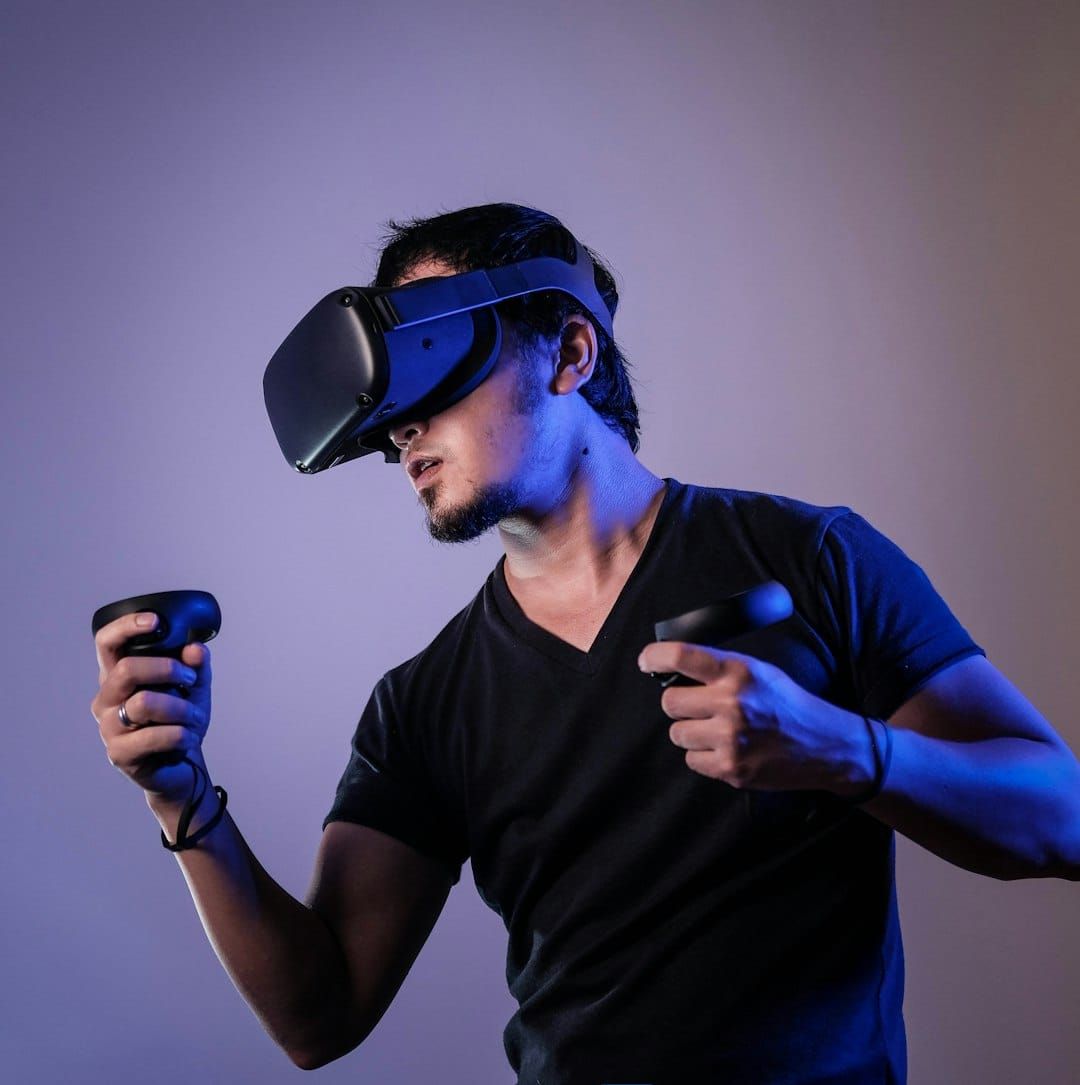
OBS Studio is still the center of that workflow (OBS Project, 2026). In our testing, the least fragile way to capture VR gameplay is still the desktop mirror window from SteamVR, Quest Link, or the game itself. Mixed reality capture can look better, but it adds calibration and failure points.
How to stream VR games with OBS
- Launch the VR game and confirm you can see the mirror window on the desktop.
- Add a Game Capture or Window Capture source in OBS for that mirror window.
- Crop to one eye and fit it to a 16:9 canvas so viewers do not get a square or duplicated-eye image.
- Add desktop audio plus your headset microphone, and check whether your VR app is mirroring audio back to Windows.
- Start with 1080p60 and a bitrate around 6,000 to 8,000 kbps for fast-motion games, then adjust after real test recordings.
YouTube Live requires channel verification and supports encoder-based live streaming, which is the right path for VR gameplay capture (YouTube Help, 2026). If you are streaming real-world 360 footage rather than gameplay, YouTube maintains a separate 360 live streaming spec for that workflow (YouTube Help, 2026).
Discord is better for small-group sessions than public reach. It is useful when friends want to watch your run or test a multiplayer map, but it is not a substitute for a proper public stream pipeline. TikTok is even more format-sensitive. VR creators who go live there often build a vertical OBS scene or route the stream through TikTok's creator tooling rather than pushing a raw 16:9 headset mirror.
3. Immersive 180° and 360° video delivery
This is the part competitors often skip. Immersive VR video is not the same as VR gameplay streaming. You are no longer trying to minimize controller-to-photon latency. You are trying to deliver a large equirectangular or spatial video file fast enough that the viewer never feels the stream fall behind their head movement.
That is why format and delivery matter more here than on a normal embedded video page. High-resolution VR video often needs H.265 or AV1 to keep file sizes under control (AOMedia, 2026). It also benefits from adaptive packaging and a player stack that can serve the right rendition quickly. If you need a refresher on how adaptive delivery works, Swarmify's guides on HLS streaming, DASH vs HLS, and video CDNs go deeper on the delivery side.
For viewers, apps like Skybox and DeoVR remain the most common answers because they handle local playback and high-bitrate headset viewing better than generic web players. If the goal is browsing or discovery, YouTube still matters. If the goal is clean playback quality, dedicated VR players and a better hosting stack matter more than content discovery features. Swarmify already has a separate guide on watching VR videos on PC if that is your next question.
That is where buffering, viewer leakage, and generic embeds start working against you. Compare SmartVideo plans for fast, branded delivery.
Why immersive VR video is harder than normal web video
A 1080p marketing video can survive a mediocre player. A headset video cannot. Viewers are more sensitive to startup delay, bitrate drops, and visible compression because the screen fills their field of view. Resolution also stretches differently in spherical video -- our breakdown of SD vs HD vs 4K explains why higher numbers do not always mean sharper output, especially behind a lens.
That is the practical argument for better delivery. If your business is publishing virtual tours, training scenes, event footage, or other headset-first content, you need delivery infrastructure that can keep fast starts and clean adaptive switching under load. Slow video delivery is already a problem on flat screens -- in a headset it is physically uncomfortable. A branded, ad-free player also matters more on your own site because the goal is to keep visitors on your page, not hand them off to a platform feed.
Common VR streaming problems and fixes
| Problem | Likely cause | Fix |
|---|---|---|
| Blurry public stream | Bitrate too low for rapid head movement | Raise OBS bitrate, record locally first, and crop one-eye output cleanly |
| Bad Quest wireless performance | Router congestion or PC on Wi-Fi | Put the PC on Ethernet and keep the headset on a dedicated nearby access point |
| Wrong aspect ratio on stream | Using uncropped mirror output | Crop to one eye and fit to a 16:9 canvas in OBS |
| No game audio in OBS | Headset audio is not mirrored back to Windows | Enable audio mirroring in the VR app or route game sound to the desktop output device |
| Motion sickness in headset video | Startup delay, buffering, or unstable head-tracked playback | Use higher-quality delivery, lower compression stress, and avoid weak generic embeds |
What should businesses use?
If you are a gamer, the right answer is a local PCVR stack plus OBS when you want to go live. If you are a business publishing immersive video on your own site, the harder problem is delivery, not capture. That is where a service like SmartVideo fits cleanly: branded playback, no ads, no viewer leakage, CDN-accelerated delivery, and a pricing model built around views and storage instead of metered bandwidth surprises.
That distinction matters. You do not buy a website video platform to solve Quest Link latency, and you do not buy a headset streaming app to solve 360° website delivery. Start with the job you are actually trying to do, then pick the toolchain that matches it.