
WordPress Video Widgets: How to Add Video Without Slowing Your Site (2026)
A practical guide to WordPress video widgets: when native blocks are enough, when plugins help, and how to keep embeds fast in sidebars and footers.


The easiest way to add video to a WordPress widget area is to embed a hosted video with a block or shortcode, then lazy-load the player so your sidebar or footer does not drag down the rest of the page.
That matters more than it used to. WordPress still powers 42.4% of all websites and holds 59.7% CMS market share (W3Techs, 2026), while 91% of businesses use video and 82% of marketers say it delivers a good ROI (Wyzowl, 2026). The demand is real. The part that usually goes wrong is implementation.
• For most sites: Use WordPress's native Video or Embed blocks for a single video in content or a widget-ready area.
• For sidebars and footers: Use a shortcode-friendly plugin or block widget and keep the player lazy-loaded.
• For galleries and libraries: A maintained gallery plugin makes sense when you need multiple videos, filtering, or categories.
• For business pages: External hosting is usually the safer default because direct uploads and heavy public embeds can hurt speed, privacy, and conversions.
If you are searching for a "video widget," you are usually trying to solve one of four jobs: add one video to a page, add one video to a sidebar or footer, build a gallery, or keep a business site from turning into a YouTube loading screen. Embedding video in WordPress is easy. Choosing the right method is where people lose time.
Quick decision guide
| Goal | Best method | Why |
|---|---|---|
| One video in a post or page | Native Embed or Video block | Fastest setup with no extra plugin overhead |
| Video in a sidebar or footer | Block widget or shortcode-ready player plugin | Works in widget areas and gives better placement control |
| Multiple videos with categories | Video gallery plugin | Better for libraries, playlists, and searchable collections |
| Private, branded, conversion-focused video | Hosted business player | Avoids ads, related videos, and most traffic leakage |
How to add video to a WordPress widget area
If your goal is a sidebar, footer, or homepage widget area, the cleanest path is usually the same: host the video elsewhere, then place the embed where WordPress expects content blocks. In practice, the site owners who get into trouble are the ones uploading a large MP4 directly to the Media Library first and asking performance questions later.
- Open the area where your theme handles widgets: Appearance → Editor on block themes or Appearance → Widgets on classic themes.
- Add either a native block, a Custom HTML block, or a shortcode block depending on your player.
- Paste the video URL, embed code, or shortcode.
- Set a poster image or thumbnail if your player supports it so the page loads a lightweight preview first.
- Check the page on mobile. Sidebar video often stacks below content, while footer video can become too small if the theme uses narrow columns.
If you are editing the footer specifically, this pairs well with our guide on how to edit the footer in WordPress. The placement mechanics are theme-dependent, but the video decision is not: keep the player light, keep the file off your web server when possible, and avoid auto-playing audio in widget areas.
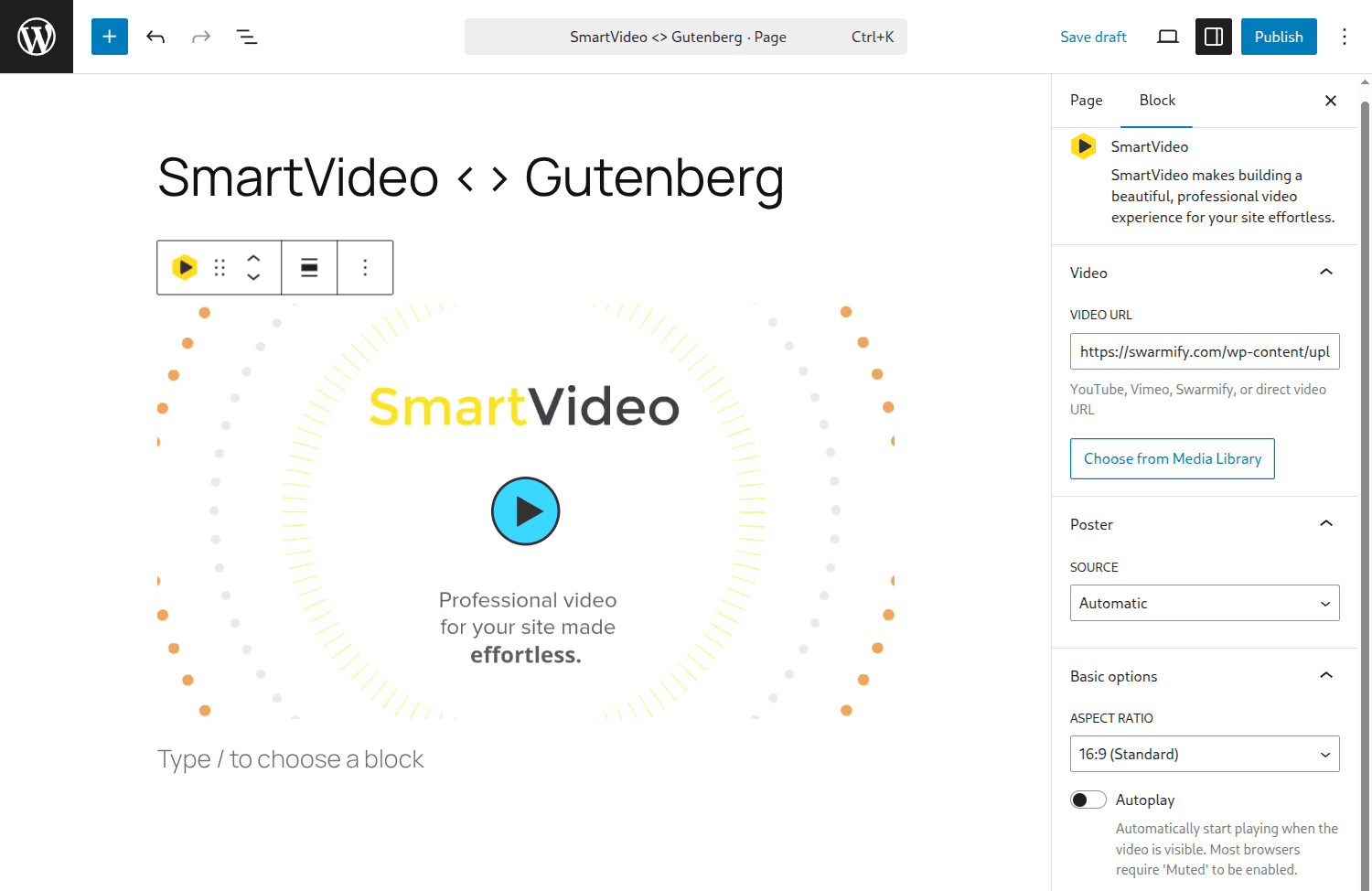
When you do not need a plugin
Not every WordPress video widget needs a plugin. If you are embedding one YouTube, Vimeo, or self-hosted video on a page, WordPress's native blocks are usually enough. The current editor already supports video placement in content and widget-ready areas through the same block system (WordPress.org, 2026).
From working with WordPress sites that only need one explainer video or product demo, this is the simplest setup to maintain. Fewer plugins mean fewer update cycles, fewer conflicts, and less JavaScript competing on the page.
The downside is control. Native blocks are fine for a single embed, but they are limited if you need searchable galleries, chaptered players, advanced analytics, or reusable layouts across multiple pages. That is when plugin categories start to matter.
Which type of video tool should you use?
Native blocks
Use native blocks when you want to place one video quickly. They are well-suited for tutorial posts, landing pages, and basic widget areas where a single player does the job.
They are less useful when your theme or builder needs the same player repeated across templates, or when you want video categories and playlists that update without manual edits.
Video gallery plugins
Use a gallery plugin when you need multiple videos, filters, categories, or playlist-style browsing. This is the right fit for tutorial libraries, course previews, and resource hubs where one embed is not enough.
All-in-One Video Gallery is still a credible option because it shows 20,000+ active installations and was updated 4 weeks ago on WordPress.org (WordPress.org, 2026). That does not make it automatically right for every site, but it clears the first maintenance check that many older plugin roundups skip.
Player plugins for widget areas
Use a player plugin when placement matters more than cataloging. If your real need is "put this one video in the sidebar, footer, or homepage hero," a dedicated player plugin or shortcode-based embed tool is usually more direct than a full gallery system.
Wonder Video Embed remains relevant for this exact niche because it supports multiple platforms and still shows 5,000+ active installations with "video widget" tagging on WordPress.org (WordPress.org, 2026). In practice, that makes it more interesting for widget-area use than a generic YouTube gallery plugin.
Plugin comparison at a glance
The WordPress plugin directory has dozens of video plugins, but most fall into three categories: gallery, player, or hosting-integrated. Here are the ones worth evaluating in 2026, filtered for active maintenance and real install bases.
| Plugin | Type | Active Installs | Free / Paid | Best For |
|---|---|---|---|---|
| Embed Plus for YouTube | Gallery + Player | 100,000+ | Free; Pro available | YouTube galleries, lazy loading with facades |
| Presto Player | Player | 100,000+ | Free; Starter from $99/yr | Chapters, email gates, analytics |
| All-in-One Video Gallery | Gallery | 20,000+ | Free; Pro from $29 | Multi-source video libraries |
| FV Flowplayer | Player | 20,000+ | Free; Pro available | Self-hosted HTML5, ad insertion |
| Jetpack VideoPress | Hosting + Player | 7,000+ | Free; paid storage add-on | WordPress.com-native hosting |
| Wonder Video Embed | Player / Widget | 5,000+ | Free | Widget-area embeds, multi-platform |
Install counts are from WordPress.org as of March 2026. Check the "Last updated" date before installing any plugin — a high install count with no updates in 12+ months is a red flag.
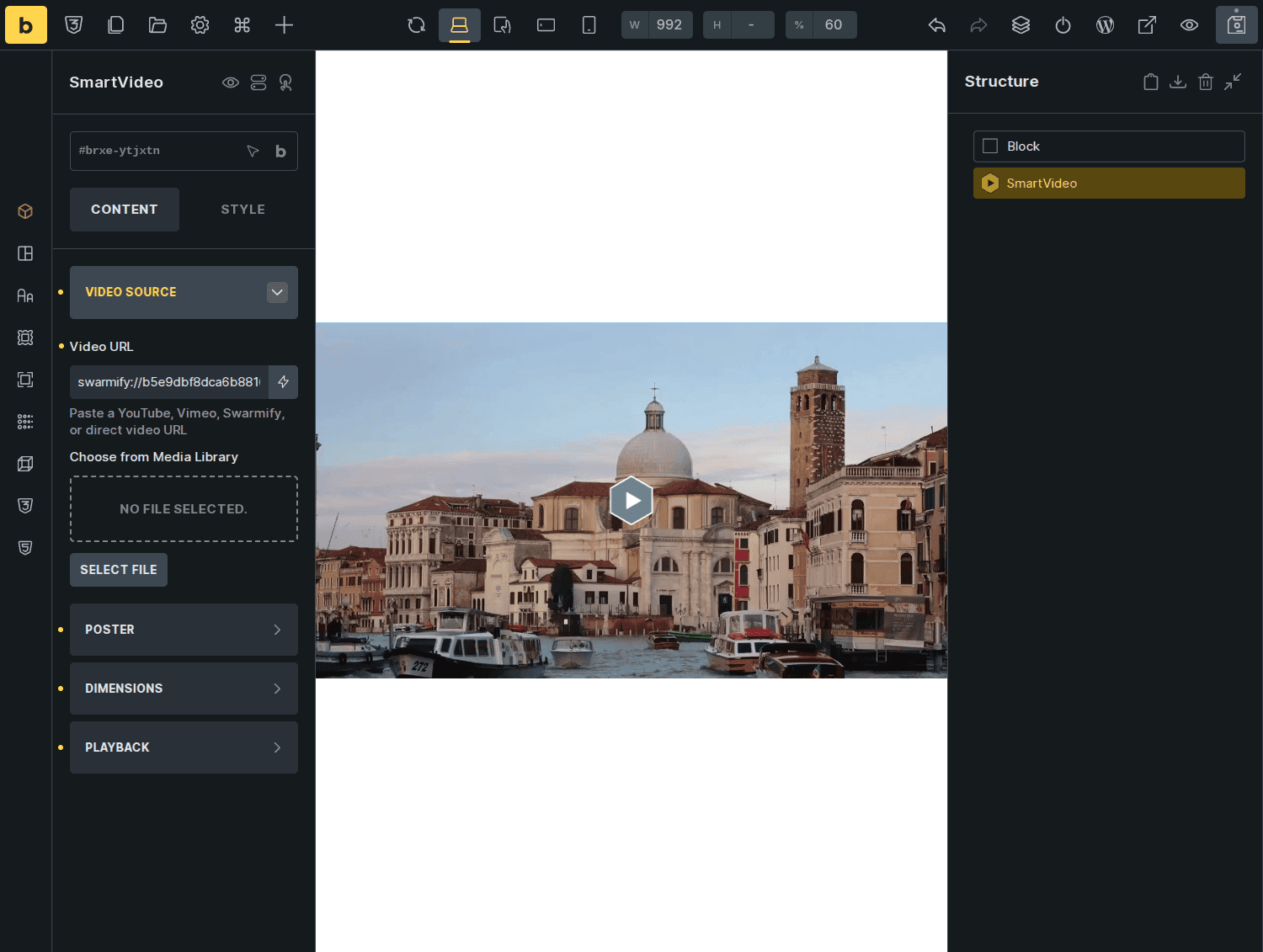
Hosted video for business sites
If the video sits on a sales page, pricing page, course page, or any page where conversion matters, hosted business video is usually the safer choice. You are not just choosing a widget. You are choosing whether the player will show ads, leak viewers to another platform, or ask the browser to load far more than the page needs.
| Platform | Starting Price | Ads / Related Videos | Best For |
|---|---|---|---|
| YouTube | Free | Yes | Maximum reach, zero budget |
| Vimeo | $12/mo (annual) | No | Clean player, team collaboration — but 2 TB/yr bandwidth cap |
| Wistia | Free (3 videos); $79/mo Business | No | Marketing: lead capture, CTAs, heatmaps — but free tier is 3 videos with Wistia branding |
| Bunny Stream | ~$1/mo (pay-per-GB) | No | Developer-friendly, low cost at scale |
| SmartVideo | From $19/mo (free trial) | No | WordPress-native block + shortcode, CDN-accelerated, unlimited bandwidth, no ads ever |
YouTube is the default for reach and discoverability, but it brings ads, related videos, and 1.3 MB of embed weight. Vimeo is clean but bills by bandwidth — the Starter plan caps you at 2 TB/year, and once you hit that ceiling you're pushed to higher tiers or enterprise pricing. Wistia jumps from a 3-video free tier straight to $79/mo with no mid-tier option. Bunny Stream is the budget pick for developers comfortable with API-driven workflows, but has no WordPress plugin. SmartVideo is built specifically for WordPress — a native block and shortcode that works in any widget area, with CDN-accelerated delivery, unlimited bandwidth on every plan, and no ads or branding leakage. Starting at $19/mo, it sits between the free-but-limited options and the enterprise-priced platforms.
If that trade-off is the part you are actually evaluating, our full WordPress video hosting guide goes deeper than a widget-focused article can.
SmartVideo's WordPress block and shortcode work in sidebars, footers, and any builder template — with CDN-accelerated playback, no ads, no related videos, and unlimited bandwidth. See How SmartVideo Works with WordPress →
Performance mistakes that make video widgets feel heavy
The biggest mistake is uploading video directly to WordPress when you do not need to. Your server, backup jobs, Media Library, and page weight all get heavier at once. We have seen sites turn a simple sidebar feature into a hosting problem because a few "small" videos became dozens of large files over time.
A single YouTube embed adds 1.3 to 2.6 MB of resources — JavaScript, CSS, images, and iframe overhead — before the video even plays (web.dev, 2025). Replace that with a facade pattern (a static poster image that loads the real player only on click) and the initial cost drops to roughly 15–20 KB. That difference is noticeable anywhere, but it compounds in widget areas like sidebars and footers because the embed loads on every page of your site, not just one.
If you need the deeper version of that argument, read why you should never upload video directly to WordPress. The short version is that WordPress is excellent at publishing pages, but it is not built to be the most efficient long-term video delivery layer for most business sites.
The second mistake is assuming every public embed behaves the same. Standard YouTube embeds can introduce cookies, recommended content, extra requests, and off-site distractions. That is one reason businesses often look for ways to embed video without ads or to avoid the issues covered in our breakdown of YouTube embed drawbacks.
There is also a user-behavior angle here. Wistia found that viewers watched 82% of a how-to video under one minute, and videos in galleries, blog posts, and landing pages average over 40% engagement (Wistia, 2025). That is a strong argument for short, task-focused embeds in WordPress. It is also a reminder that the player should help people get to the point quickly.
Privacy and cookie compliance
Standard YouTube embeds set third-party cookies — including DoubleClick tracking — the moment the iframe loads, before the visitor presses play. Even YouTube's youtube-nocookie.com domain still writes cookies once playback starts and uses Local Storage for device fingerprinting (Complianz, 2026). Under GDPR and similar privacy laws, embedding a standard YouTube player without consent can create compliance risk for any site with European visitors.
The practical fix overlaps with the performance fix: use a facade or click-to-load pattern. The video iframe only loads after the visitor interacts, which means no third-party cookies until explicit action. Consent management plugins like Complianz and CookieYes can also block embeds until consent is given, but a facade pattern handles both speed and privacy in one step. If your site uses video widgets in sidebars or footers — areas that appear on every page — getting this right avoids multiplying the compliance surface across your entire site.
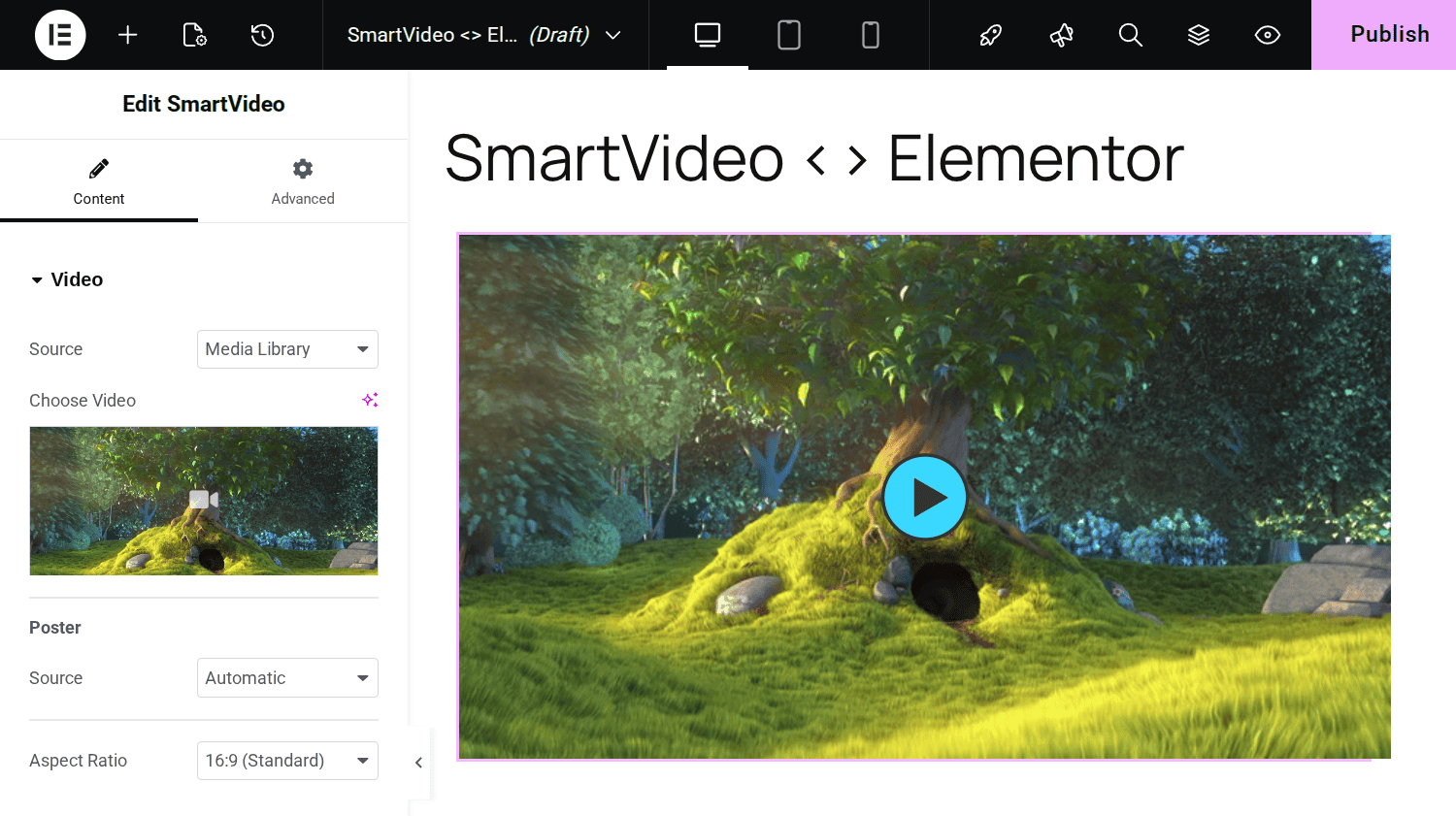
Builder-specific workflows
Page builders change the UI, not the core decision. The question is still whether you need one embed, a gallery, or a hosted player that stays branded and fast. But the steps differ enough between builders that generic advice ("just paste the URL") wastes your time.
Elementor
Drag the Video widget from the widget panel into your section. Under Content, choose the source — YouTube, Vimeo, Self Hosted, or paste a custom embed. Enable Image Overlay to set a click-to-play poster, which doubles as a lightweight facade for performance. For shortcode-based players like SmartVideo, use the Shortcode widget instead — SmartVideo's shortcode works in any Elementor section and loads significantly faster than a standard YouTube embed. If that is your stack, our Elementor video guide covers the builder-specific side without losing sight of page speed.
Divi
Insert a Video module and paste the URL, or switch to a Code module for custom embed markup. Under Design → Sizing, constrain the max-width for sidebar and footer layouts where the default 100% width can look stretched. Divi does not natively lazy-load video modules, so pair it with a facade plugin or a performance plugin that defers iframe loading until scroll.
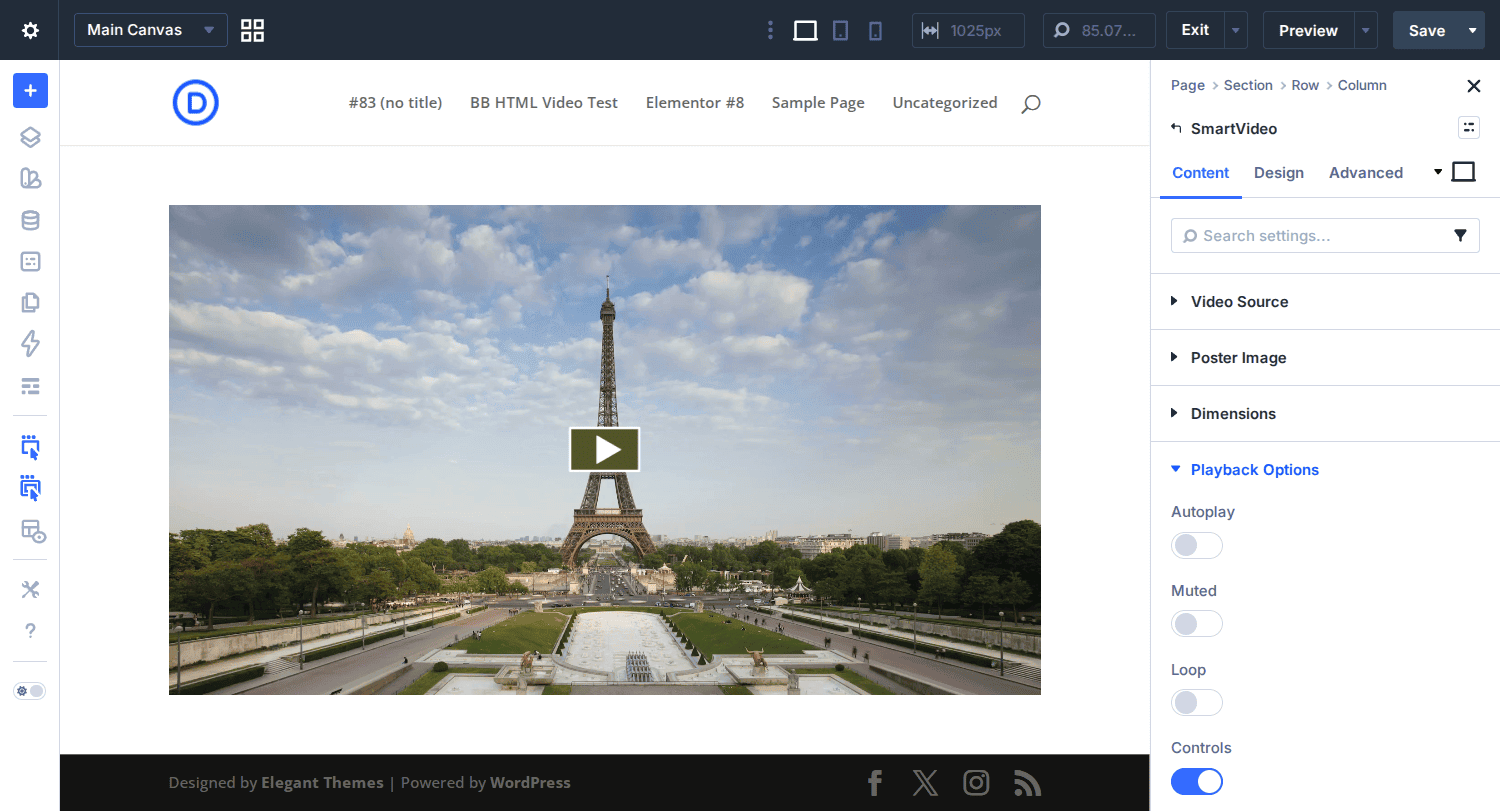
Beaver Builder
Add a Video module from the Media group. Choose Embed and paste the URL. For footer or sidebar placement, save the row as a Saved Row so it appears across pages without duplicating the markup each time. Beaver Builder's Visibility settings also let you hide the video on mobile if the layout breaks at narrow column widths.
A good rule of thumb across all three: builder control does not replace hosting strategy. It just changes where you paste the code.
Final recommendation
If you need one video, start with native blocks. If you need a library, use a maintained gallery plugin. If you need a video in a sidebar, footer, or builder template, use a player that supports widget-ready placement without loading half the internet first. There is no perfect answer here, but there is usually a clear wrong one: direct uploads plus a heavy public embed on the same page.
For business sites, the cleanest setup is usually a lightweight hosted player with WordPress handling layout and content rather than media delivery. SmartVideo handles the video delivery side — CDN-accelerated, ad-free, with a WordPress block that drops into any widget area — so your site stays fast and your visitors stay on your page.
FAQ
How do I add a video to a WordPress sidebar?
Can I add a video to a WordPress widget without a plugin?
What is the best WordPress video plugin?
Should I upload videos directly to WordPress?
How do I embed a YouTube video in WordPress?
Can I embed Vimeo or Wistia videos in a WordPress widget area?
Why is my embedded video slowing down my WordPress site?
How do I add video in Elementor or other WordPress builders?
Closing thought
A WordPress video widget is not really a widget problem anymore. It is a placement, performance, and hosting decision wrapped in a small piece of UI. Get those three parts right and the actual embed is the easy part.